> ## Documentation Index
> Fetch the complete documentation index at: https://help.pawgress.ca/llms.txt
> Use this file to discover all available pages before exploring further.
# Managing Your Pawgress Subscription
> Learn how to manage your Pawgress Pro subscription, including starting your free trial, updating payment methods, and canceling
## Understanding Your Subscription Options
Pawgress offers a Pro Plan subscription that unlocks advanced features designed to help dog trainers manage their business more efficiently. All new users can start with a 90-day free trial to explore all Pro features without any payment required.
**Pro Plan Pricing**
**Annual Billing:** \$192.00/year (save \$48 compared to monthly)
**Monthly Billing:** \$20.00/month
All plans include:
* 90-day free trial
* Advanced scheduling tools
* Unlimited client sessions
* Google Calendar integration
* Zoom integration
* Priority support
## Starting Your 90-Day Free Trial
All new Pawgress accounts automatically start with access to the free version. To unlock Pro features, you'll need to start your free trial:
### Step 1: Access Subscription Settings
From your dashboard, click on your profile icon in the top-right corner, then select "Account Settings" from the dropdown menu. Navigate to the "Subscription" tab.
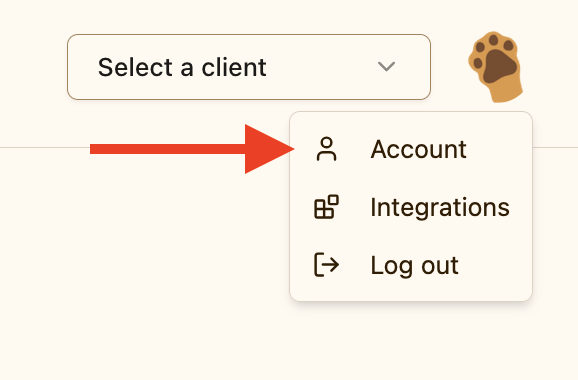 Click on your profile icon to access account settings
### Step 2: View Subscription Options
On the Subscription page, you'll see details about the Pro Plan, including:
* The 90-day free trial offer
* Monthly pricing (\$20.00/month)
* Annual pricing (\$192.00/year, saving you 48 annually)
* A list of features included in the Pro Plan
Click on your profile icon to access account settings
### Step 2: View Subscription Options
On the Subscription page, you'll see details about the Pro Plan, including:
* The 90-day free trial offer
* Monthly pricing (\$20.00/month)
* Annual pricing (\$192.00/year, saving you 48 annually)
* A list of features included in the Pro Plan
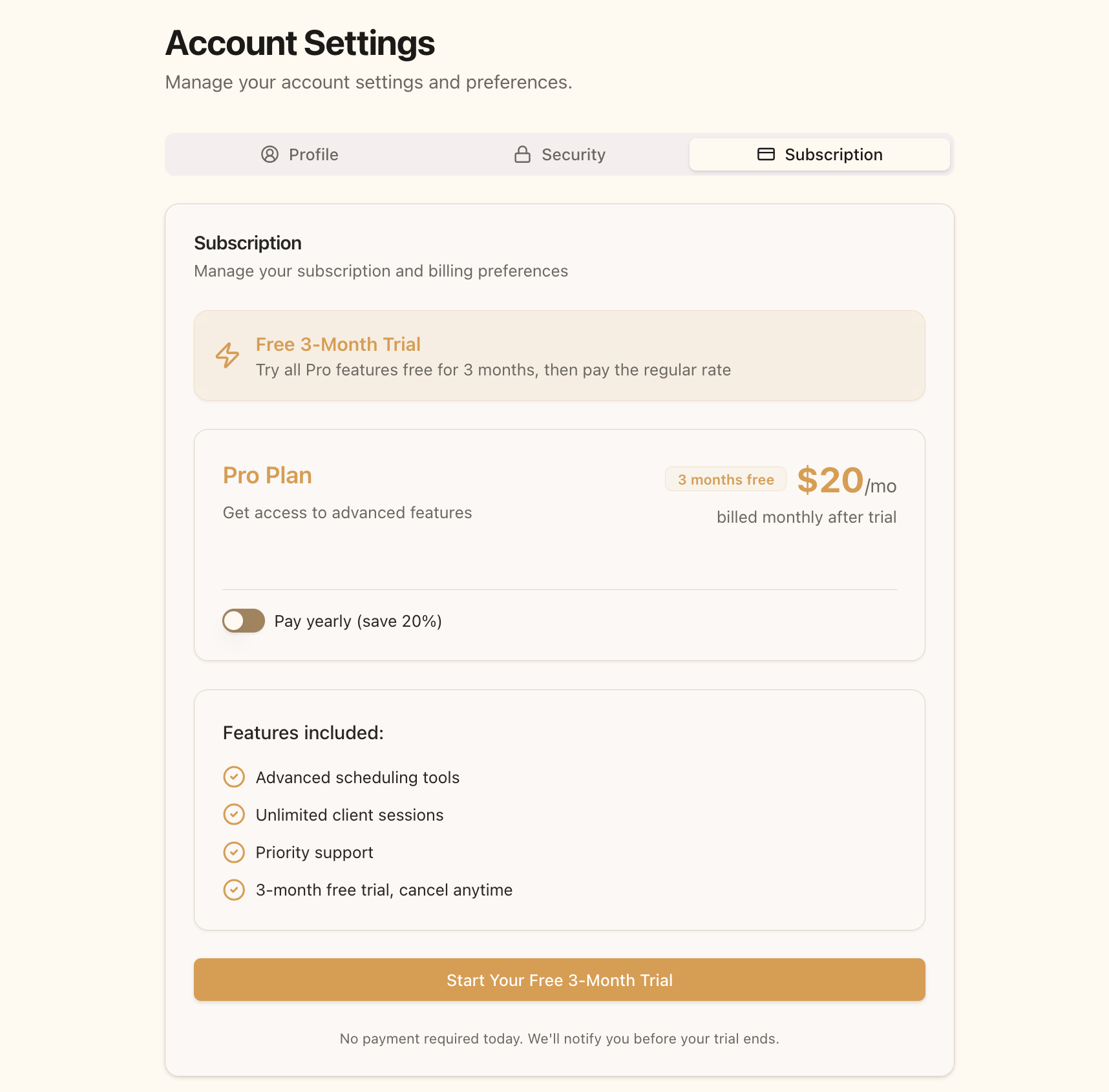 The subscription page shows your Pro Plan options and included features
### Step 3: Choose Billing Frequency
Before starting your trial, decide whether you prefer monthly or annual billing after your trial ends:
1. Toggle the "Pay yearly" switch to ON for annual billing (\$192.00/year, equivalent to \$16.00/month)
2. Leave the toggle OFF for monthly billing (\$20.00/month)
Remember, you won't be charged until after your 90-day free trial ends, and you can change your billing frequency or cancel anytime during the trial.
### Step 4: Start Your Trial
Click the "Start Your Free 3-Month Trial" button to proceed. You'll be redirected to Stripe's secure checkout page.
The subscription page shows your Pro Plan options and included features
### Step 3: Choose Billing Frequency
Before starting your trial, decide whether you prefer monthly or annual billing after your trial ends:
1. Toggle the "Pay yearly" switch to ON for annual billing (\$192.00/year, equivalent to \$16.00/month)
2. Leave the toggle OFF for monthly billing (\$20.00/month)
Remember, you won't be charged until after your 90-day free trial ends, and you can change your billing frequency or cancel anytime during the trial.
### Step 4: Start Your Trial
Click the "Start Your Free 3-Month Trial" button to proceed. You'll be redirected to Stripe's secure checkout page.
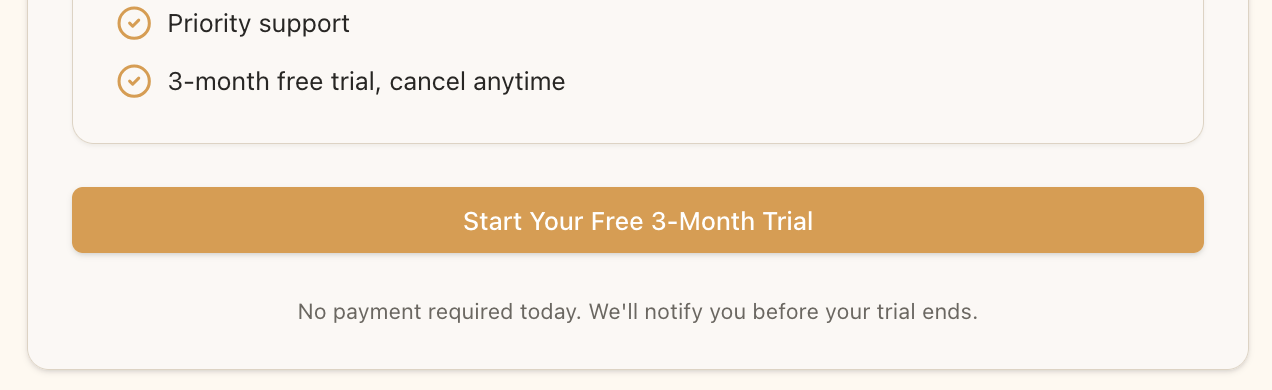 Click the button to start your free trial
### Step 5: Complete Payment Information
On the Stripe checkout page:
1. Enter your email address (should match your Pawgress account)
2. Enter your payment card details
3. Enter your billing address
4. Click "Subscribe" to confirm
**Important:** Your card will not be charged immediately. Stripe securely stores your payment method for when your trial ends. You'll receive a notification before any charges occur.
Click the button to start your free trial
### Step 5: Complete Payment Information
On the Stripe checkout page:
1. Enter your email address (should match your Pawgress account)
2. Enter your payment card details
3. Enter your billing address
4. Click "Subscribe" to confirm
**Important:** Your card will not be charged immediately. Stripe securely stores your payment method for when your trial ends. You'll receive a notification before any charges occur.
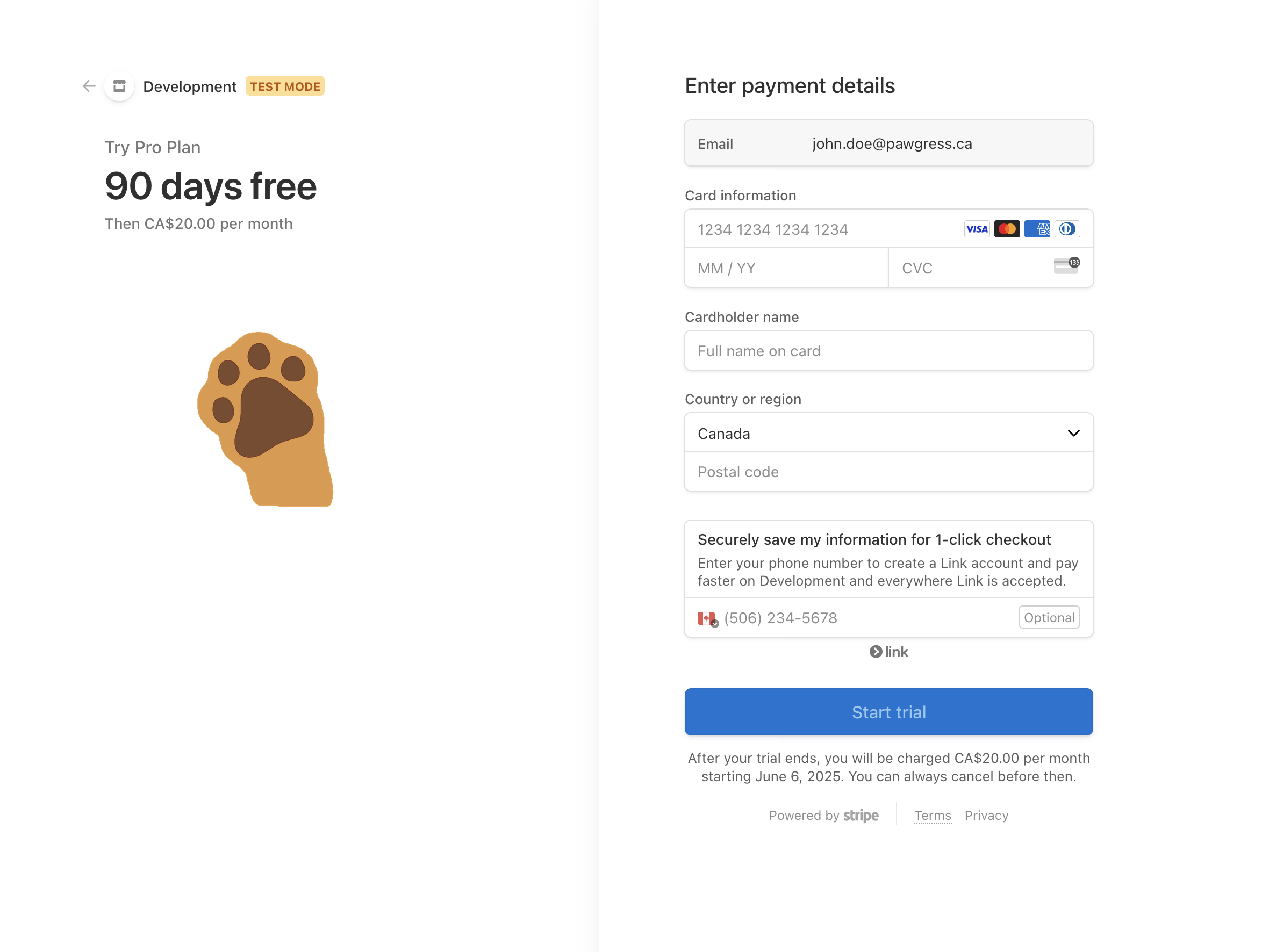 Enter your payment details on the secure Stripe checkout page
### Step 6: Confirmation
After completing the checkout process, you'll be redirected back to Pawgress with your Pro trial active. Your subscription page will now show:
* Your active trial status
* Trial end date
* The subscription plan that will activate after your trial
Enter your payment details on the secure Stripe checkout page
### Step 6: Confirmation
After completing the checkout process, you'll be redirected back to Pawgress with your Pro trial active. Your subscription page will now show:
* Your active trial status
* Trial end date
* The subscription plan that will activate after your trial
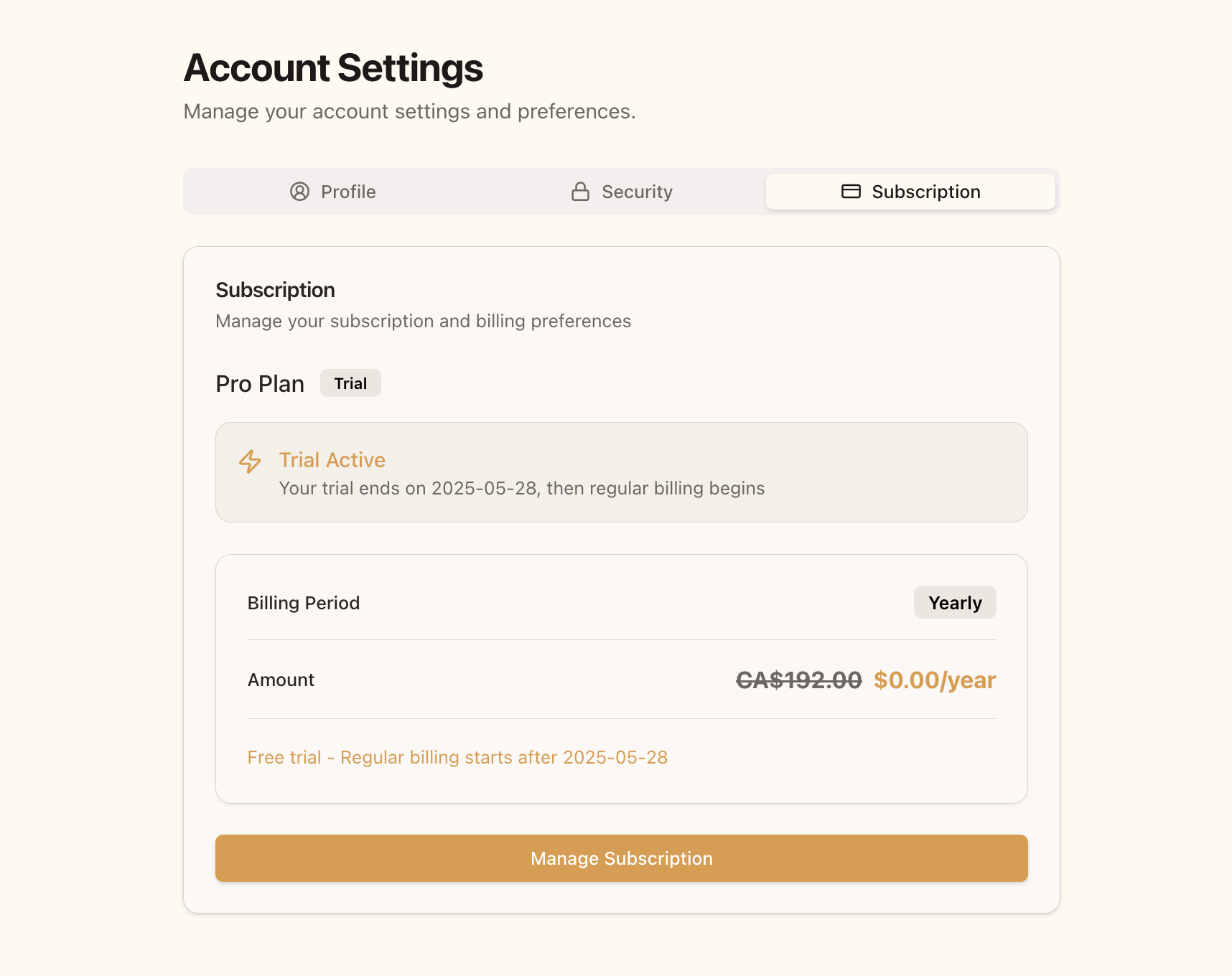 Your subscription page showing the active trial status
## Managing Your Subscription
### Updating Payment Method
To update your payment card or billing information:
1. Go to your Subscription page
2. Click "Manage Subscription"
3. In the Stripe Customer Portal, click "Update payment method"
4. Enter your new card details
5. Confirm the change
Your subscription page showing the active trial status
## Managing Your Subscription
### Updating Payment Method
To update your payment card or billing information:
1. Go to your Subscription page
2. Click "Manage Subscription"
3. In the Stripe Customer Portal, click "Update payment method"
4. Enter your new card details
5. Confirm the change
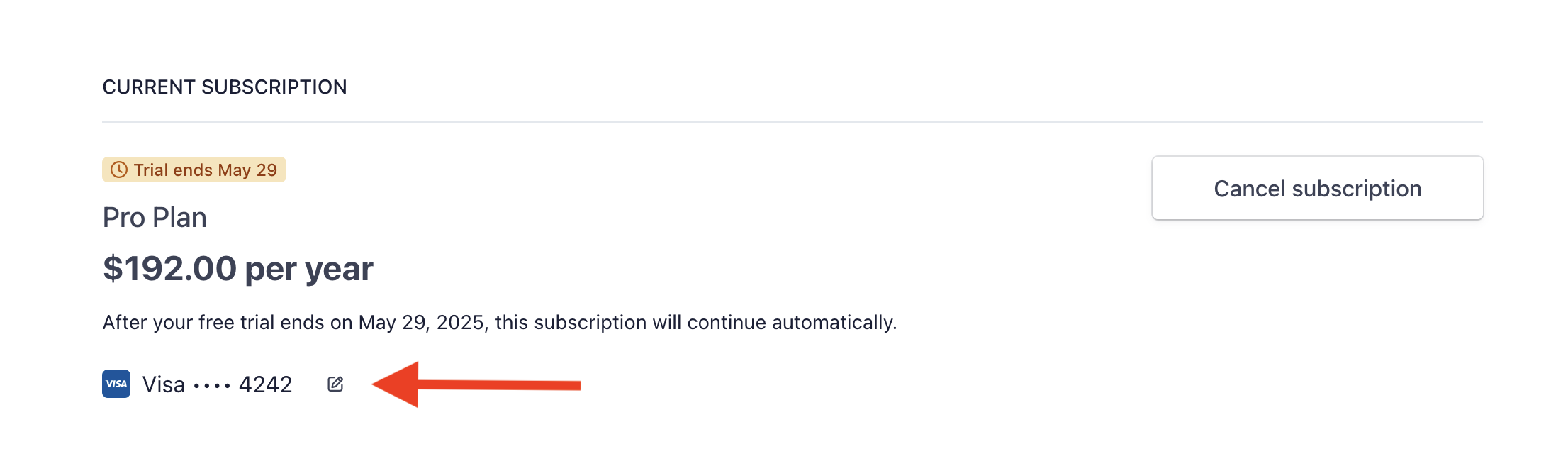 Update your payment method in the Stripe Customer Portal
## Cancelling Your Subscription
**Before You Cancel**
When you cancel your subscription:
* You'll retain access to all Pro features until the end of your current billing period
* No refunds are issued for partial billing periods
* You can reactivate your subscription at any time before your access expires
* If you're still in your trial period, cancellation is immediate with no future charges
### How to Cancel Your Subscription
To cancel your Pawgress Pro subscription:
1. Go to your Account Settings
2. Navigate to the "Subscription" tab
3. Click "Manage Subscription" to access the Stripe Customer Portal
4. Click "Cancel" next to your subscription
5. Select your reason for cancelling (optional)
6. Confirm cancellation
Update your payment method in the Stripe Customer Portal
## Cancelling Your Subscription
**Before You Cancel**
When you cancel your subscription:
* You'll retain access to all Pro features until the end of your current billing period
* No refunds are issued for partial billing periods
* You can reactivate your subscription at any time before your access expires
* If you're still in your trial period, cancellation is immediate with no future charges
### How to Cancel Your Subscription
To cancel your Pawgress Pro subscription:
1. Go to your Account Settings
2. Navigate to the "Subscription" tab
3. Click "Manage Subscription" to access the Stripe Customer Portal
4. Click "Cancel" next to your subscription
5. Select your reason for cancelling (optional)
6. Confirm cancellation
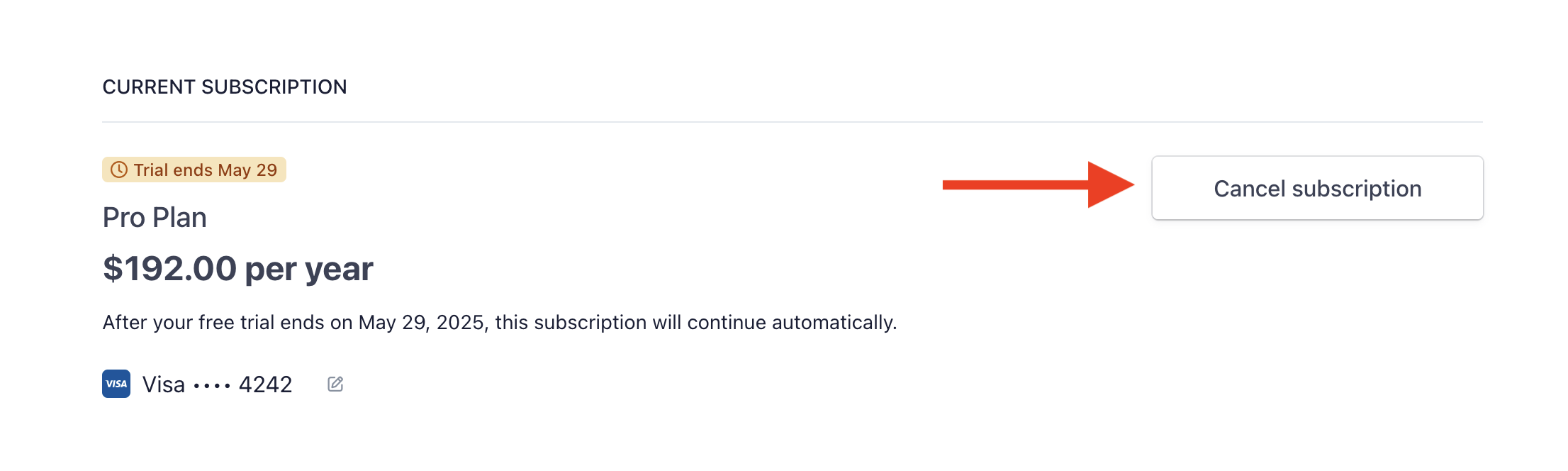 Cancel your subscription through the Stripe Customer Portal
### Confirming Cancellation
After cancellation, you'll see a confirmation in the Stripe portal. When you return to Pawgress, your subscription page will show:
* A "Cancellation Scheduled" notice
* The date until which you'll have Pro access
You can continue using all Pro features until that date.
Cancel your subscription through the Stripe Customer Portal
### Confirming Cancellation
After cancellation, you'll see a confirmation in the Stripe portal. When you return to Pawgress, your subscription page will show:
* A "Cancellation Scheduled" notice
* The date until which you'll have Pro access
You can continue using all Pro features until that date.
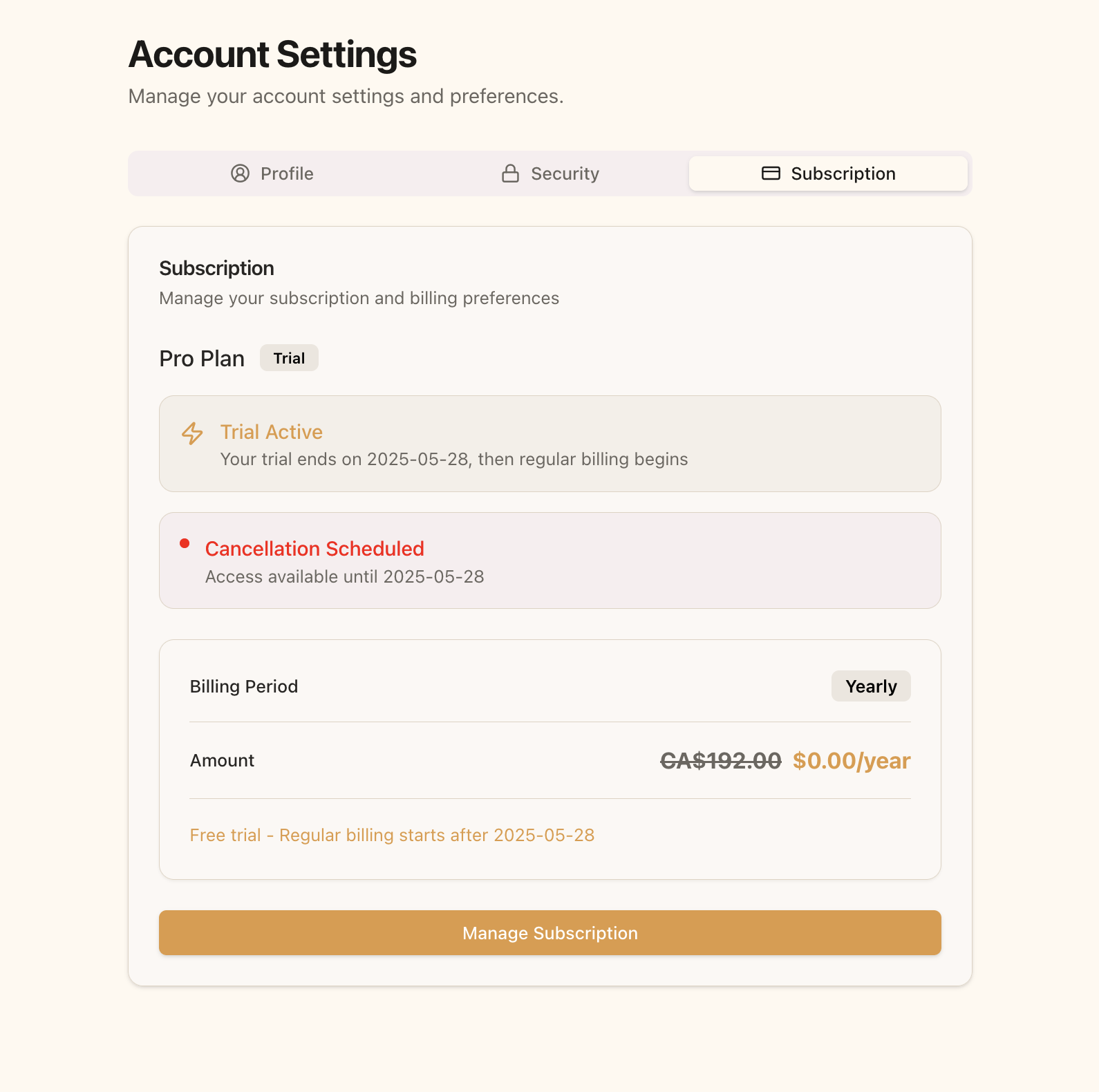 Your subscription page showing the cancellation scheduled notice
### Reactivating Your Subscription
If you change your mind before your subscription fully expires:
1. Go to your Subscription page
2. Click "Manage Subscription"
3. In the Stripe portal, click "Reactivate subscription"
4. Confirm the reactivation
Your subscription will continue without interruption, and you'll be billed on your regular schedule.
Your subscription page showing the cancellation scheduled notice
### Reactivating Your Subscription
If you change your mind before your subscription fully expires:
1. Go to your Subscription page
2. Click "Manage Subscription"
3. In the Stripe portal, click "Reactivate subscription"
4. Confirm the reactivation
Your subscription will continue without interruption, and you'll be billed on your regular schedule.
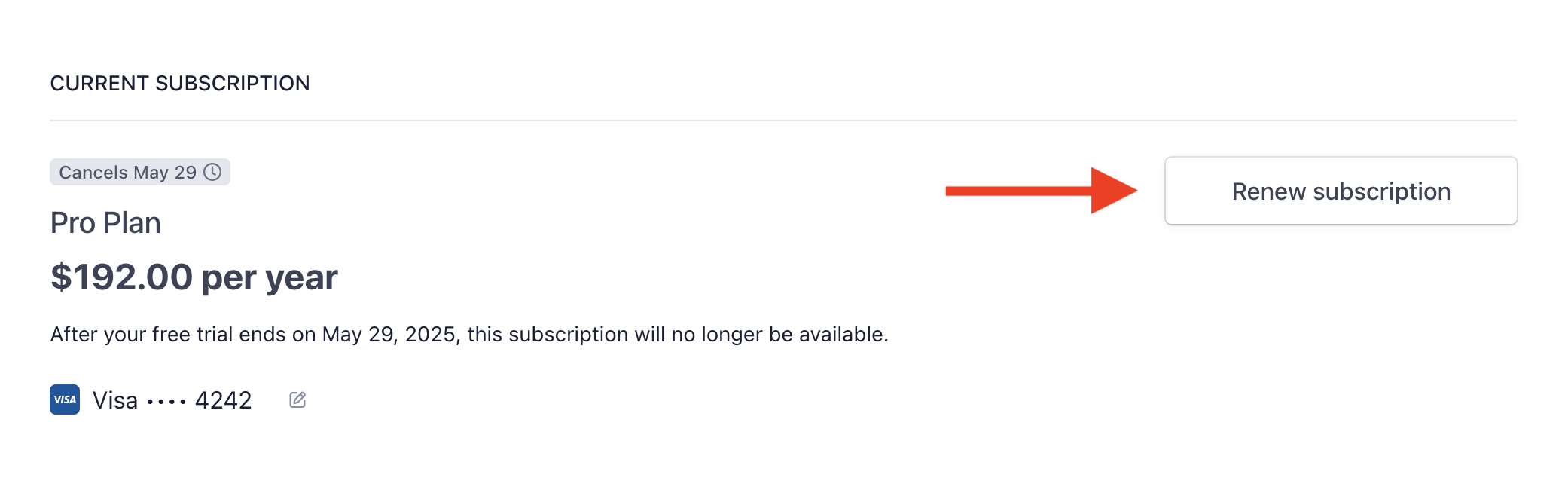 Reactivate your cancelled subscription through the Stripe Customer Portal
## Troubleshooting
### Payment Failed
If your payment method fails at renewal time:
1. You'll receive an email notification about the failed payment
2. Stripe will automatically make several retry attempts over the next few days
3. You can update your payment method at any time through the "Manage Subscription" button
Pro features will remain accessible during the initial retry period. If payment continues to fail after multiple attempts, your subscription will be cancelled automatically.
### Additional Help
For any subscription or billing issues not covered in this guide, please contact our support team:
* Email: [support@pawgress.ca](mailto:support@pawgress.ca)
* In-app: Click "Support" in the bottom navigation
Our team is available Monday-Friday, 9am-5pm PT, and we typically respond within 24 hours.
Reactivate your cancelled subscription through the Stripe Customer Portal
## Troubleshooting
### Payment Failed
If your payment method fails at renewal time:
1. You'll receive an email notification about the failed payment
2. Stripe will automatically make several retry attempts over the next few days
3. You can update your payment method at any time through the "Manage Subscription" button
Pro features will remain accessible during the initial retry period. If payment continues to fail after multiple attempts, your subscription will be cancelled automatically.
### Additional Help
For any subscription or billing issues not covered in this guide, please contact our support team:
* Email: [support@pawgress.ca](mailto:support@pawgress.ca)
* In-app: Click "Support" in the bottom navigation
Our team is available Monday-Friday, 9am-5pm PT, and we typically respond within 24 hours.