> ## Documentation Index
> Fetch the complete documentation index at: https://help.pawgress.ca/llms.txt
> Use this file to discover all available pages before exploring further.

# Creating Training Reports

> Learn how to create and manage training reports to track client progress

## Training Reports Overview

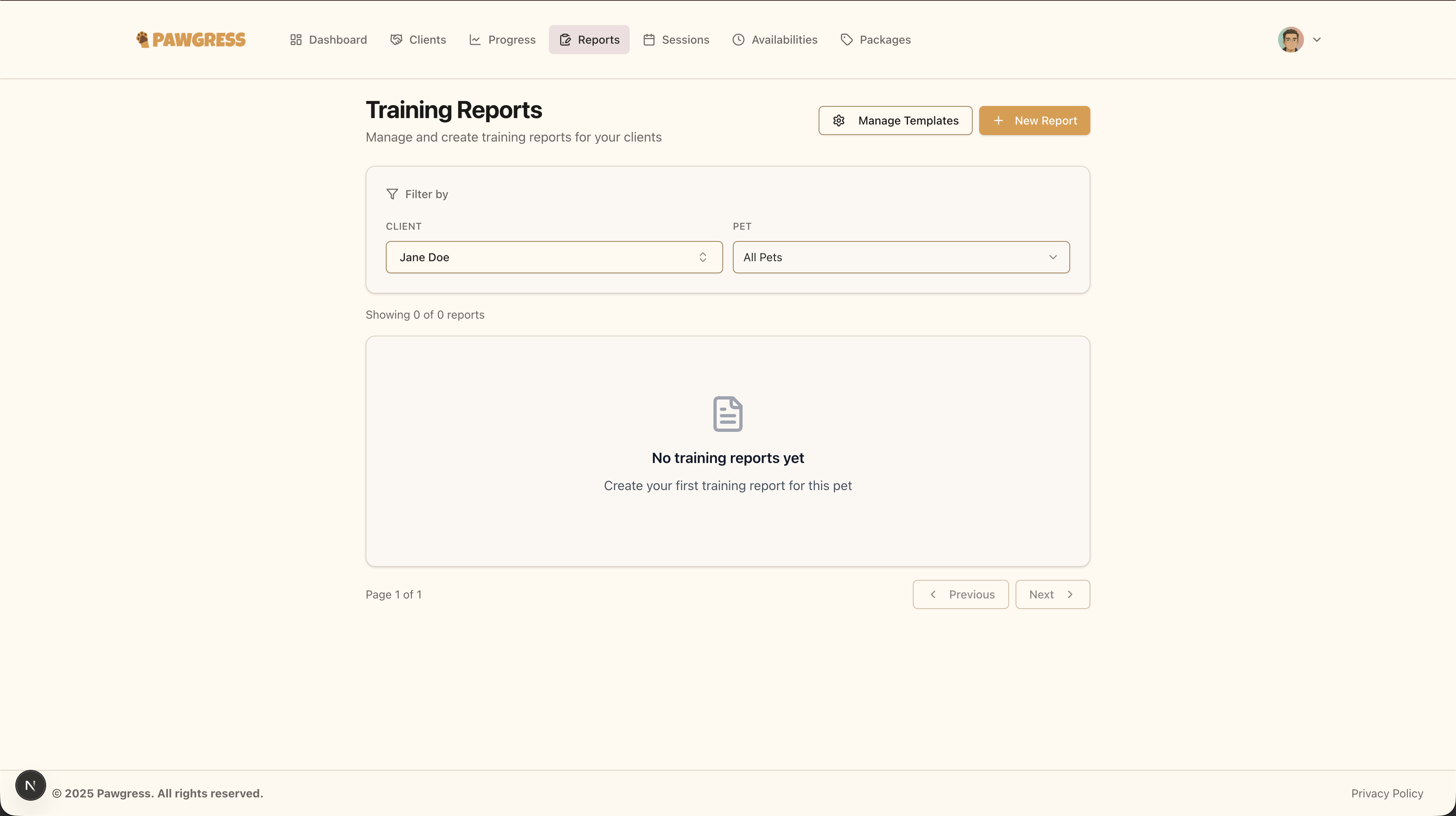
Training reports are a powerful way to document your training sessions, communicate progress to clients, and maintain detailed records of each pet's development. Reports allow you to share observations, recommend next steps, and showcase the value of your training services.

<img src="https://mintcdn.com/pawgress/hvtaZqarlaM6GE5-/images/guides/getting-started/training-reports/reports-page.png?fit=max&auto=format&n=hvtaZqarlaM6GE5-&q=85&s=f9fdb07f03237788d49adf9fc9f14efe" alt="Pawgress training reports page overview" width="3600" height="2018" data-path="images/guides/getting-started/training-reports/reports-page.png" />

<p className="text-sm text-muted-foreground">The Reports page displays all training reports you've created for your clients</p>

## Creating Your First Report

### Step 1: Navigate to the Reports Page

From your dashboard, click on "Reports" in the main navigation menu. This will take you to the reports overview page where you can see all your existing reports.

### Step 2: Create a New Report

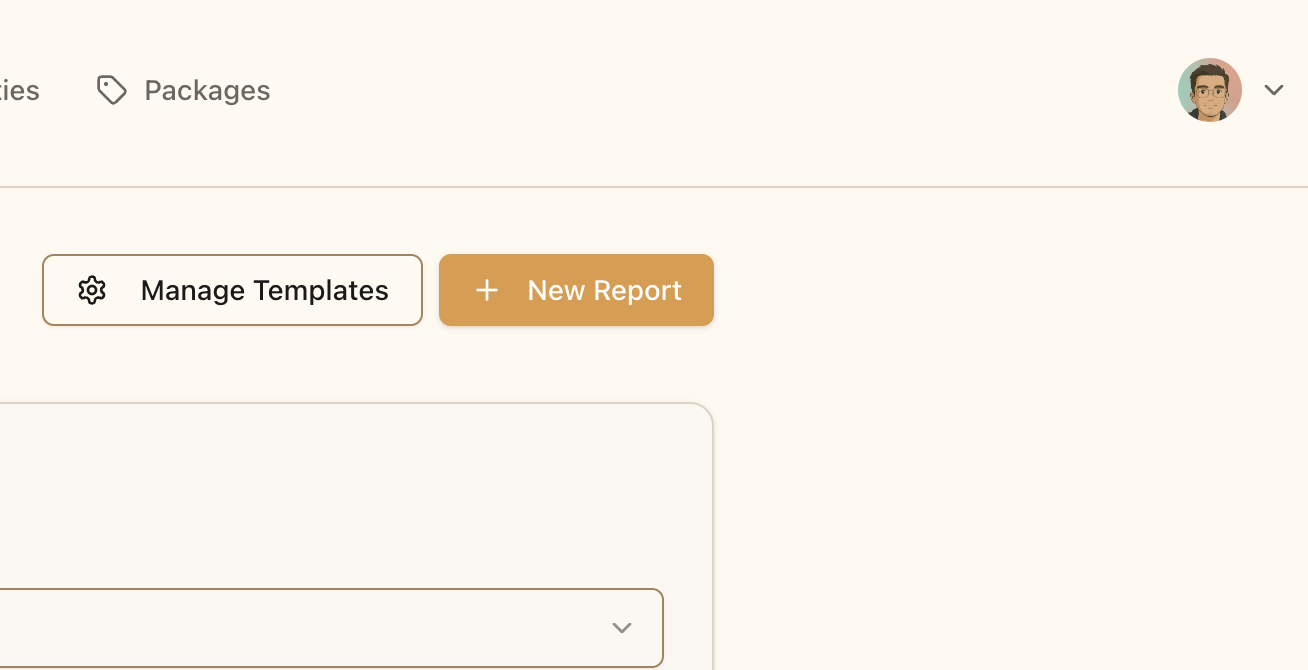
Click the "New Report" button in the top right corner of the page. This will open the report creation form.
<img src="https://mintcdn.com/pawgress/hvtaZqarlaM6GE5-/images/guides/getting-started/training-reports/new-report-button.png?fit=max&auto=format&n=hvtaZqarlaM6GE5-&q=85&s=d0b75b6fd0fa01fd0a0562481536ad71" alt="New report button on the reports page" width="1308" height="670" data-path="images/guides/getting-started/training-reports/new-report-button.png" />

<p className="text-sm text-muted-foreground">Click the "New Report" button to start creating a training report</p>

## Report Details

### Select Client and Pet

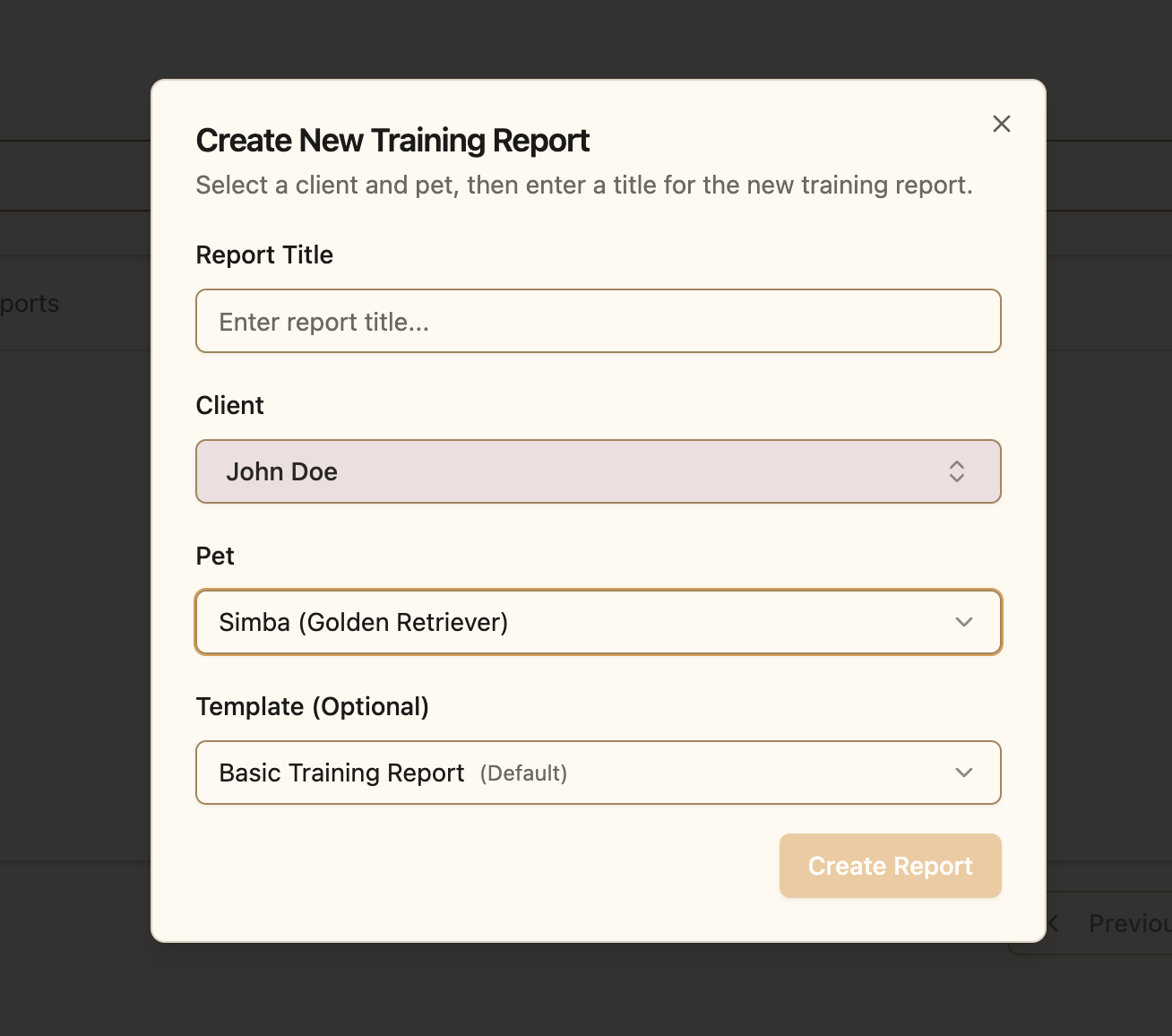
First, you'll need to choose who the report is for:

1. **Select a Client:** Choose from your list of active clients
2. **Select a Pet:** After choosing a client, select which of their pets the report is about
<img src="https://mintcdn.com/pawgress/hvtaZqarlaM6GE5-/images/guides/getting-started/training-reports/client-pet-selection.png?fit=max&auto=format&n=hvtaZqarlaM6GE5-&q=85&s=8ea02cfe6bad8ea3ab5f0508093f0843" alt="Client and pet selection in report form" width="1308" height="1156" data-path="images/guides/getting-started/training-reports/client-pet-selection.png" />

<p className="text-sm text-muted-foreground">Select the client and pet for your training report</p>

### Choose a Template (Pro Feature)

<Warning>
  **Pro Feature**

  Report templates are a Pro feature in Pawgress. Upgrading to Pro gives you access to:

  * Pre-built report templates for different training scenarios
  * Customizable template library
  * Faster report creation with structured formats
  * Professional-looking reports that save you time
</Warning>

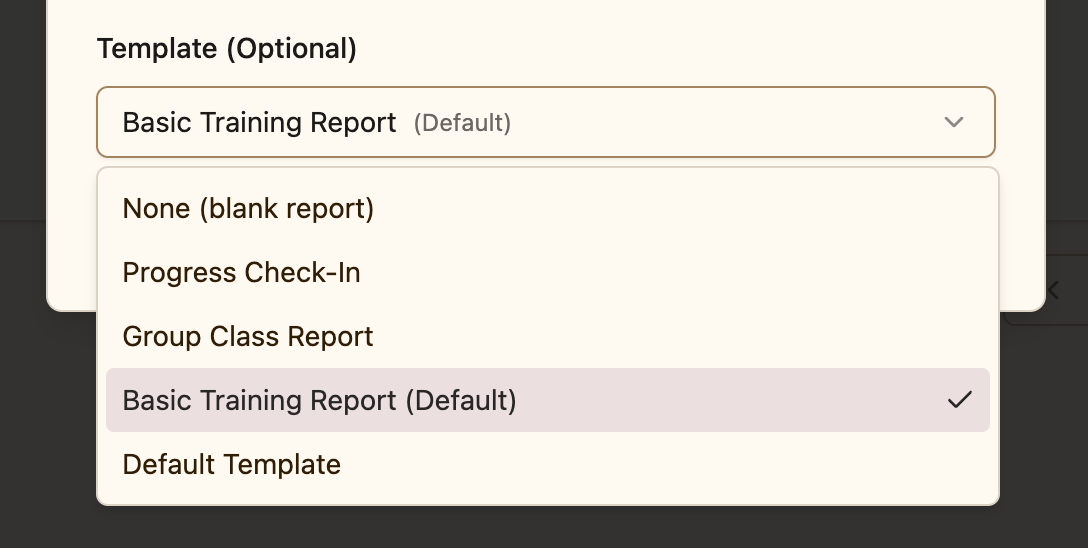
If you're a Pro subscriber, you can select from your library of report templates:

1. Click on the "Use Template" dropdown
2. Browse through your available templates
3. Select the template that best fits your needs
4. The report editor will be pre-filled with your template structure

<img src="https://mintcdn.com/pawgress/hvtaZqarlaM6GE5-/images/guides/getting-started/training-reports/template-selection.png?fit=max&auto=format&n=hvtaZqarlaM6GE5-&q=85&s=212fb49761d24eb2bfdf56de3a805ea0" alt="Template selection dropdown" width="1088" height="548" data-path="images/guides/getting-started/training-reports/template-selection.png" />

<p className="text-sm text-muted-foreground">Choose from your library of report templates to streamline report creation</p>

Templates are especially useful for:

* Standardizing your reporting format
* Ensuring you cover all important topics
* Saving time on recurring report types (e.g., initial assessments, progress check-ins, graduation reports)
* Maintaining consistency across your training business
<Info>
  **Creating Your Own Templates**

  You can create custom report templates from any report you've written:

  1. Write a report with your desired structure and sections
  2. Click the "Save as Template" button
  3. Give your template a name and description
  4. Use it for future reports with similar needs
</Info>

### Write Your Report Content

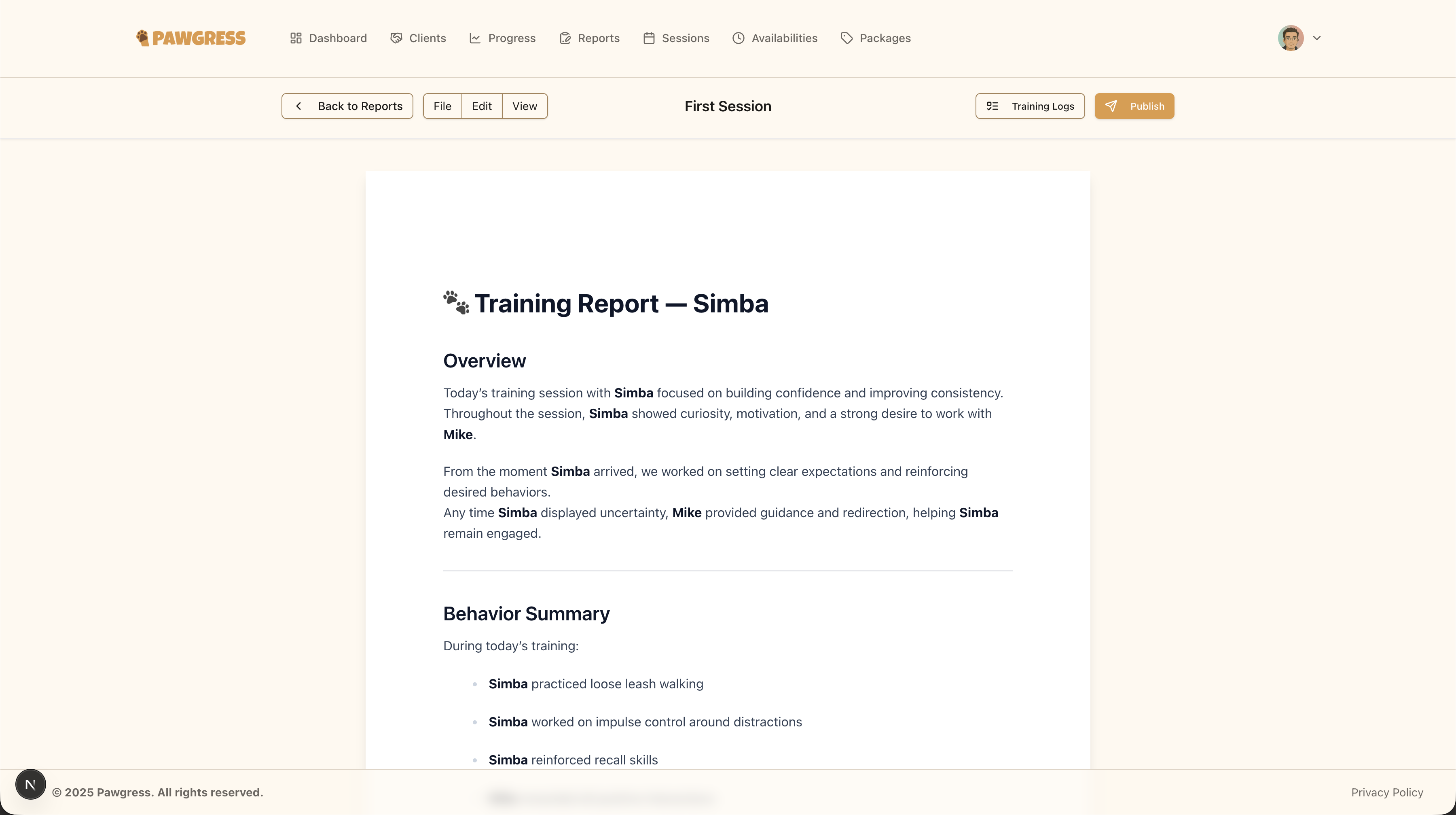
The report editor uses a rich text format, allowing you to:

* **Add headings** for different sections (e.g., "Session Summary", "Progress Notes", "Next Steps")
* **Format text** with bold, italics, and bullet points
* **Create lists** for observations or recommendations
* **Add links** to relevant resources or videos
* **Structure content** with proper formatting for professional presentation

<img src="https://mintcdn.com/pawgress/hvtaZqarlaM6GE5-/images/guides/getting-started/training-reports/report-editor.png?fit=max&auto=format&n=hvtaZqarlaM6GE5-&q=85&s=3c4af9b54b60f989ef92bf1431e3567a" alt="Rich text report editor" width="3600" height="2014" data-path="images/guides/getting-started/training-reports/report-editor.png" />

<p className="text-sm text-muted-foreground">Use the rich text editor to create detailed, well-formatted training reports</p>

### Common Report Sections

Consider including these sections in your training reports:

* **Session Overview:** Brief summary of what was covered
* **Behavior Assessment:** Observations on the pet's current behaviors
* **Progress Since Last Session:** Improvements and changes noted
* **Challenges:** Any difficulties encountered during training
* **Accomplishments:** Successes and milestones achieved
* **Homework:** Practice activities for the client to work on
* **Next Session Goals:** What you'll focus on in upcoming sessions
* **Additional Notes:** Any other relevant observations or recommendations
<Tip>
  **Pro Tip: Report Writing**

  The most effective training reports are:

  * **Specific:** Include concrete examples of behaviors observed
  * **Balanced:** Highlight both successes and areas for improvement
  * **Actionable:** Provide clear next steps for the client
  * **Professional:** Use proper formatting and proofread before sending
  * **Timely:** Send reports shortly after training sessions while details are fresh
</Tip>

## Saving and Sending Reports

### Save as Draft

If you're not ready to send the report yet:

1. Click the "Save Draft" button
2. Your report will be saved and you can return to edit it later
3. Drafts are only visible to you, not to clients

### Publish Report

When your report is ready to share:

1. Review all content for accuracy and completeness
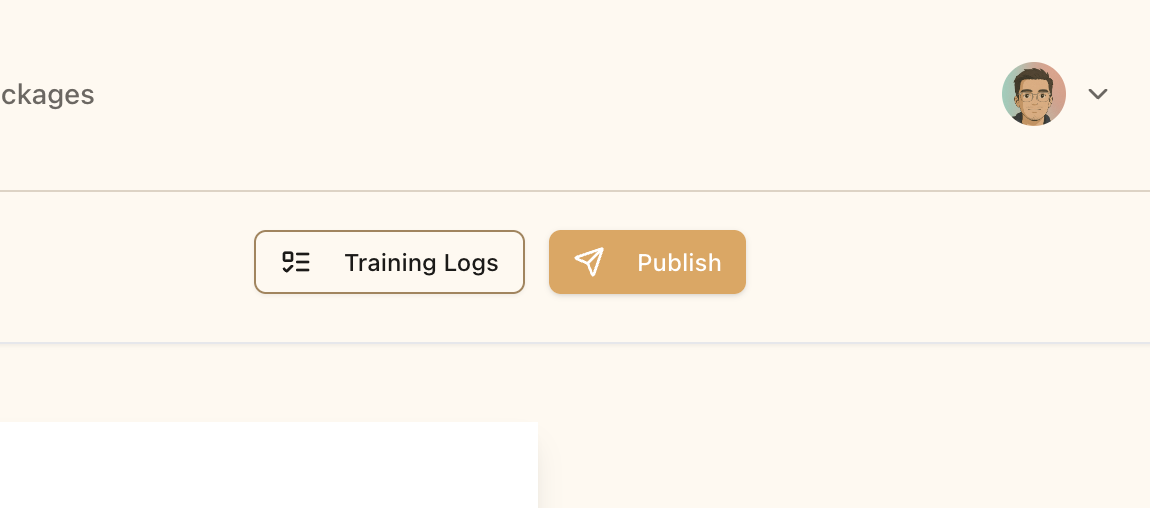
2. Click the "Publish Report" button
3. The report will be sent to your client
4. Clients will receive an email notification with a link to view the report
5. They can access the report anytime from their Pawgress account

<img src="https://mintcdn.com/pawgress/hvtaZqarlaM6GE5-/images/guides/getting-started/training-reports/publish-report.png?fit=max&auto=format&n=hvtaZqarlaM6GE5-&q=85&s=b7b994fc954e561a907442629d187feb" alt="Publish report button" width="1150" height="508" data-path="images/guides/getting-started/training-reports/publish-report.png" />

<p className="text-sm text-muted-foreground">Publish your report to make it visible to your client</p>

<Note>
  **Client Access**

  Once published, clients can:

  * View the report in their Pawgress account
  * Read your observations and recommendations
  * Access the report history for their pet
  * Download or print reports for their records
</Note>

## Managing Your Reports

### Viewing Reports

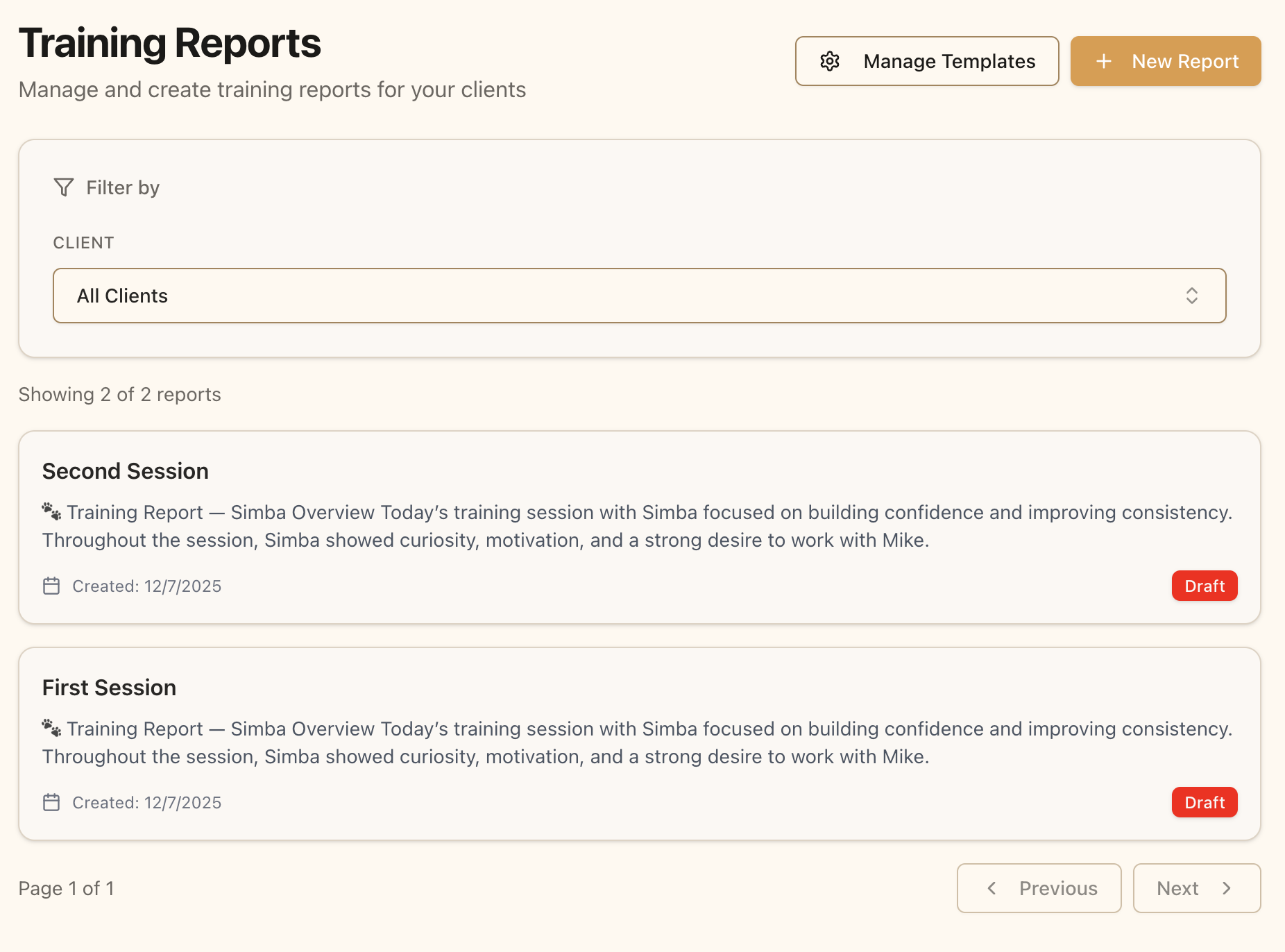
Return to the Reports page to see all your training reports:

* Reports are organized by date with the most recent first
* Each card shows the client name, pet name, and creation date
* Click on any report to view full details or make edits
* Use the search function to find specific reports

<img src="https://mintcdn.com/pawgress/hvtaZqarlaM6GE5-/images/guides/getting-started/training-reports/reports-list.png?fit=max&auto=format&n=hvtaZqarlaM6GE5-&q=85&s=f3d6207dcbbc1cab39bd6d0dee9b7126" alt="List of training reports" width="1852" height="1372" data-path="images/guides/getting-started/training-reports/reports-list.png" />

<p className="text-sm text-muted-foreground">Your reports list shows all training reports you've created</p>

### Filtering Reports

Use the filters at the top of the Reports page to find specific reports:

* **By Client:** See all reports for a specific client
* **By Pet:** View reports for a particular pet
* **By Date Range:** Find reports from a specific time period
* **By Status:** Filter between published reports and drafts

### Editing Published Reports

You can edit reports even after they've been published:

1. Click on the report you want to edit
2. Make your changes in the editor
3. Click "Save Changes"
4. The updated version will be visible to the client
5. Clients are notified when a report is updated

## Report Best Practices

### Consistency is Key

Establish a regular reporting schedule:

* **After Every Session:** Document observations while fresh
* **Weekly or Bi-weekly:** For ongoing training programs
* **At Milestones:** When pets achieve significant goals
* **End of Package:** Comprehensive summary when completing a training package

### Use Templates for Efficiency

If you're a Pro subscriber, create templates for common scenarios:

* **Initial Assessment Template:** For evaluating new clients
* **Weekly Progress Template:** For regular check-in reports
* **Behavior Modification Template:** For specialized training
* **Graduation Template:** For completing training programs

Templates ensure you never forget important sections and significantly reduce report writing time.

### Keep Detailed Records

Training reports serve as:

* **Legal Documentation:** Record of training services provided
* **Progress Tracking:** Historical record of development over time
* **Communication Tool:** Clear dialogue with clients about their pet's journey
* **Marketing Asset:** Demonstrate your professionalism and thoroughness

## Next Steps

Now that you know how to create training reports, you can:

* [Schedule training sessions](/guides/scheduling/schedule-session) and follow up with reports
* [Track client progress](/guides/progress/track-progress) using behavior logs
* Upgrade to Pro to access report templates and save time
* Establish a consistent reporting routine for your training business

Regular, detailed reporting demonstrates your professionalism and helps clients understand the value of your training services. Make reporting a standard part of your training workflow for better client relationships and outcomes.