> ## Documentation Index
> Fetch the complete documentation index at: https://help.pawgress.ca/llms.txt
> Use this file to discover all available pages before exploring further.
# Google Calendar Integration
> Learn how to sync your training sessions with Google Calendar
## What is the Google Calendar Integration?
Pawgress's Google Calendar integration allows you to sync your training sessions with your Google Calendar. When you schedule a session in Pawgress, it can automatically appear in your Google Calendar, helping you keep track of all your appointments in one place.
**Pro Feature**
Google Calendar integration is a Pro feature in Pawgress, allowing you to:
* Connect your Google Calendar account to Pawgress
* Automatically sync training sessions to specific calendars
* Avoid double-booking by keeping all your appointments in sync
* Access your training schedule from any device with Google Calendar
## Setting Up Google Calendar Integration
### Step 1: Navigate to the Integrations Page
From your dashboard, click on "Integrations" in the main navigation menu. This will take you to the integrations overview page.
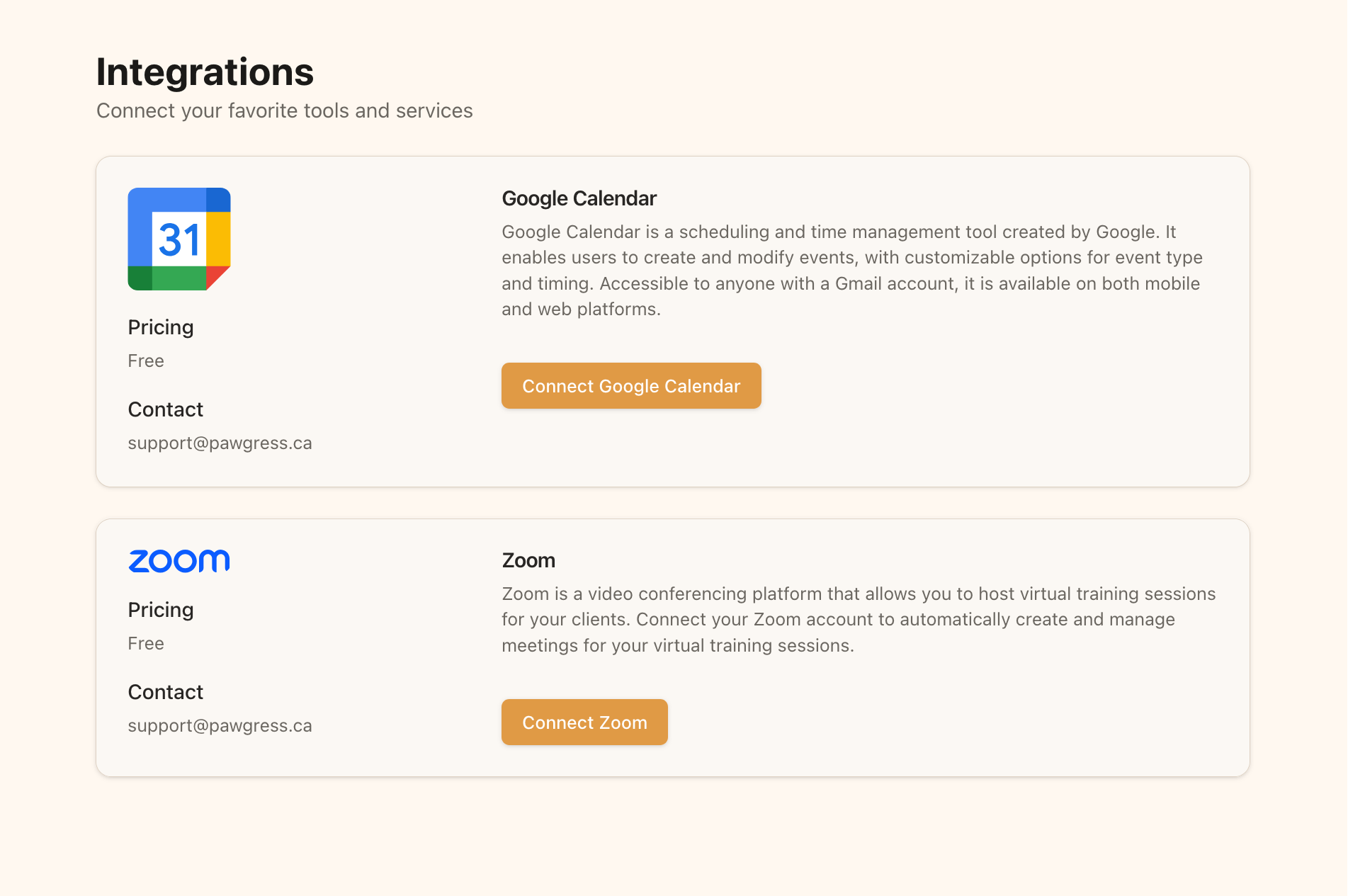 The Integrations page shows available third-party services you can connect
### Step 2: Connect Google Calendar
On the Integrations page:
1. Find the Google Calendar section
2. Click the "Connect Google Calendar" button
3. You'll be redirected to Google's authentication page
4. Log in to your Google account if prompted
5. Grant Pawgress permission to access your Google Calendar
6. You'll be redirected back to Pawgress once the connection is successful
The Integrations page shows available third-party services you can connect
### Step 2: Connect Google Calendar
On the Integrations page:
1. Find the Google Calendar section
2. Click the "Connect Google Calendar" button
3. You'll be redirected to Google's authentication page
4. Log in to your Google account if prompted
5. Grant Pawgress permission to access your Google Calendar
6. You'll be redirected back to Pawgress once the connection is successful
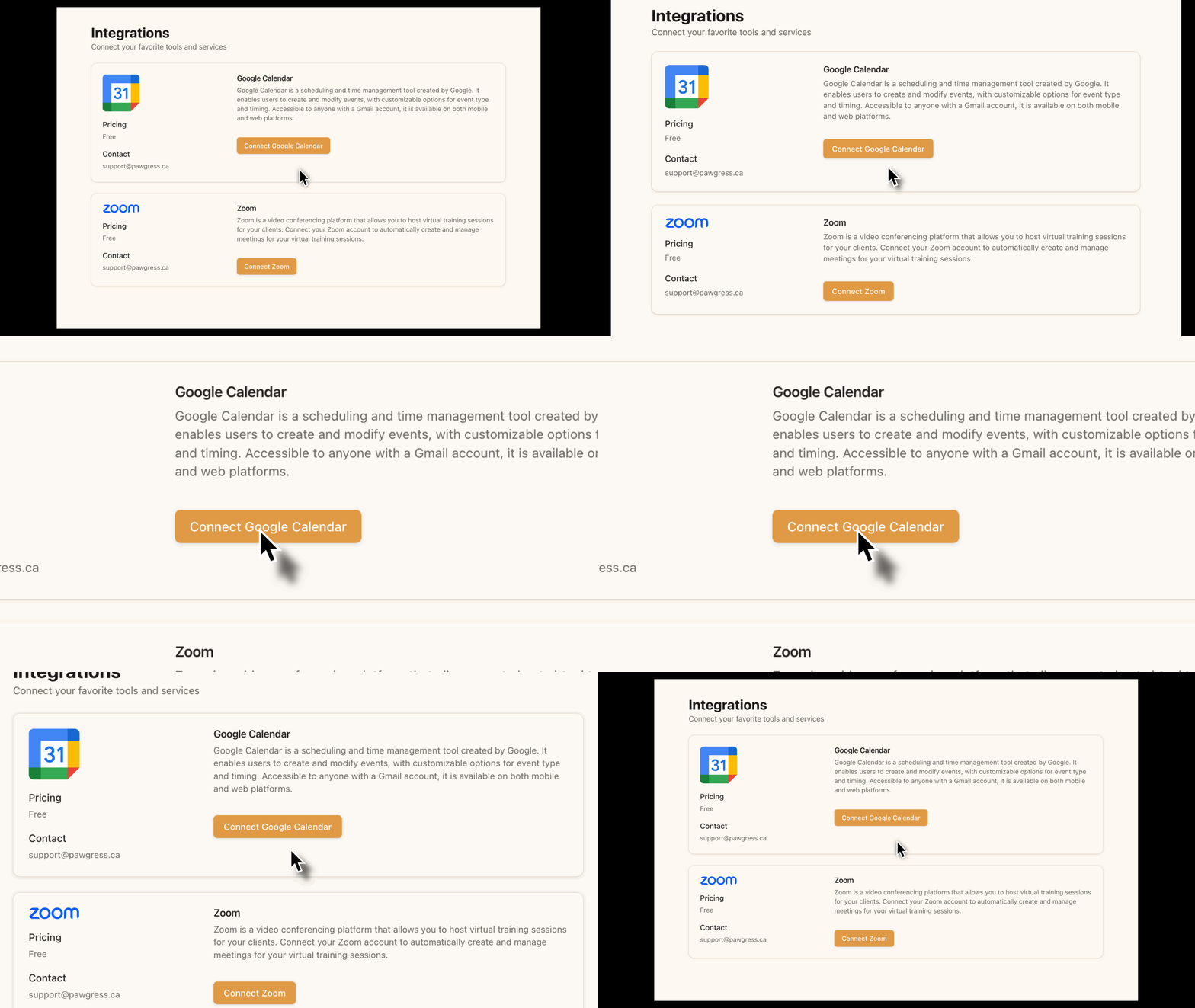 Click the "Connect Google Calendar" button to start the integration process
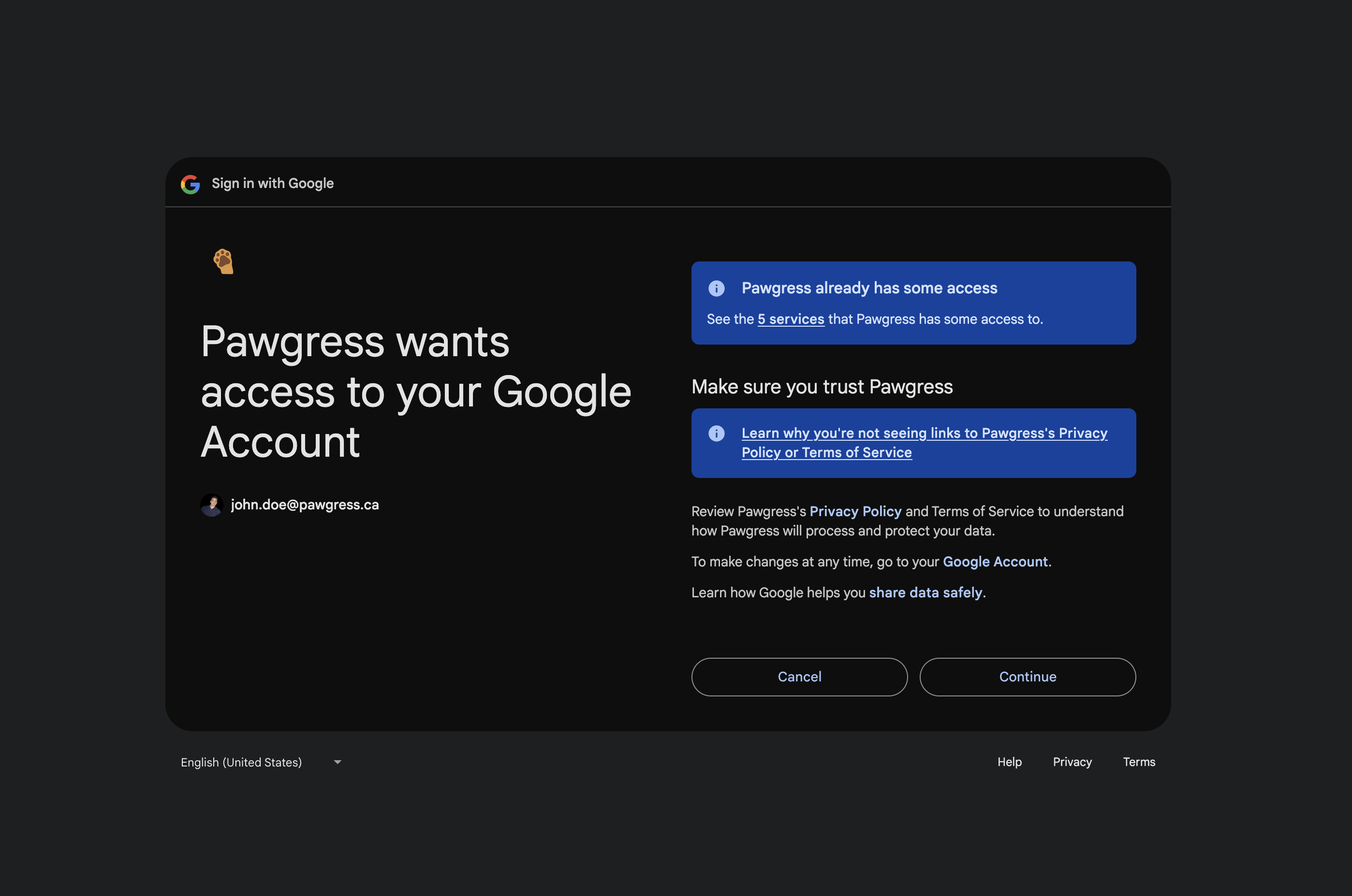 Grant Pawgress permission to access your Google Calendar
### Step 3: Verify Connection
After redirecting back to Pawgress, you should see your Google account displayed as connected:
* The status will change to "Connected"
* Your Google account email will be displayed
* A delete button will appear in case you want to remove the integration later
Grant Pawgress permission to access your Google Calendar
### Step 3: Verify Connection
After redirecting back to Pawgress, you should see your Google account displayed as connected:
* The status will change to "Connected"
* Your Google account email will be displayed
* A delete button will appear in case you want to remove the integration later
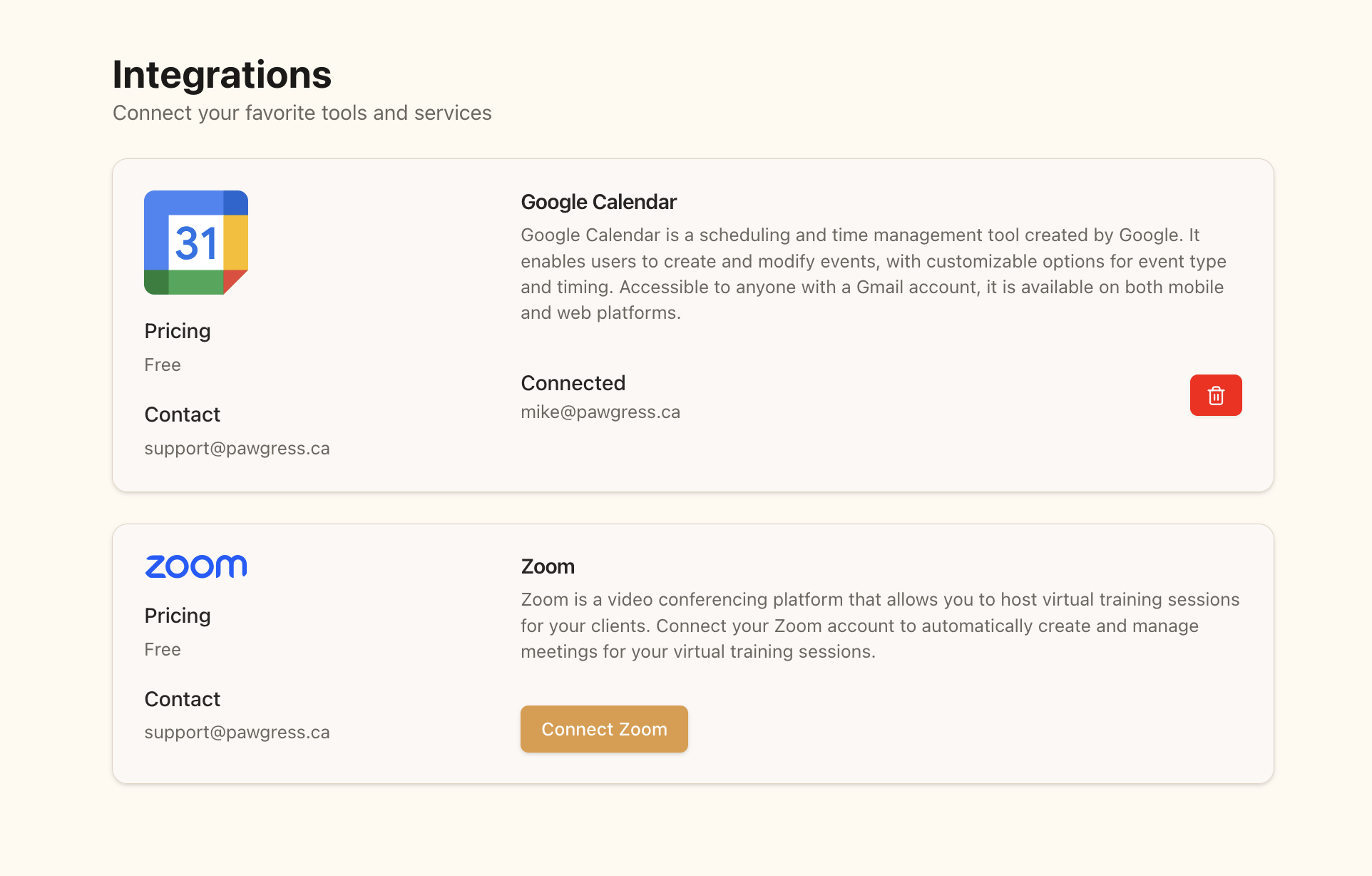 The connected state shows your Google account and provides an option to remove the connection
## Adding a Calendar to a Training Package
Once you've connected Google Calendar to Pawgress, you can select specific calendars for your training packages:
### Step 1: Create or Edit a Package
Navigate to the Training Packages page and either:
* Click "New Package" to create a new training package, or
* Click on an existing package to edit its details
### Step 2: Select a Google Calendar
In the package creation/editing form:
1. Scroll down to the "Options & Settings" section
2. Find the "Google Calendar (Optional)" dropdown
3. Click to open the dropdown menu
4. Select one of your Google Calendars from the list
5. If you don't see your calendars, make sure you've completed the connection process described above
The connected state shows your Google account and provides an option to remove the connection
## Adding a Calendar to a Training Package
Once you've connected Google Calendar to Pawgress, you can select specific calendars for your training packages:
### Step 1: Create or Edit a Package
Navigate to the Training Packages page and either:
* Click "New Package" to create a new training package, or
* Click on an existing package to edit its details
### Step 2: Select a Google Calendar
In the package creation/editing form:
1. Scroll down to the "Options & Settings" section
2. Find the "Google Calendar (Optional)" dropdown
3. Click to open the dropdown menu
4. Select one of your Google Calendars from the list
5. If you don't see your calendars, make sure you've completed the connection process described above
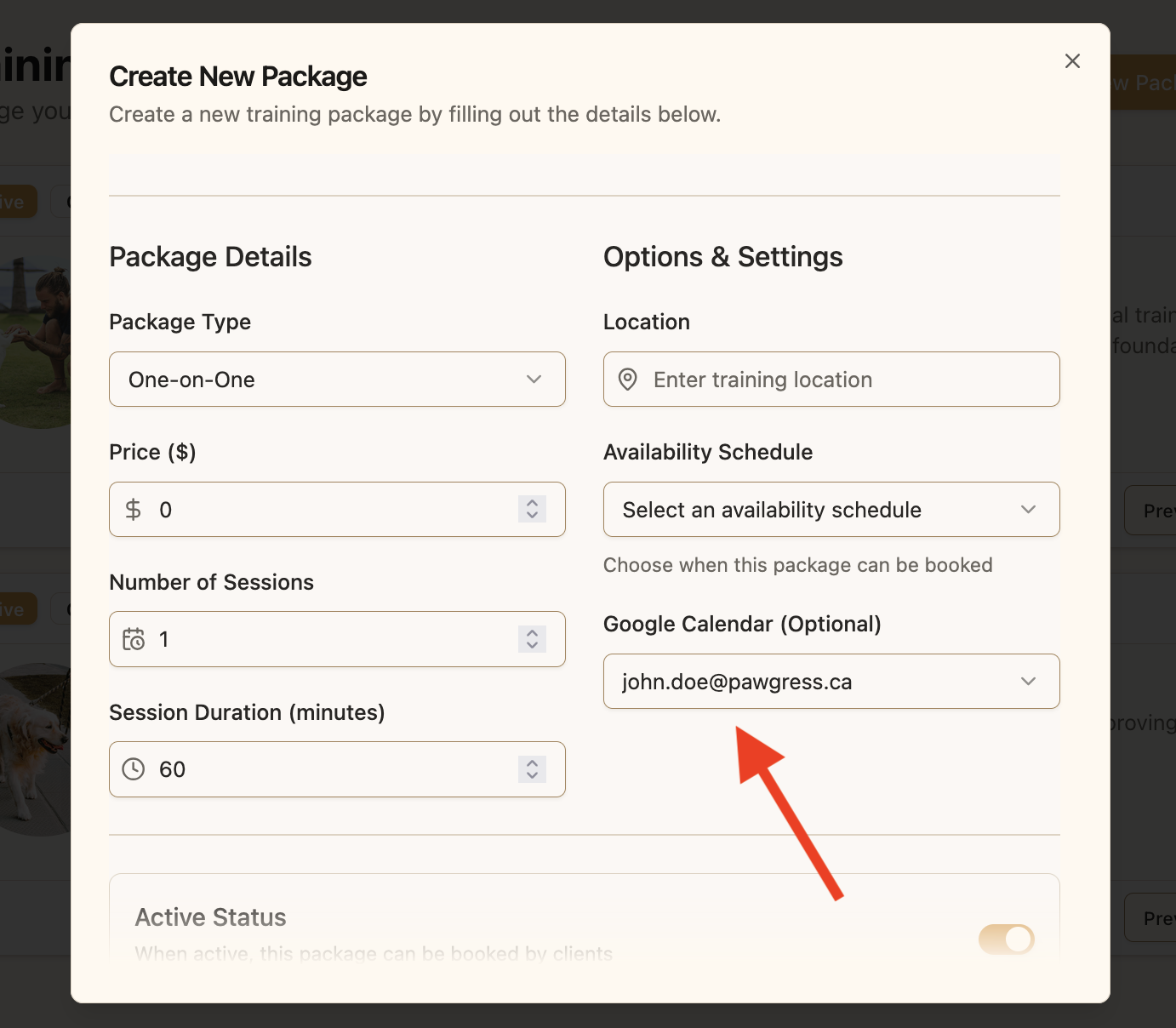 Select a specific calendar from your Google account to use with this package
### Step 3: Save the Package
Once you've selected a calendar:
1. Complete the rest of the package details
2. Click "Create Package" or "Save Changes" at the bottom of the form
3. Your package is now linked to the selected Google Calendar
## How it Works
Once you've set up the integration and linked a calendar to a package:
1. When a session is scheduled for that package, it will automatically be added to the linked Google Calendar
2. The calendar event will include client name, pet name, location, and session details
3. If a session is rescheduled in Pawgress, the Google Calendar event will update accordingly
4. If a session is cancelled in Pawgress, the Google Calendar event will be removed
**Pro Tip: Multiple Calendars**
Consider creating different Google Calendars for different types of training sessions:
* One calendar for one-on-one sessions
* Another for group classes
* A third for virtual consultations
This gives you more flexibility in how you view and manage your schedule in Google Calendar.
## Troubleshooting
### Calendar Not Showing in Dropdown
If your Google Calendars don't appear in the dropdown:
* Go back to the Integrations page and check if Google Calendar is properly connected
* Try disconnecting and reconnecting your Google account
* Make sure you have calendar access in your Google account permissions
### Events Not Syncing
If sessions aren't appearing in your Google Calendar:
* Verify you've selected the correct calendar for the package
* Check if the integration is still connected in the Integrations page
* Try scheduling a new test session to verify the connection
For any persistent issues, please contact our support team at [support@pawgress.ca](mailto:support@pawgress.ca).
Select a specific calendar from your Google account to use with this package
### Step 3: Save the Package
Once you've selected a calendar:
1. Complete the rest of the package details
2. Click "Create Package" or "Save Changes" at the bottom of the form
3. Your package is now linked to the selected Google Calendar
## How it Works
Once you've set up the integration and linked a calendar to a package:
1. When a session is scheduled for that package, it will automatically be added to the linked Google Calendar
2. The calendar event will include client name, pet name, location, and session details
3. If a session is rescheduled in Pawgress, the Google Calendar event will update accordingly
4. If a session is cancelled in Pawgress, the Google Calendar event will be removed
**Pro Tip: Multiple Calendars**
Consider creating different Google Calendars for different types of training sessions:
* One calendar for one-on-one sessions
* Another for group classes
* A third for virtual consultations
This gives you more flexibility in how you view and manage your schedule in Google Calendar.
## Troubleshooting
### Calendar Not Showing in Dropdown
If your Google Calendars don't appear in the dropdown:
* Go back to the Integrations page and check if Google Calendar is properly connected
* Try disconnecting and reconnecting your Google account
* Make sure you have calendar access in your Google account permissions
### Events Not Syncing
If sessions aren't appearing in your Google Calendar:
* Verify you've selected the correct calendar for the package
* Check if the integration is still connected in the Integrations page
* Try scheduling a new test session to verify the connection
For any persistent issues, please contact our support team at [support@pawgress.ca](mailto:support@pawgress.ca).