> ## Documentation Index
> Fetch the complete documentation index at: https://help.pawgress.ca/llms.txt
> Use this file to discover all available pages before exploring further.
# Zoom Integration for Virtual Sessions
> Learn how to automatically create and manage Zoom meetings for your virtual training sessions
## What is the Zoom Integration?
Pawgress's Zoom integration allows you to automatically create and manage Zoom meetings for your virtual training sessions. When you schedule a virtual session in Pawgress, a Zoom meeting is created automatically, and the meeting details are shared with your client. This streamlines the process of conducting online training sessions.
**Pro Feature**
Zoom integration is a Pro feature in Pawgress, allowing you to:
* Connect your Zoom account to Pawgress
* Automatically create Zoom meetings for virtual sessions
* Include Zoom meeting links in client notifications
* Manage virtual sessions seamlessly alongside in-person training
## Setting Up Zoom Integration
### Step 1: Navigate to the Integrations Page
From your dashboard, click on "Integrations" in the main navigation menu. This will take you to the integrations overview page.
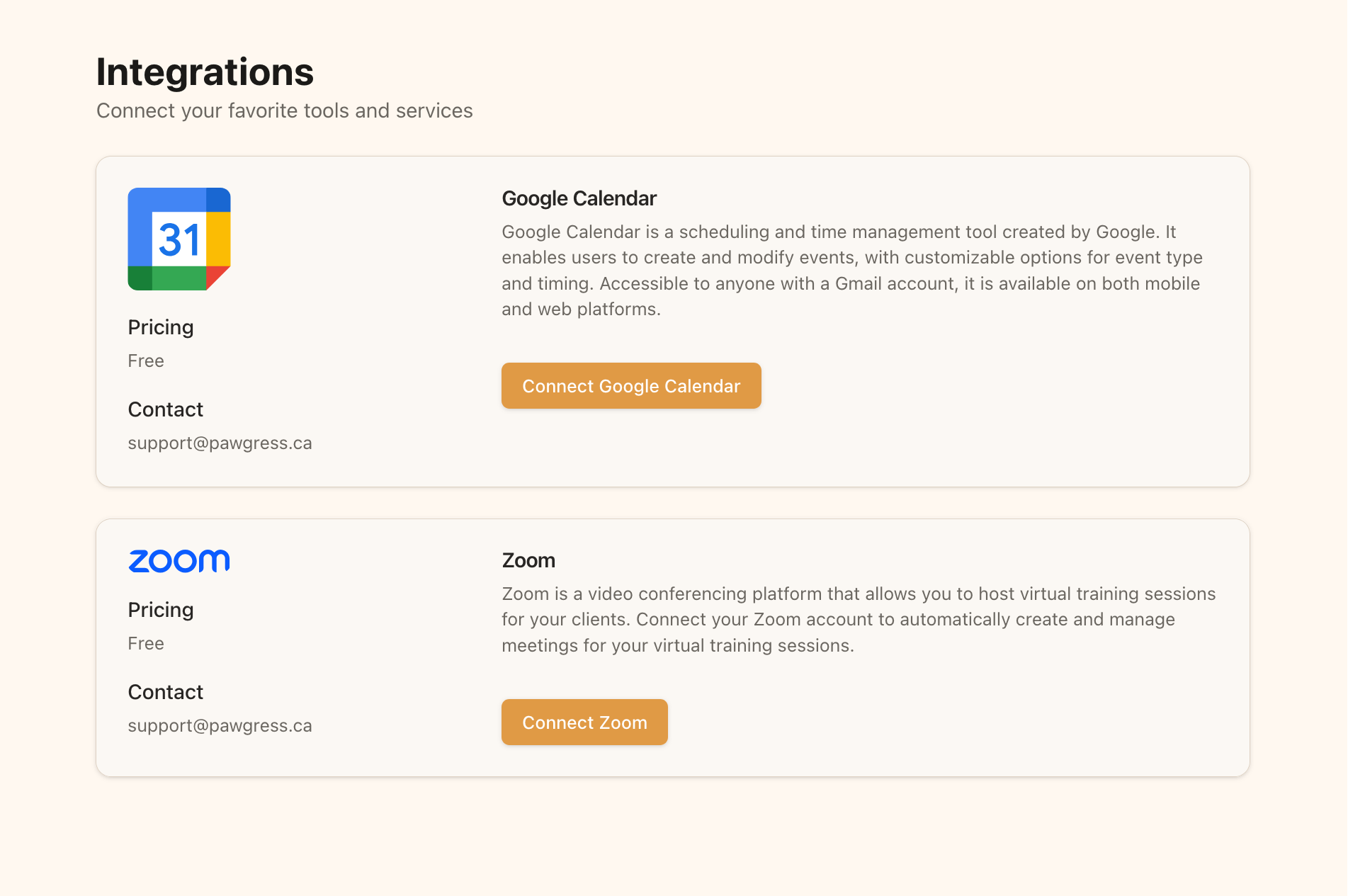 The Integrations page shows available third-party services you can connect
### Step 2: Connect Zoom
On the Integrations page:
1. Find the Zoom section
2. Click the "Connect Zoom" button
3. You'll be redirected to Zoom's authentication page
4. Log in to your Zoom account if prompted
5. Grant Pawgress permission to access your Zoom account
6. You'll be redirected back to Pawgress once the connection is successful
The Integrations page shows available third-party services you can connect
### Step 2: Connect Zoom
On the Integrations page:
1. Find the Zoom section
2. Click the "Connect Zoom" button
3. You'll be redirected to Zoom's authentication page
4. Log in to your Zoom account if prompted
5. Grant Pawgress permission to access your Zoom account
6. You'll be redirected back to Pawgress once the connection is successful
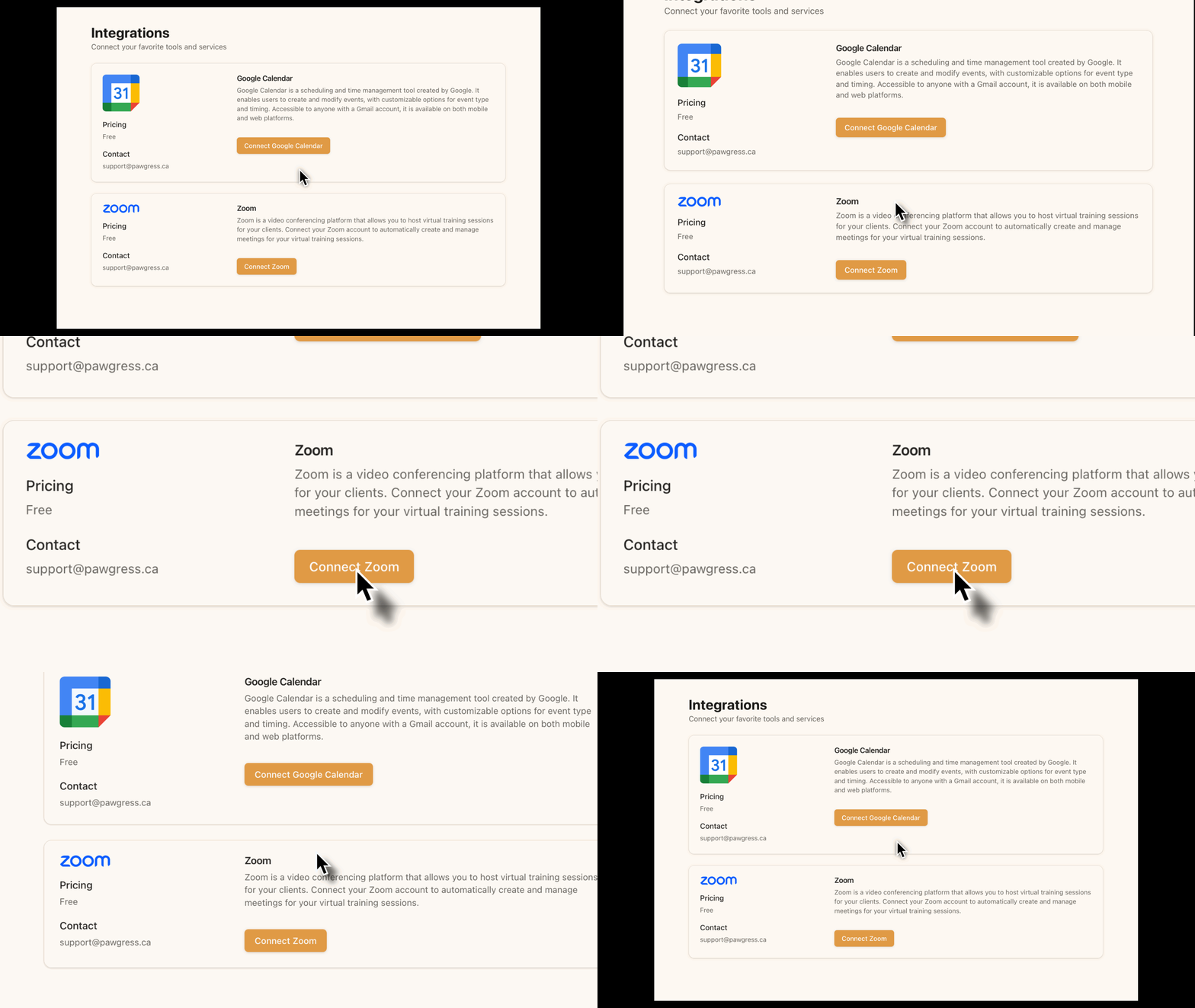 Click the "Connect Zoom" button to start the integration process
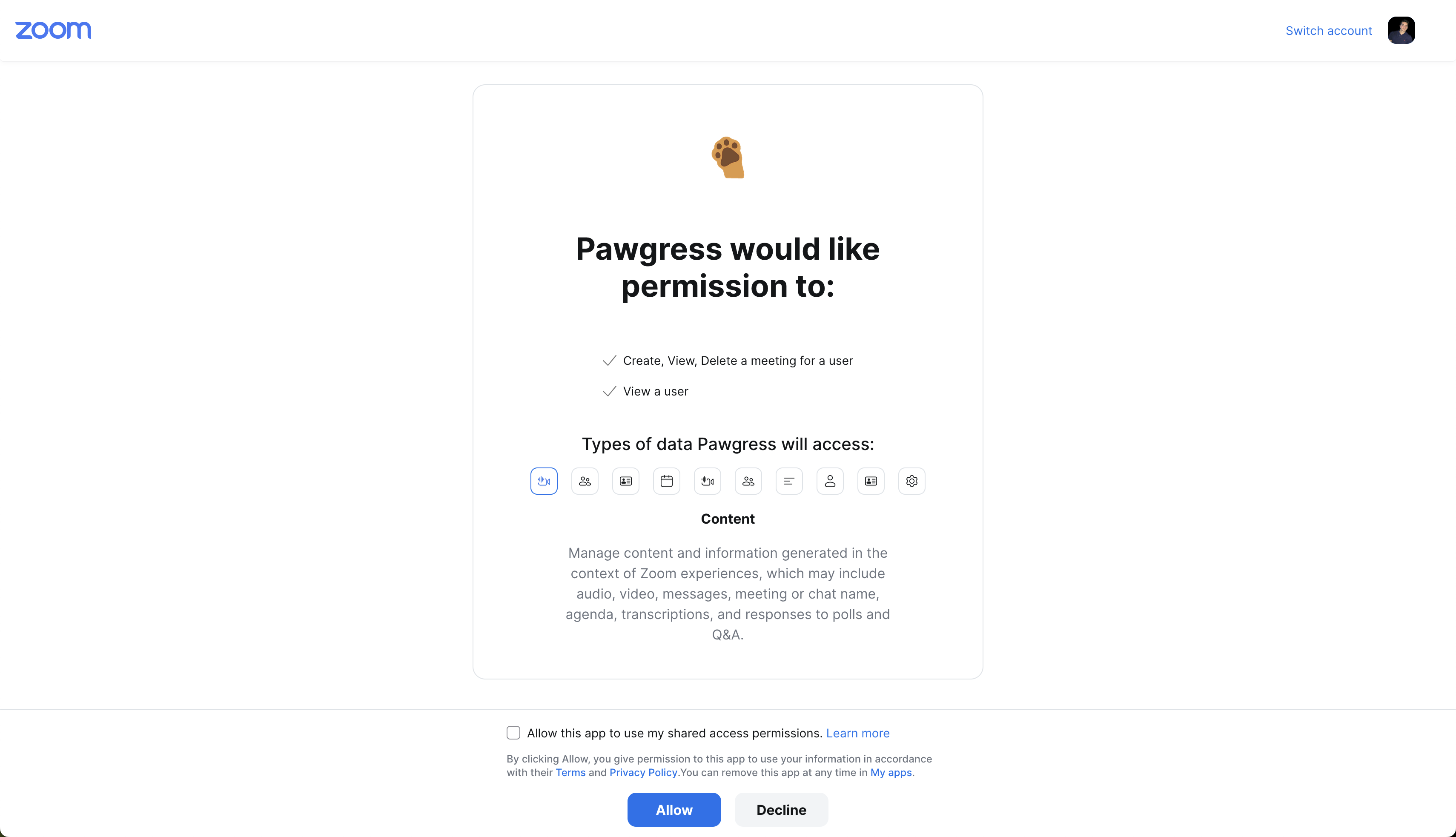 Grant Pawgress permission to access your Zoom account
### Step 3: Verify Connection
After redirecting back to Pawgress, you should see your Zoom account displayed as connected:
* The status will change to "Connected"
* Your Zoom account email will be displayed
* A delete button will appear in case you want to remove the integration later
Grant Pawgress permission to access your Zoom account
### Step 3: Verify Connection
After redirecting back to Pawgress, you should see your Zoom account displayed as connected:
* The status will change to "Connected"
* Your Zoom account email will be displayed
* A delete button will appear in case you want to remove the integration later
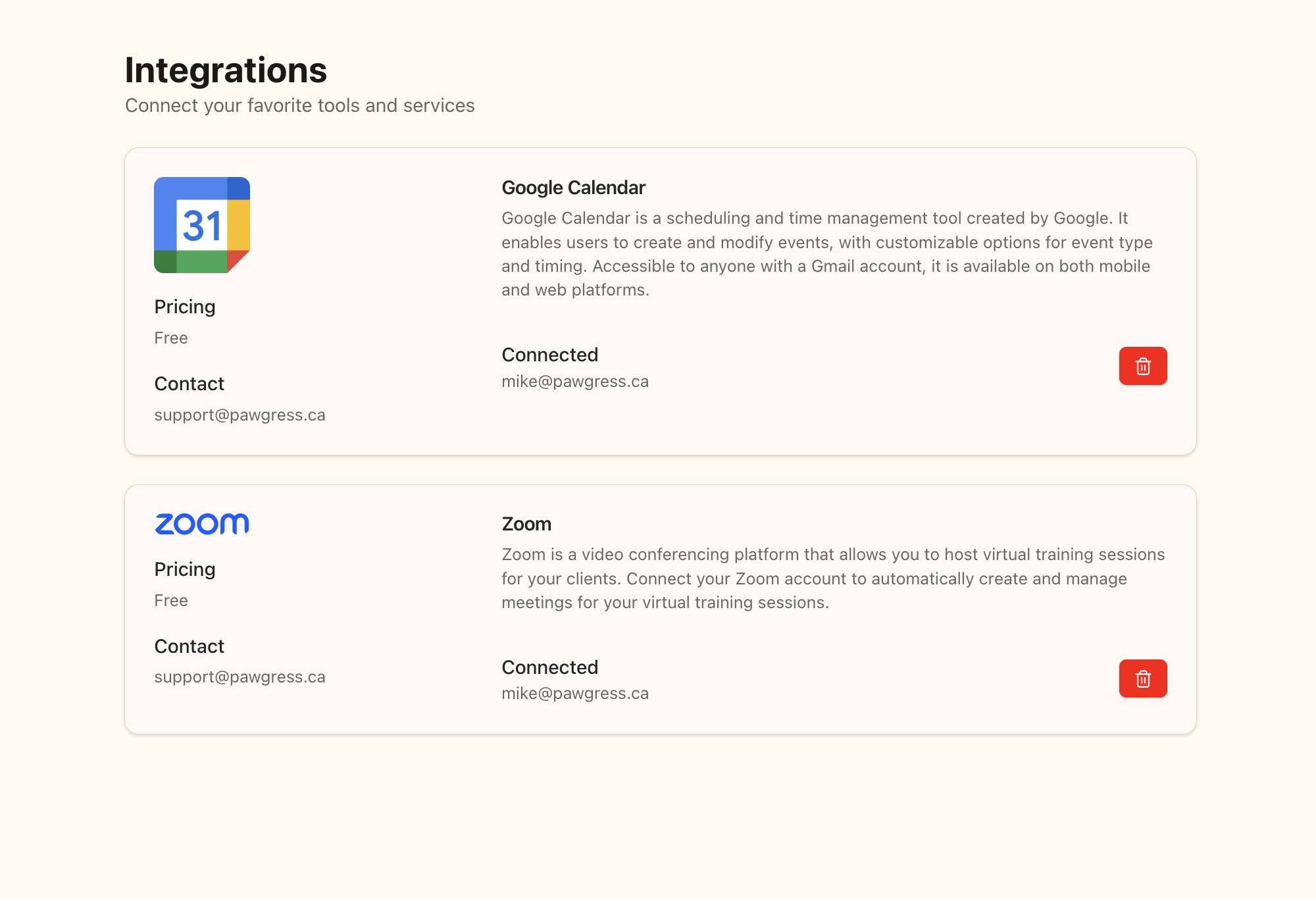 The connected state shows your Zoom account and provides an option to remove the connection
## Creating a Virtual Training Session
### Step 1: Navigate to Sessions
From your dashboard, click on "Sessions" in the main navigation menu to access the sessions page.
### Step 2: Schedule a New Session
Click the "Schedule Session" button to open the scheduling dialog.
### Step 3: Fill in Session Details
In the session creation form:
1. Select a training package
2. Choose a client
3. Select a pet
4. Set the date, start time, and end time
5. Enter a location (this can be "Virtual" or similar for online sessions)
6. Toggle the "Virtual Session" switch to ON
7. Add any notes about the session (optional)
The connected state shows your Zoom account and provides an option to remove the connection
## Creating a Virtual Training Session
### Step 1: Navigate to Sessions
From your dashboard, click on "Sessions" in the main navigation menu to access the sessions page.
### Step 2: Schedule a New Session
Click the "Schedule Session" button to open the scheduling dialog.
### Step 3: Fill in Session Details
In the session creation form:
1. Select a training package
2. Choose a client
3. Select a pet
4. Set the date, start time, and end time
5. Enter a location (this can be "Virtual" or similar for online sessions)
6. Toggle the "Virtual Session" switch to ON
7. Add any notes about the session (optional)
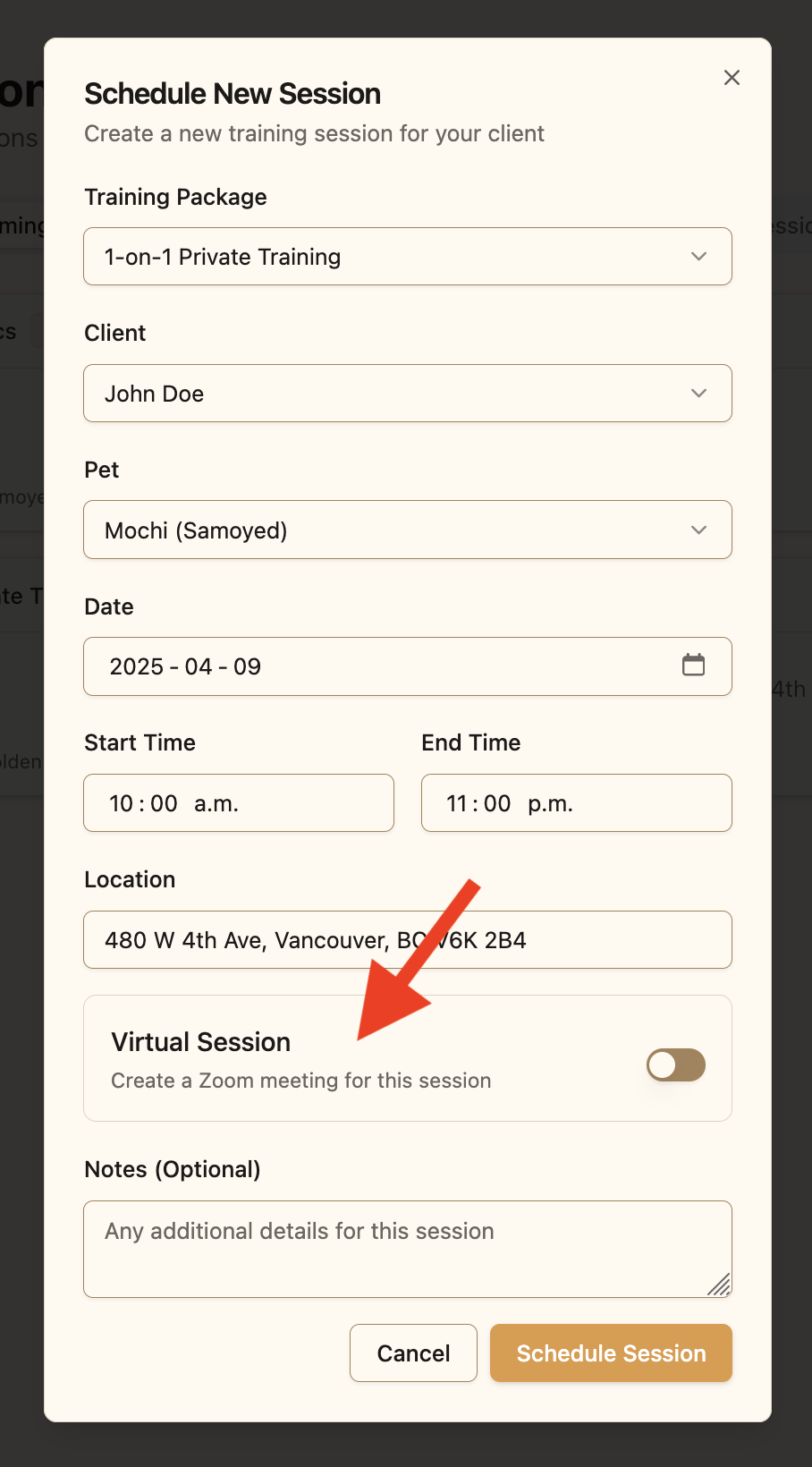 Toggle the "Virtual Session" switch to create a Zoom meeting for this session
### Step 4: Create the Session
Click "Schedule Session" to create the session and generate a Zoom meeting.
* Pawgress will create a Zoom meeting with the date and time you specified
* The meeting details (link, meeting ID, passcode) will be stored in Pawgress
* Both you and your client will be able to access the meeting details from the session card
Toggle the "Virtual Session" switch to create a Zoom meeting for this session
### Step 4: Create the Session
Click "Schedule Session" to create the session and generate a Zoom meeting.
* Pawgress will create a Zoom meeting with the date and time you specified
* The meeting details (link, meeting ID, passcode) will be stored in Pawgress
* Both you and your client will be able to access the meeting details from the session card
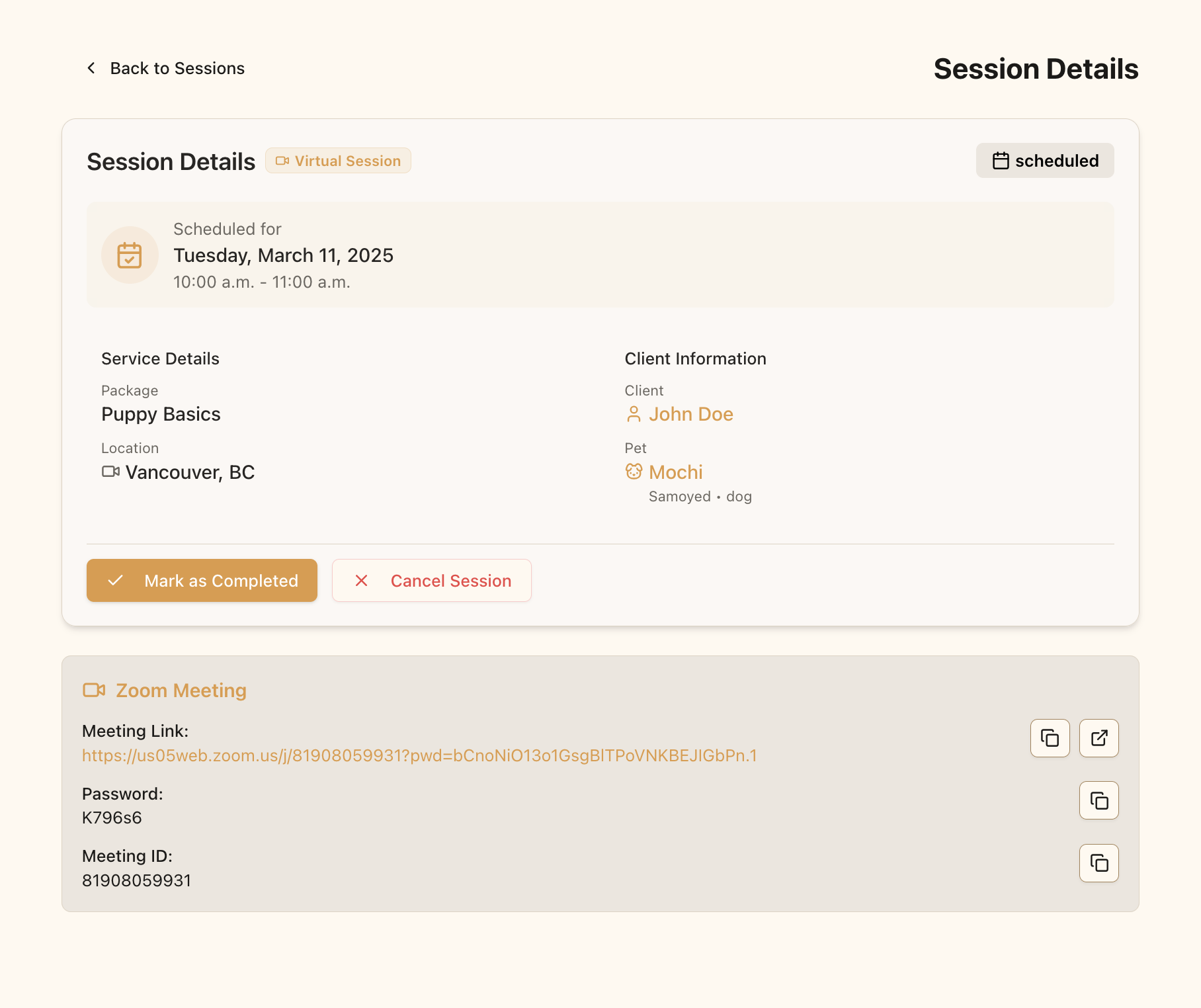 The created session will display a "Virtual" badge and include the Zoom meeting link
## Managing Virtual Sessions
### Accessing the Zoom Meeting
To access the meeting as a trainer:
1. Go to the Sessions page
2. Find the virtual session in your upcoming sessions
3. Click on the session card to expand details
4. Click the "Join Zoom Meeting" button
The created session will display a "Virtual" badge and include the Zoom meeting link
## Managing Virtual Sessions
### Accessing the Zoom Meeting
To access the meeting as a trainer:
1. Go to the Sessions page
2. Find the virtual session in your upcoming sessions
3. Click on the session card to expand details
4. Click the "Join Zoom Meeting" button
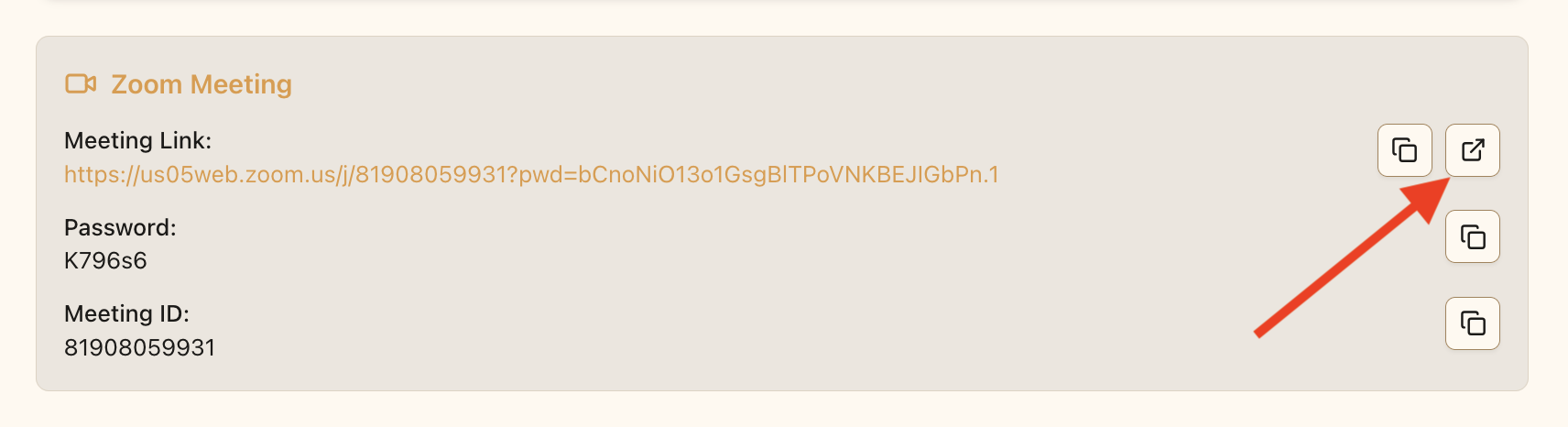 Click the "Join Zoom Meeting" button to launch the meeting
### Confirming Created Zoom Meetings
You can verify that the meeting was created in your Zoom account:
1. Log in to your Zoom account at zoom.us
2. Go to the "Meetings" section
3. Find the meeting created by Pawgress in your scheduled meetings list
Click the "Join Zoom Meeting" button to launch the meeting
### Confirming Created Zoom Meetings
You can verify that the meeting was created in your Zoom account:
1. Log in to your Zoom account at zoom.us
2. Go to the "Meetings" section
3. Find the meeting created by Pawgress in your scheduled meetings list
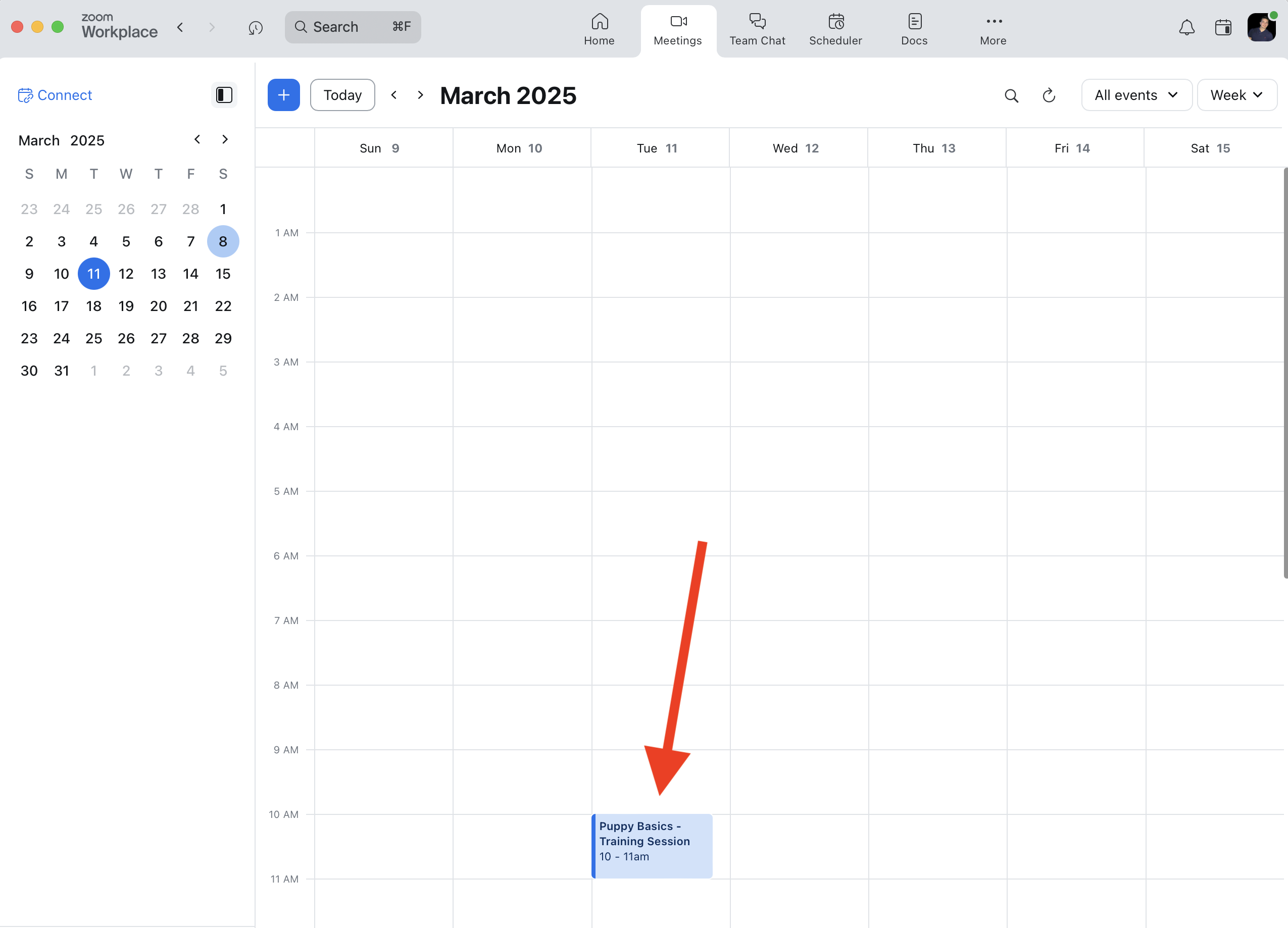 The meeting appears in your Zoom account with the client and pet name in the title
**Pro Tip: Preparing for Virtual Sessions**
To ensure a smooth virtual training experience:
* Join the meeting 5-10 minutes early to check your setup
* Have a well-lit, distraction-free environment
* Position your camera to show your full body when demonstrating techniques
* Consider using a Bluetooth headset for better audio quality and mobility
* Have training materials ready to share on screen if needed
## Troubleshooting
### Zoom Integration Not Working
If you're having trouble with the Zoom integration:
* Go to the Integrations page and check if Zoom is properly connected
* Try disconnecting and reconnecting your Zoom account
* Make sure your Zoom account is active and not in a free trial that has expired
### Meeting Not Created
If a Zoom meeting isn't created when scheduling a virtual session:
* Verify that you toggled the "Virtual Session" switch to ON
* Check that your Zoom integration is still connected in the Integrations page
* Ensure your Zoom account has sufficient meeting credits (if using a paid account)
For any persistent issues, please contact our support team at [support@pawgress.ca](mailto:support@pawgress.ca).
The meeting appears in your Zoom account with the client and pet name in the title
**Pro Tip: Preparing for Virtual Sessions**
To ensure a smooth virtual training experience:
* Join the meeting 5-10 minutes early to check your setup
* Have a well-lit, distraction-free environment
* Position your camera to show your full body when demonstrating techniques
* Consider using a Bluetooth headset for better audio quality and mobility
* Have training materials ready to share on screen if needed
## Troubleshooting
### Zoom Integration Not Working
If you're having trouble with the Zoom integration:
* Go to the Integrations page and check if Zoom is properly connected
* Try disconnecting and reconnecting your Zoom account
* Make sure your Zoom account is active and not in a free trial that has expired
### Meeting Not Created
If a Zoom meeting isn't created when scheduling a virtual session:
* Verify that you toggled the "Virtual Session" switch to ON
* Check that your Zoom integration is still connected in the Integrations page
* Ensure your Zoom account has sufficient meeting credits (if using a paid account)
For any persistent issues, please contact our support team at [support@pawgress.ca](mailto:support@pawgress.ca).