> ## Documentation Index
> Fetch the complete documentation index at: https://help.pawgress.ca/llms.txt
> Use this file to discover all available pages before exploring further.
# Handling Session Cancellations
> Learn how to cancel training sessions in Pawgress
## Cancelling a Session
Sometimes training sessions need to be cancelled due to illness, emergencies, or scheduling conflicts. Pawgress makes it easy to cancel sessions and keep your training calendar up to date.
### Method 1: From the Sessions Page
1. Navigate to the "Training Sessions" page from your dashboard
2. Find the session you need to cancel in the Upcoming Sessions tab
3. Click the "Cancel" button on the session card
4. Confirm the cancellation in the dialog that appears
Click the "Cancel" button on the session card to cancel a session
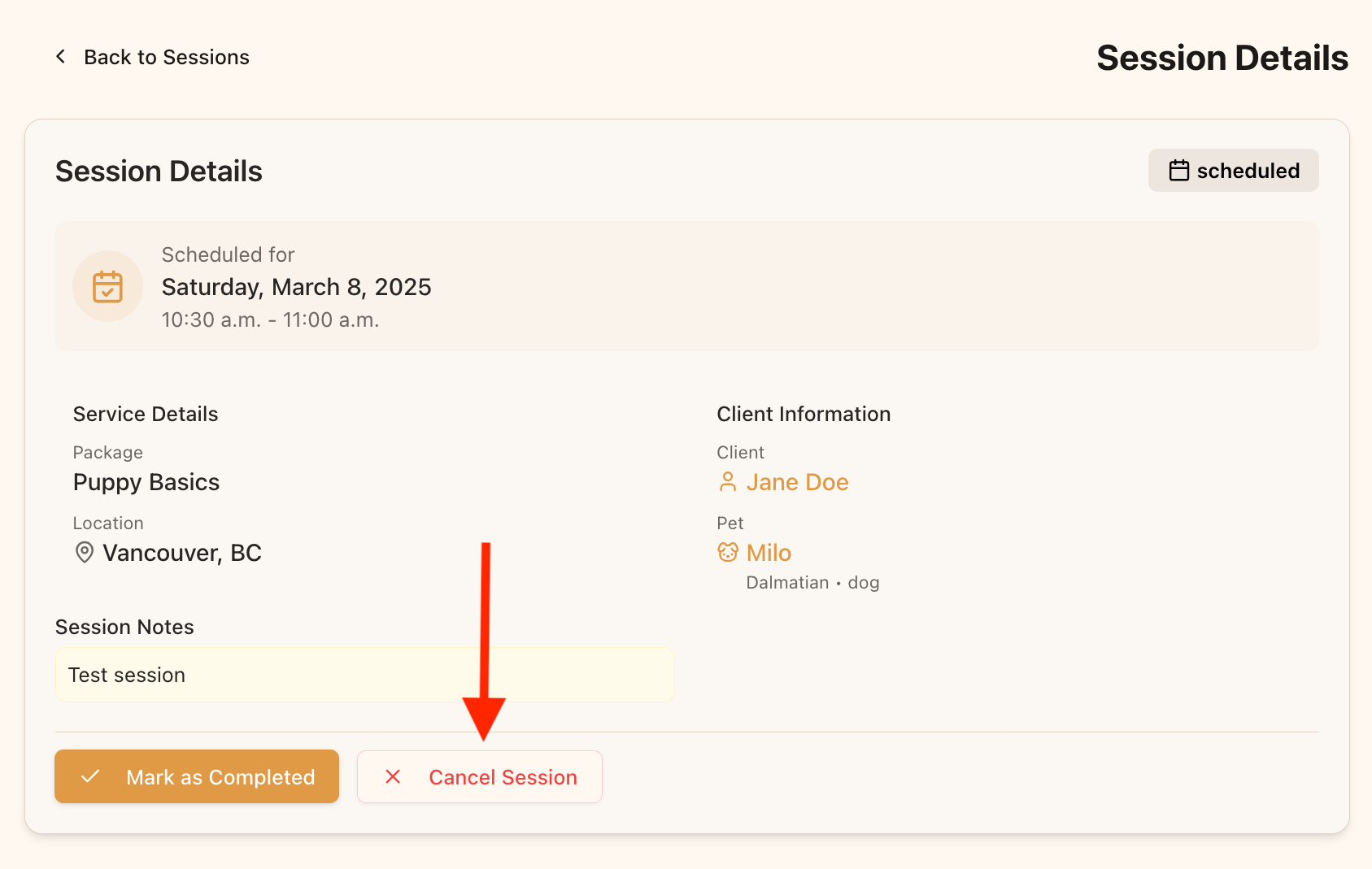
### Method 2: From the Session Details Page
1. Navigate to the "Training Sessions" page from your dashboard
2. Click "View" on the session you need to cancel
3. On the session details page, click the "Cancel Session" button
4. Confirm the cancellation in the dialog that appears
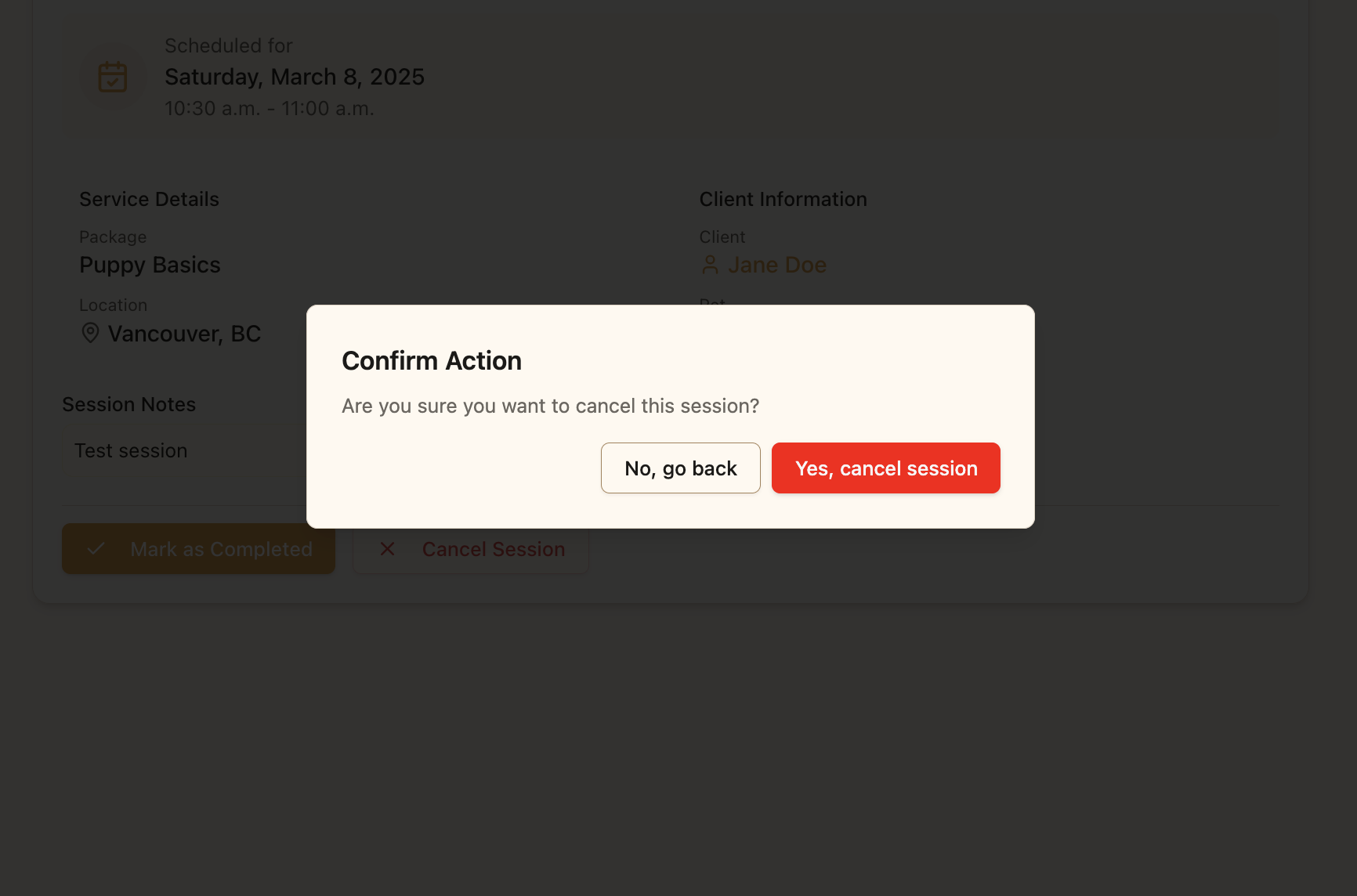
Confirm the cancellation in the dialog to complete the process
**Important Notes**
* Cancelled sessions automatically move to the Past Sessions tab
* If the session was linked to a Google Calendar event, the event will be deleted
* If the session was a Zoom meeting, the meeting will be cancelled
* The client will receive a notification about the cancellation
## After Cancelling
After cancelling a session, consider these follow-up actions:
* Reach out to the client directly to explain the cancellation if needed
* Offer to reschedule the session by creating a new session
* Ensure the client knows how many sessions remain in their package
Maintaining clear communication around cancellations helps preserve the client relationship and keeps your training business running smoothly.