

Understanding Your Subscription Options
Pawgress offers a Pro Plan subscription that unlocks advanced features designed to help dog trainers manage their business more efficiently. All new users can start with a 90-day free trial to explore all Pro features without any payment required.Pro Plan PricingAnnual Billing: $192.00/year (save $48 compared to monthly)Monthly Billing: $20.00/monthAll plans include:
- 90-day free trial
- Advanced scheduling tools
- Unlimited client sessions
- Google Calendar integration
- Zoom integration
- Priority support
Starting Your 90-Day Free Trial
All new Pawgress accounts automatically start with access to the free version. To unlock Pro features, you’ll need to start your free trial:Step 1: Access Subscription Settings
From your dashboard, click on your profile icon in the top-right corner, then select “Account Settings” from the dropdown menu. Navigate to the “Subscription” tab.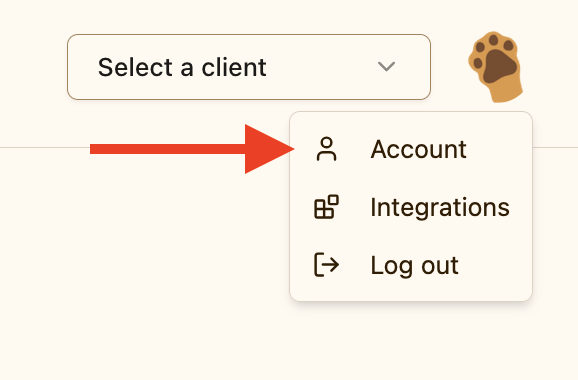
Step 2: View Subscription Options
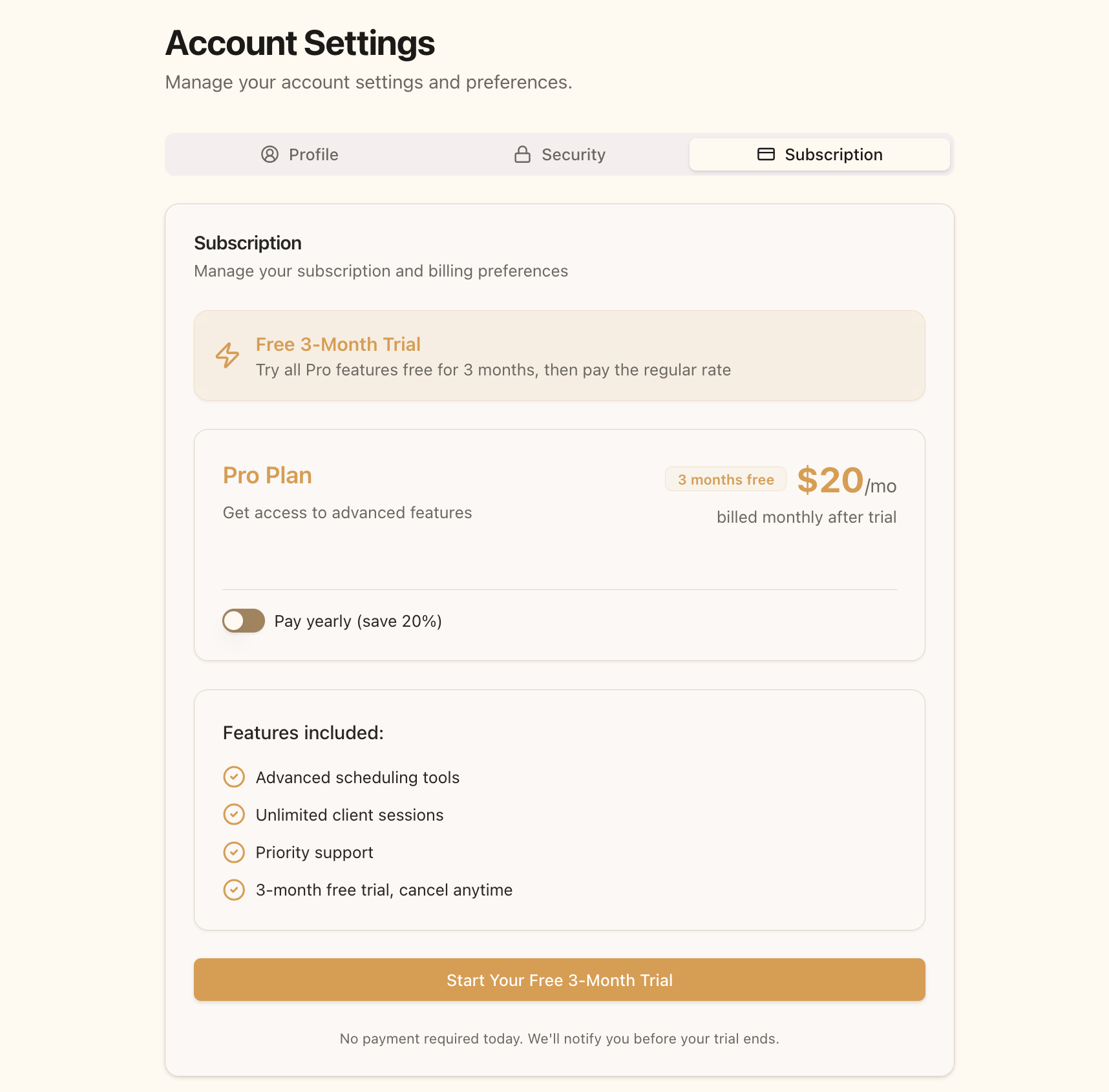
On the Subscription page, you’ll see details about the Pro Plan, including:- The 90-day free trial offer
- Monthly pricing ($20.00/month)
- Annual pricing ($192.00/year, saving you 48 annually)
- A list of features included in the Pro Plan
Step 3: Choose Billing Frequency
Before starting your trial, decide whether you prefer monthly or annual billing after your trial ends:- Toggle the “Pay yearly” switch to ON for annual billing ($192.00/year, equivalent to $16.00/month)
- Leave the toggle OFF for monthly billing ($20.00/month)
Step 4: Start Your Trial
Click the “Start Your Free 3-Month Trial” button to proceed. You’ll be redirected to Stripe’s secure checkout page.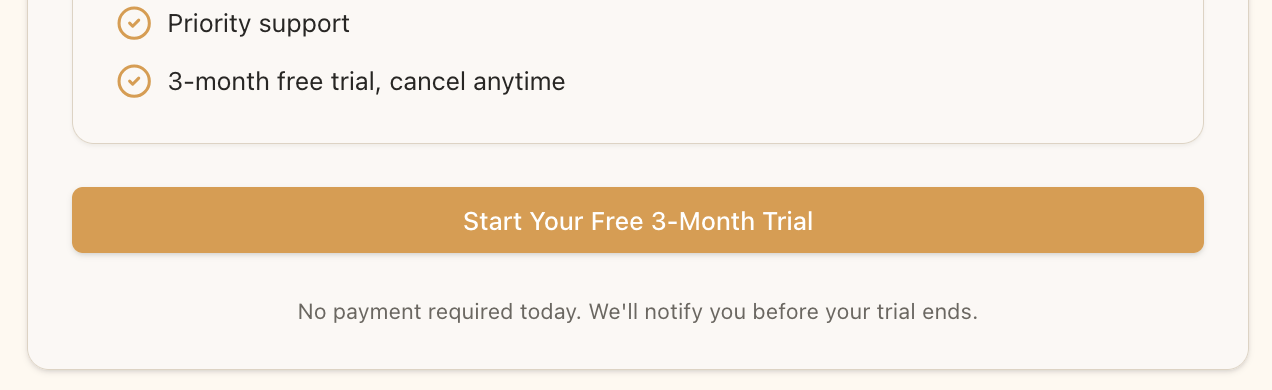
Step 5: Complete Payment Information
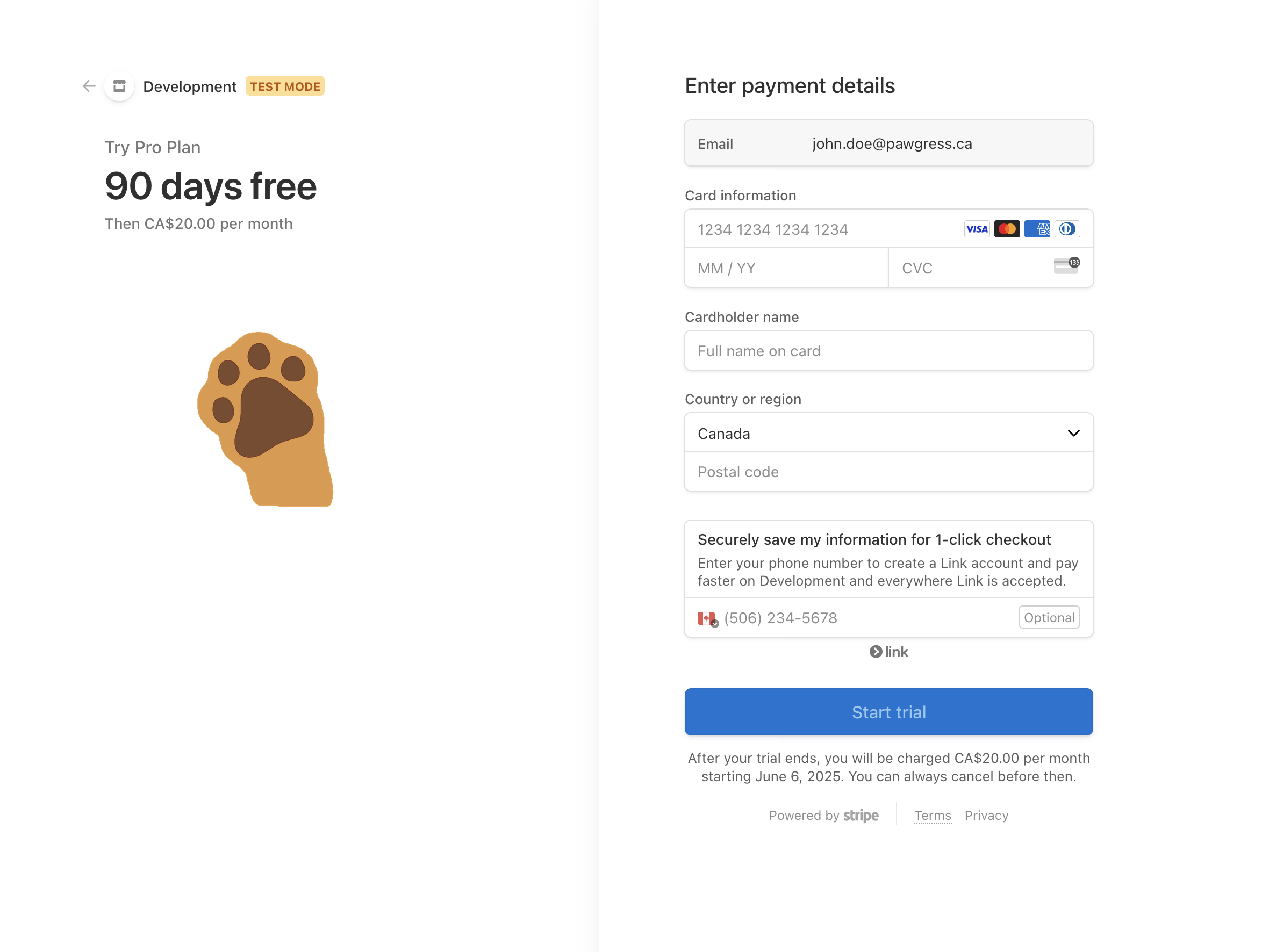
On the Stripe checkout page:- Enter your email address (should match your Pawgress account)
- Enter your payment card details
- Enter your billing address
- Click “Subscribe” to confirm
Step 6: Confirmation
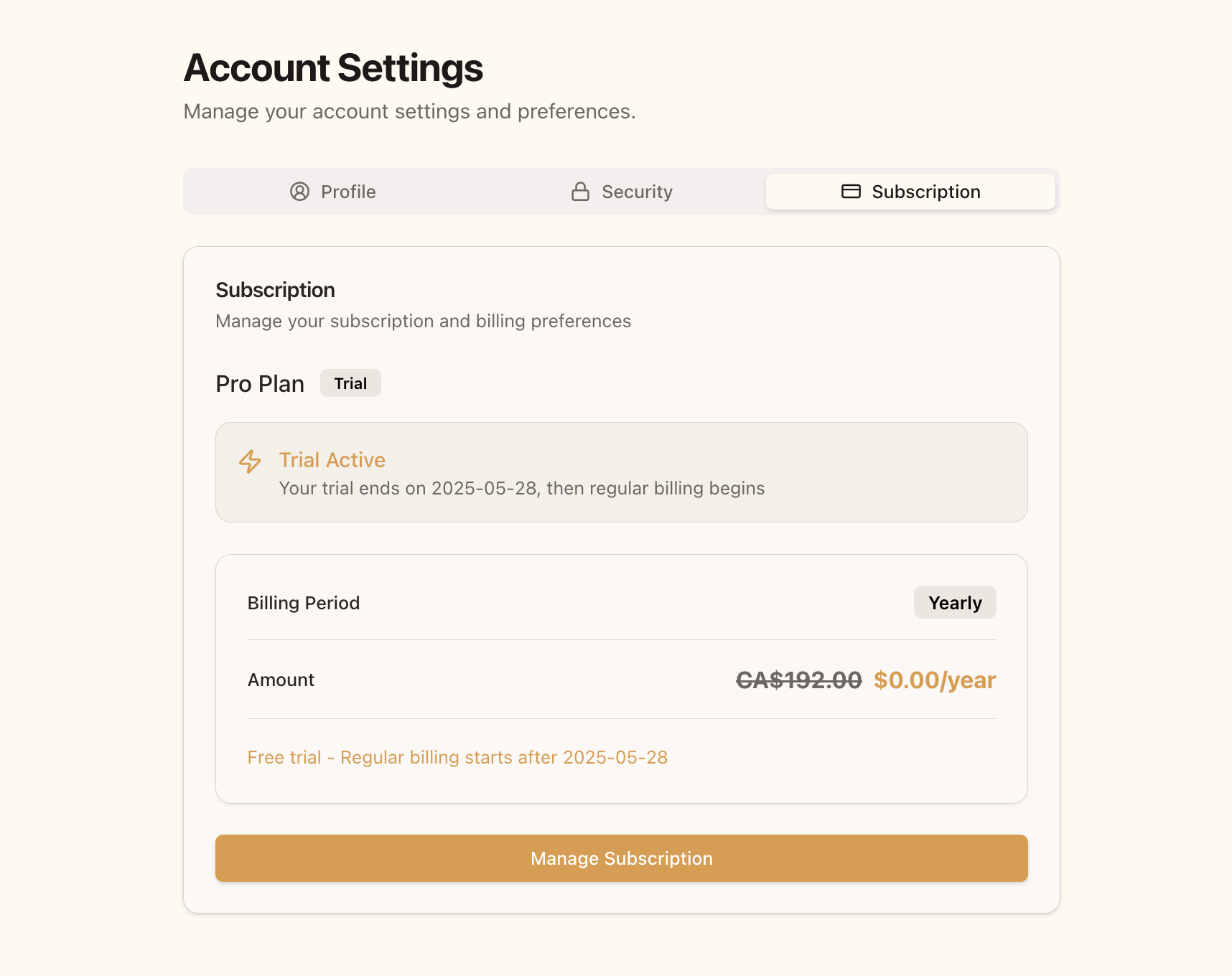
After completing the checkout process, you’ll be redirected back to Pawgress with your Pro trial active. Your subscription page will now show:- Your active trial status
- Trial end date
- The subscription plan that will activate after your trial
Managing Your Subscription
Updating Payment Method
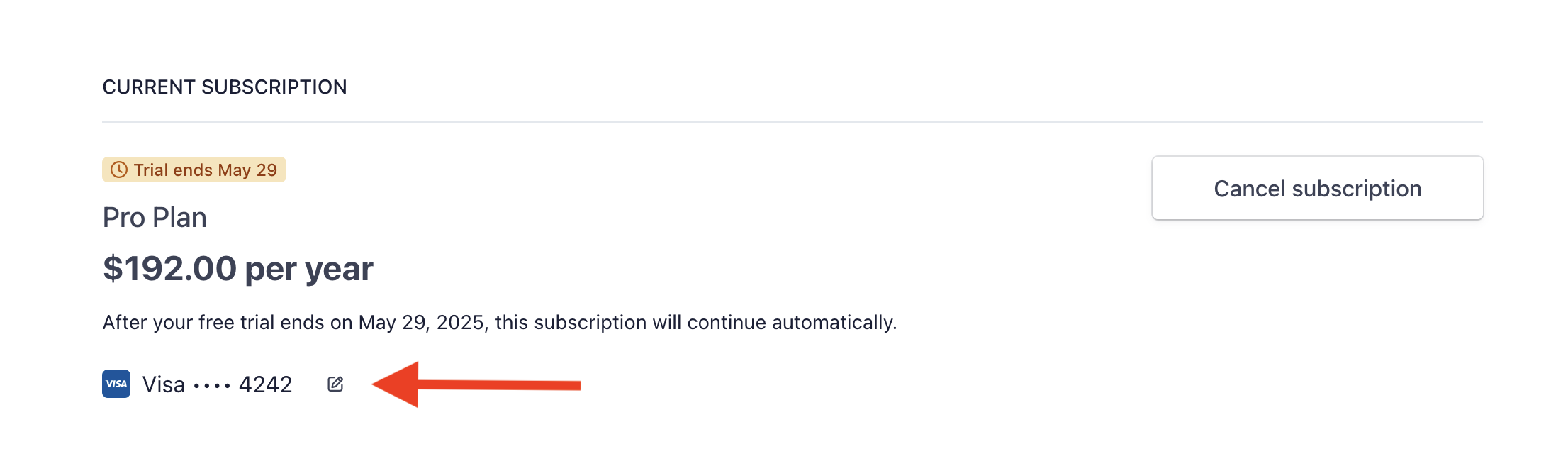
To update your payment card or billing information:- Go to your Subscription page
- Click “Manage Subscription”
- In the Stripe Customer Portal, click “Update payment method”
- Enter your new card details
- Confirm the change
Cancelling Your Subscription
Before You CancelWhen you cancel your subscription:
- You’ll retain access to all Pro features until the end of your current billing period
- No refunds are issued for partial billing periods
- You can reactivate your subscription at any time before your access expires
- If you’re still in your trial period, cancellation is immediate with no future charges
How to Cancel Your Subscription
To cancel your Pawgress Pro subscription:- Go to your Account Settings
- Navigate to the “Subscription” tab
- Click “Manage Subscription” to access the Stripe Customer Portal
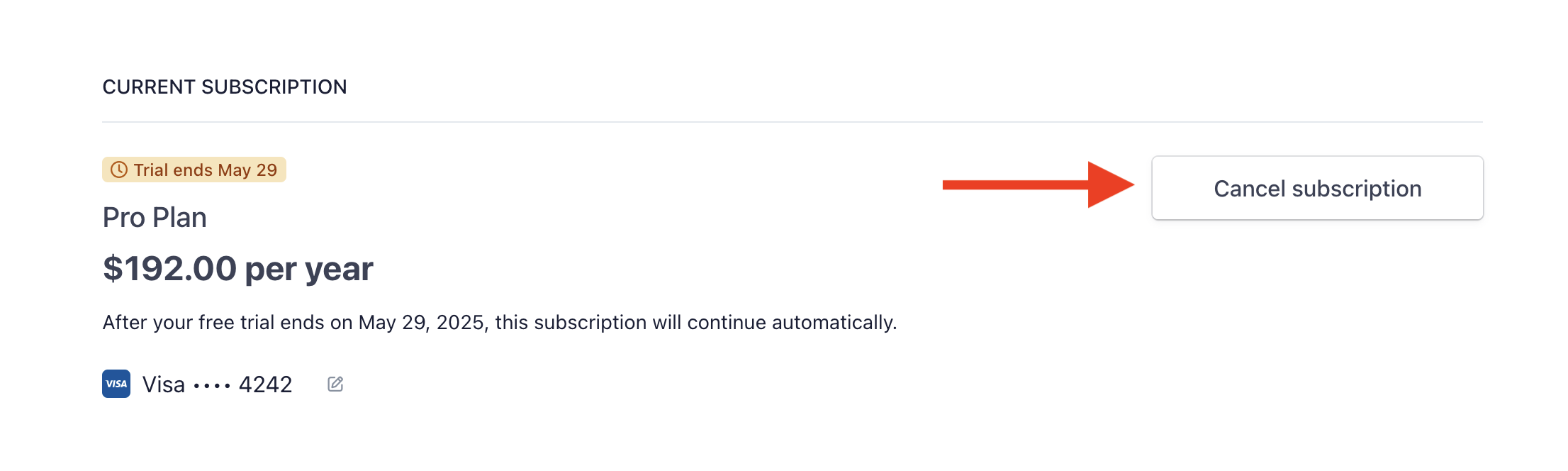
- Click “Cancel” next to your subscription
- Select your reason for cancelling (optional)
- Confirm cancellation
Confirming Cancellation
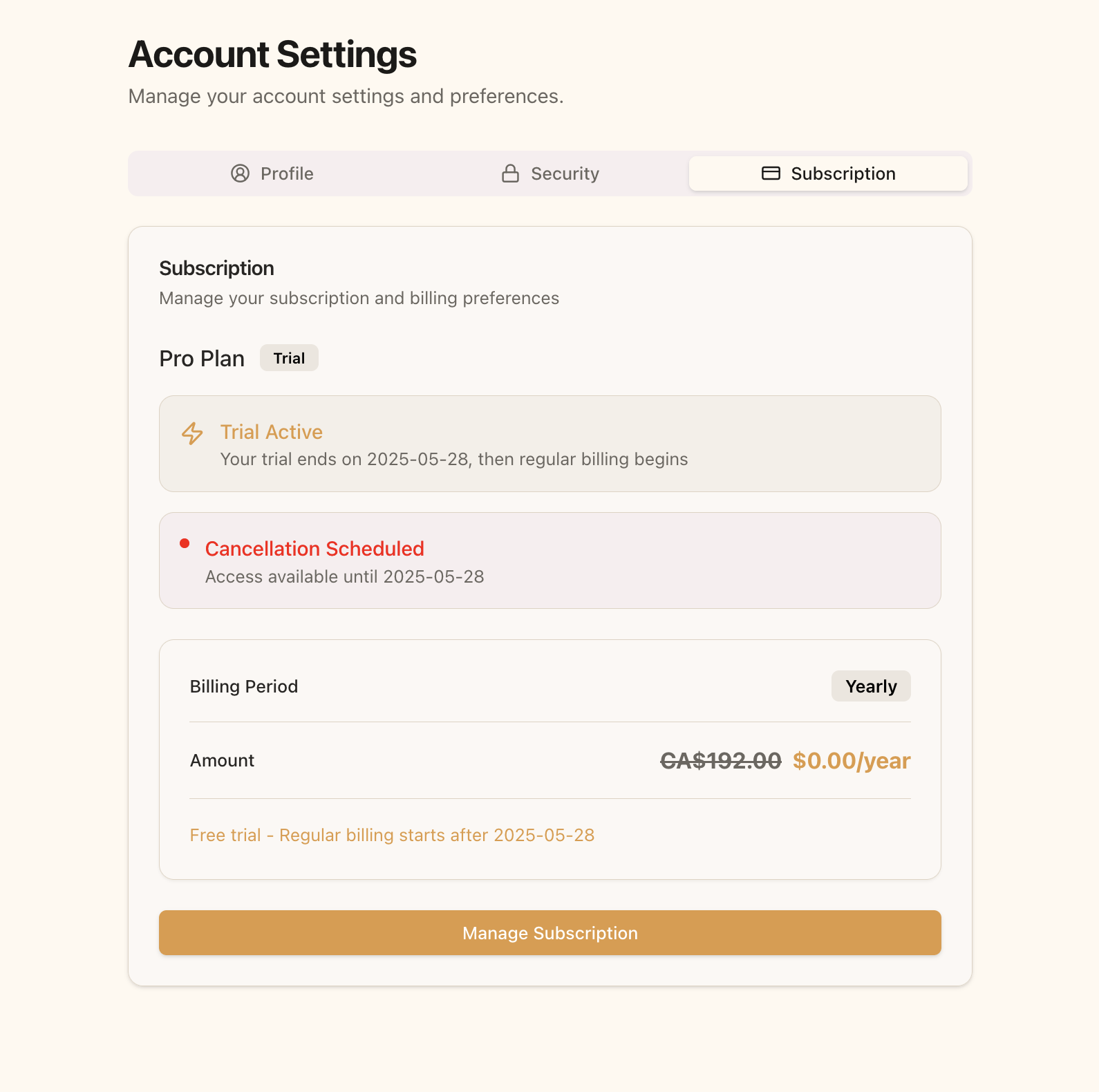
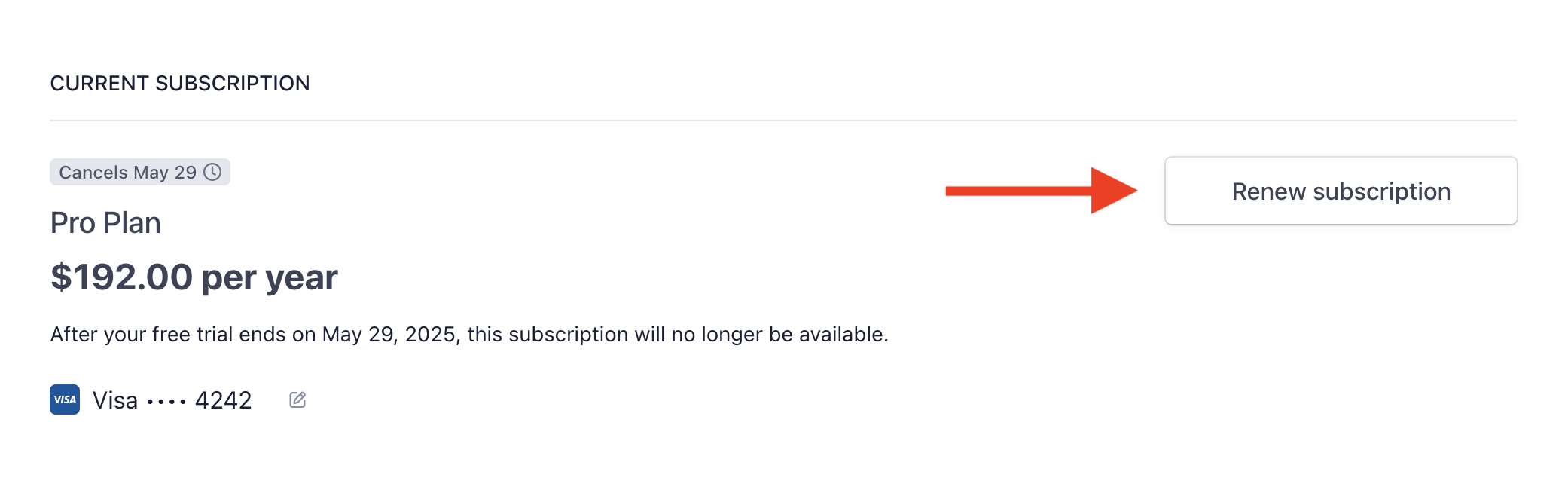
After cancellation, you’ll see a confirmation in the Stripe portal. When you return to Pawgress, your subscription page will show:- A “Cancellation Scheduled” notice
- The date until which you’ll have Pro access
Reactivating Your Subscription
If you change your mind before your subscription fully expires:- Go to your Subscription page
- Click “Manage Subscription”
- In the Stripe portal, click “Reactivate subscription”
- Confirm the reactivation
Troubleshooting
Payment Failed
If your payment method fails at renewal time:- You’ll receive an email notification about the failed payment
- Stripe will automatically make several retry attempts over the next few days
- You can update your payment method at any time through the “Manage Subscription” button
Additional Help
For any subscription or billing issues not covered in this guide, please contact our support team:- Email: support@pawgress.ca
- In-app: Click “Support” in the bottom navigation