

Understanding Client Enrollments
Enrollments are how you assign training packages to your clients in Pawgress. When you enroll a client in a package, you’re creating a commitment that tracks the number of sessions, pricing, and progress for that specific training program. This guide will walk you through creating and managing client enrollments.Creating a New Enrollment
Step 1: Navigate to the Client Page
From your Clients page, find the client you want to enroll and click the “View Client” button next to their name. This will take you to their client profile page where you can manage their pets and enrollments.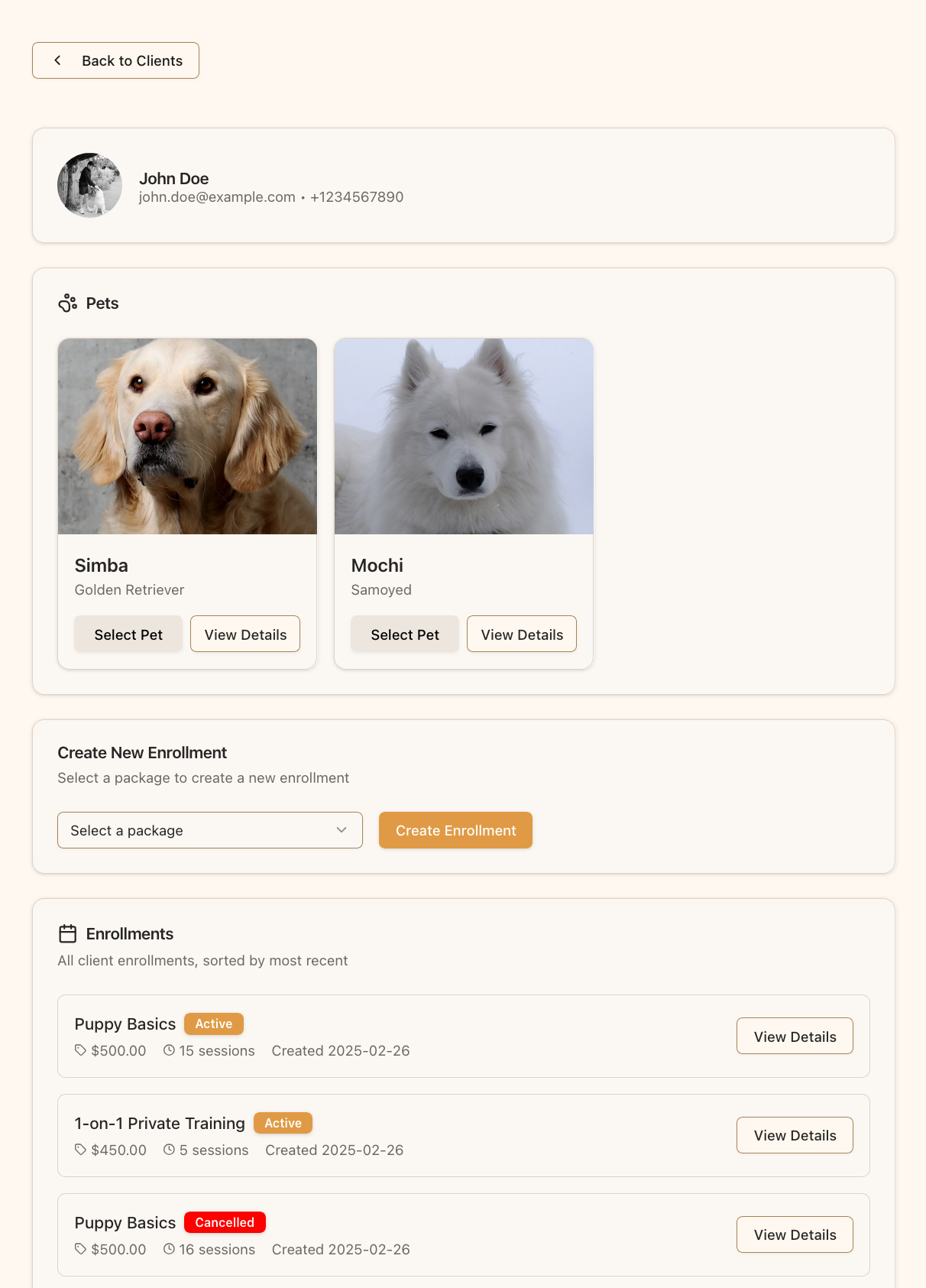
The client profile page shows their information, pets, and enrollments
Step 2: Select a Package
Scroll down to the “Create New Enrollment” section on the client page. Here you’ll see:- A dropdown menu showing all your available training packages
- Click the dropdown to see the list of packages
- Select the package you want to enroll the client in
Step 3: Review Enrollment Details
After selecting a package, click the “Create Enrollment” button. A confirmation dialog will appear showing you the enrollment details:- Package Name: The training package you selected
- Client Name: The client being enrolled
- Price: The total cost of the package
- Sessions: The number of training sessions included
Step 4: Confirm the Enrollment
If everything looks correct:- Click the “Create Enrollment” button in the confirmation dialog
- The enrollment will be created with an “Active” status
- A success notification will appear
- The new enrollment will be added to the client’s enrollments list
What Happens After EnrollmentOnce you create an enrollment:
- The enrollment appears in the “Enrollments” section with an Active status badge
- You can now schedule training sessions that count against this enrollment
- The system tracks how many sessions have been used vs. remaining
- Both you and your client can see the enrollment details and progress
Managing Enrollments
Viewing Enrollment Details
To see more information about an enrollment:- On the client page, scroll to the “Enrollments” section
- Find the enrollment you want to view
- Click the “View Details” button
- Client and package information
- Total sessions and remaining sessions
- Enrollment price
- Creation and last updated dates
- Current enrollment status (Active, Completed, or Cancelled)
Enrollment Status Badges
Each enrollment displays a status badge that indicates its current state:- Active: The enrollment is currently in progress and sessions can be scheduled
- Completed: All sessions have been used or the enrollment has been marked as finished
- Cancelled: The enrollment was cancelled before completion
Updating Session Count
If you need to add more sessions to an active enrollment:- Navigate to the enrollment details page
- Click the “Update Sessions” button
- Enter the new total number of sessions
- Click “Update Sessions” to confirm
Completing an Enrollment
When all sessions are finished or the training program is complete:- Go to the enrollment details page
- Click the “Mark Completed” button
- Confirm the action in the dialog
- The enrollment status will change to “Completed”
If there are unused sessions remaining, you’ll receive a warning before completing the enrollment.
Cancelling an Enrollment
If you need to cancel an enrollment (for example, if a client discontinues training):- Open the enrollment details page
- Click the “Cancel Enrollment” button
- Choose a refund option:
- No Refund: Cancel without issuing a refund
- Partial Refund: Refund based on remaining sessions (automatically calculated, but adjustable)
- Full Refund: Refund the entire package price
- Review the refund amount and percentage
- Click the confirmation button to cancel with the selected refund option
Tracking Session Usage
The enrollment system automatically tracks session usage:- Each time you schedule and complete a session, it counts against the enrollment
- The “Remaining” sessions counter updates automatically
- You can see the current progress on the enrollment details page
- When scheduling sessions, you can select which enrollment to use
Multiple Enrollments
Clients can have multiple active enrollments at the same time:- Each enrollment is tracked separately with its own session count
- All enrollments are listed on the client page, sorted by most recent first
- You can enroll the same client in different packages for different training needs
- When scheduling sessions, you’ll choose which enrollment to apply the session to
Next Steps
Once you’ve enrolled a client in a package, you can:- Schedule training sessions that count against the enrollment
- Track progress as sessions are completed
- Create training reports to document the client’s progress
- Monitor remaining sessions to plan for package renewals