

Cancelling a Session
Sometimes training sessions need to be cancelled due to illness, emergencies, or scheduling conflicts. Pawgress makes it easy to cancel sessions and keep your training calendar up to date.Method 1: From the Sessions Page
- Navigate to the “Training Sessions” page from your dashboard
- Find the session you need to cancel in the Upcoming Sessions tab
- Click the “Cancel” button on the session card
- Confirm the cancellation in the dialog that appears
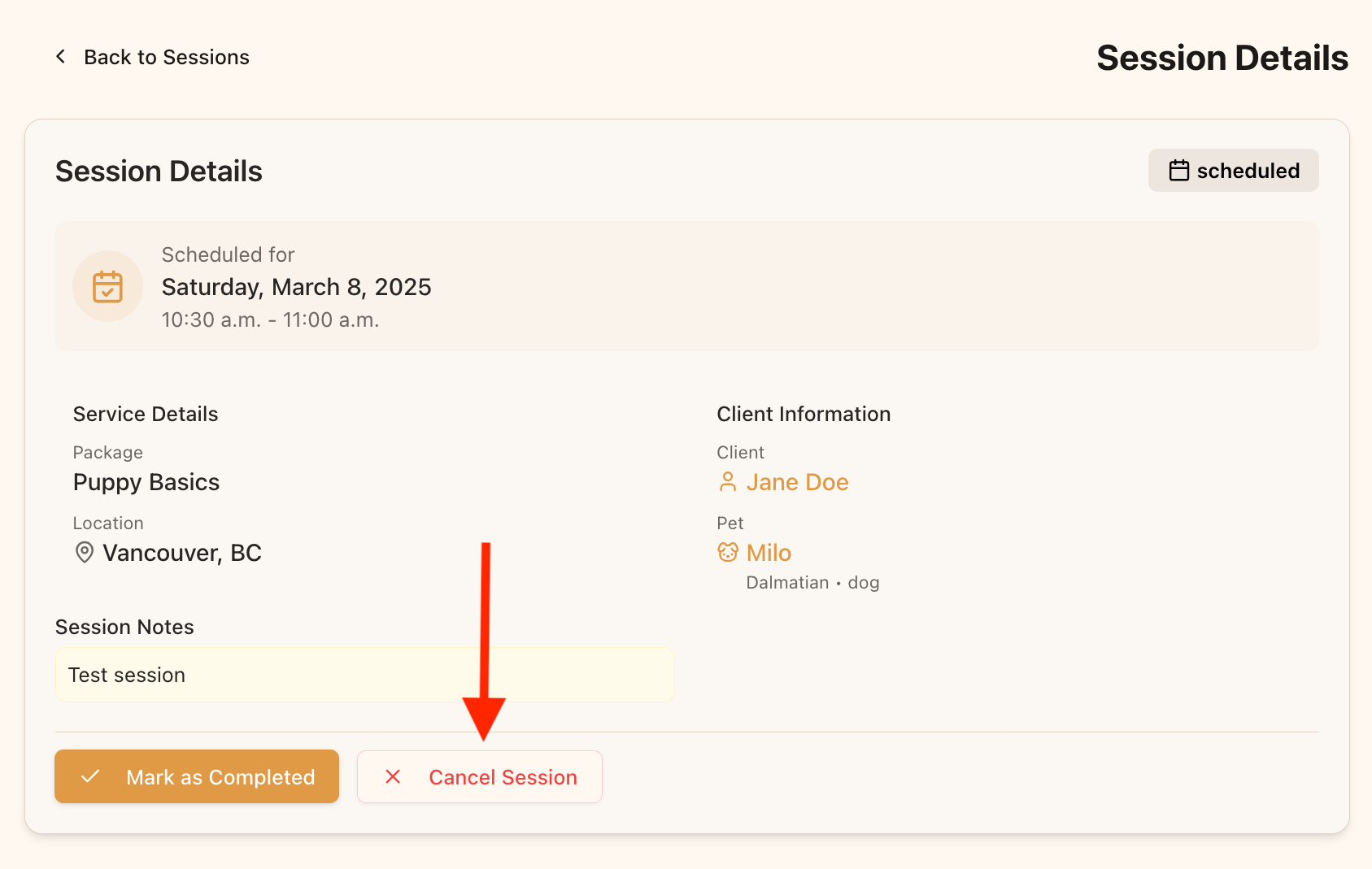
Click the “Cancel” button on the session card to cancel a session
Method 2: From the Session Details Page
- Navigate to the “Training Sessions” page from your dashboard
- Click “View” on the session you need to cancel
- On the session details page, click the “Cancel Session” button
- Confirm the cancellation in the dialog that appears
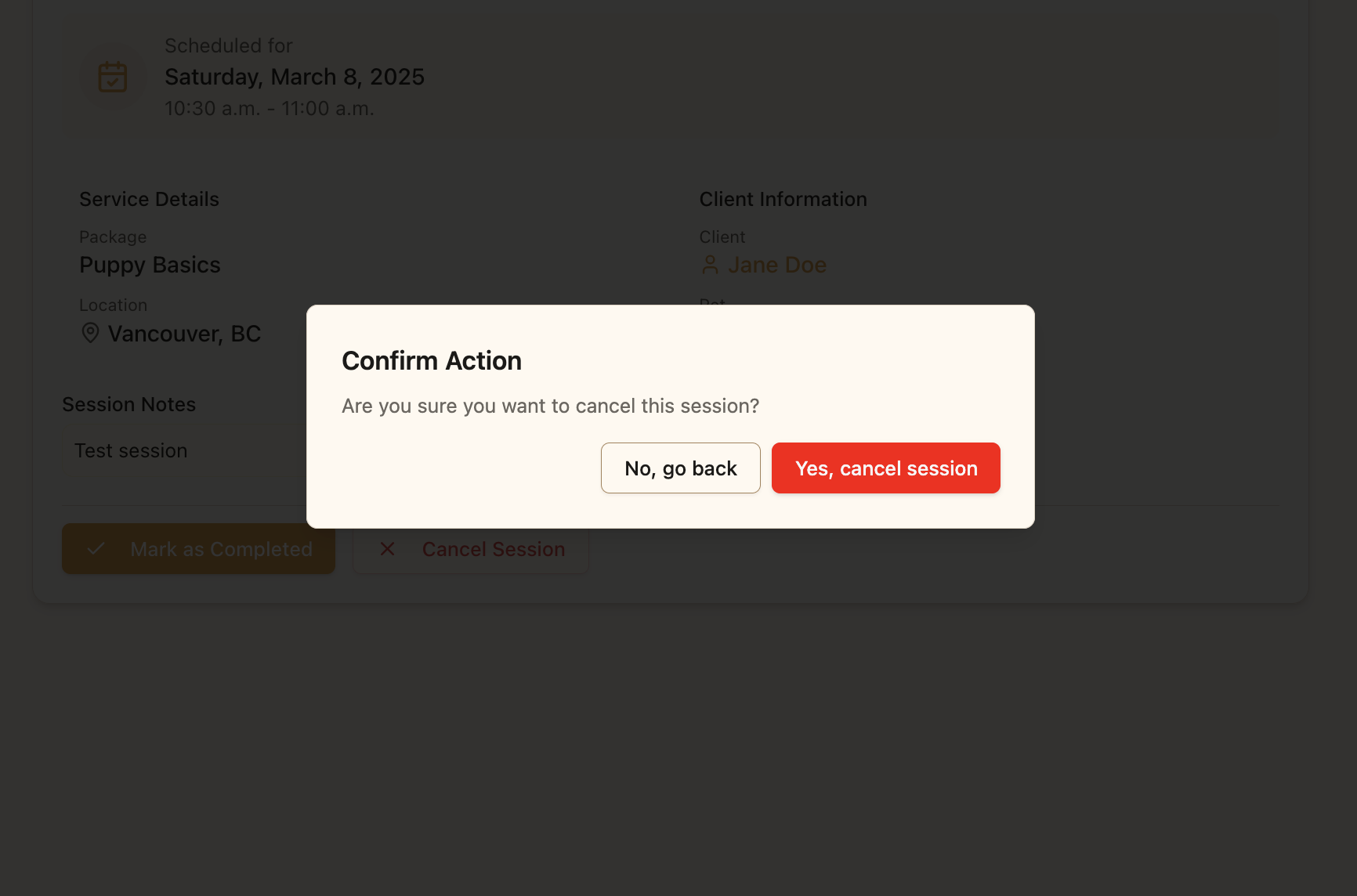
Confirm the cancellation in the dialog to complete the process
Important Notes
- Cancelled sessions automatically move to the Past Sessions tab
- If the session was linked to a Google Calendar event, the event will be deleted
- If the session was a Zoom meeting, the meeting will be cancelled
- The client will receive a notification about the cancellation
After Cancelling
After cancelling a session, consider these follow-up actions:- Reach out to the client directly to explain the cancellation if needed
- Offer to reschedule the session by creating a new session
- Ensure the client knows how many sessions remain in their package