

What is the Google Calendar Integration?
Pawgress’s Google Calendar integration allows you to sync your training sessions with your Google Calendar. When you schedule a session in Pawgress, it can automatically appear in your Google Calendar, helping you keep track of all your appointments in one place.Pro FeatureGoogle Calendar integration is a Pro feature in Pawgress, allowing you to:
- Connect your Google Calendar account to Pawgress
- Automatically sync training sessions to specific calendars
- Avoid double-booking by keeping all your appointments in sync
- Access your training schedule from any device with Google Calendar
Setting Up Google Calendar Integration
Step 1: Navigate to the Integrations Page
From your dashboard, click on “Integrations” in the main navigation menu. This will take you to the integrations overview page.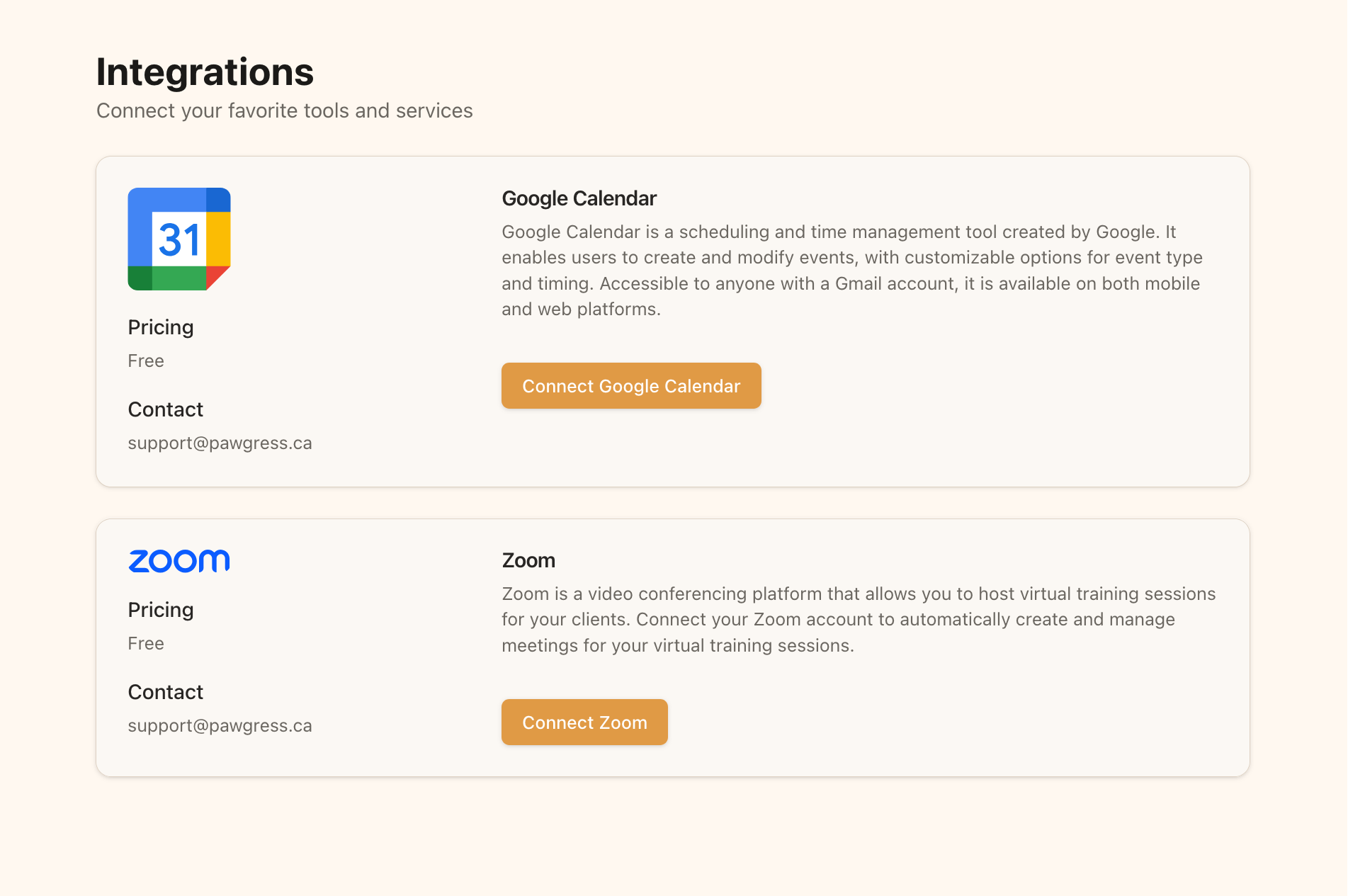
Step 2: Connect Google Calendar
On the Integrations page:- Find the Google Calendar section
- Click the “Connect Google Calendar” button
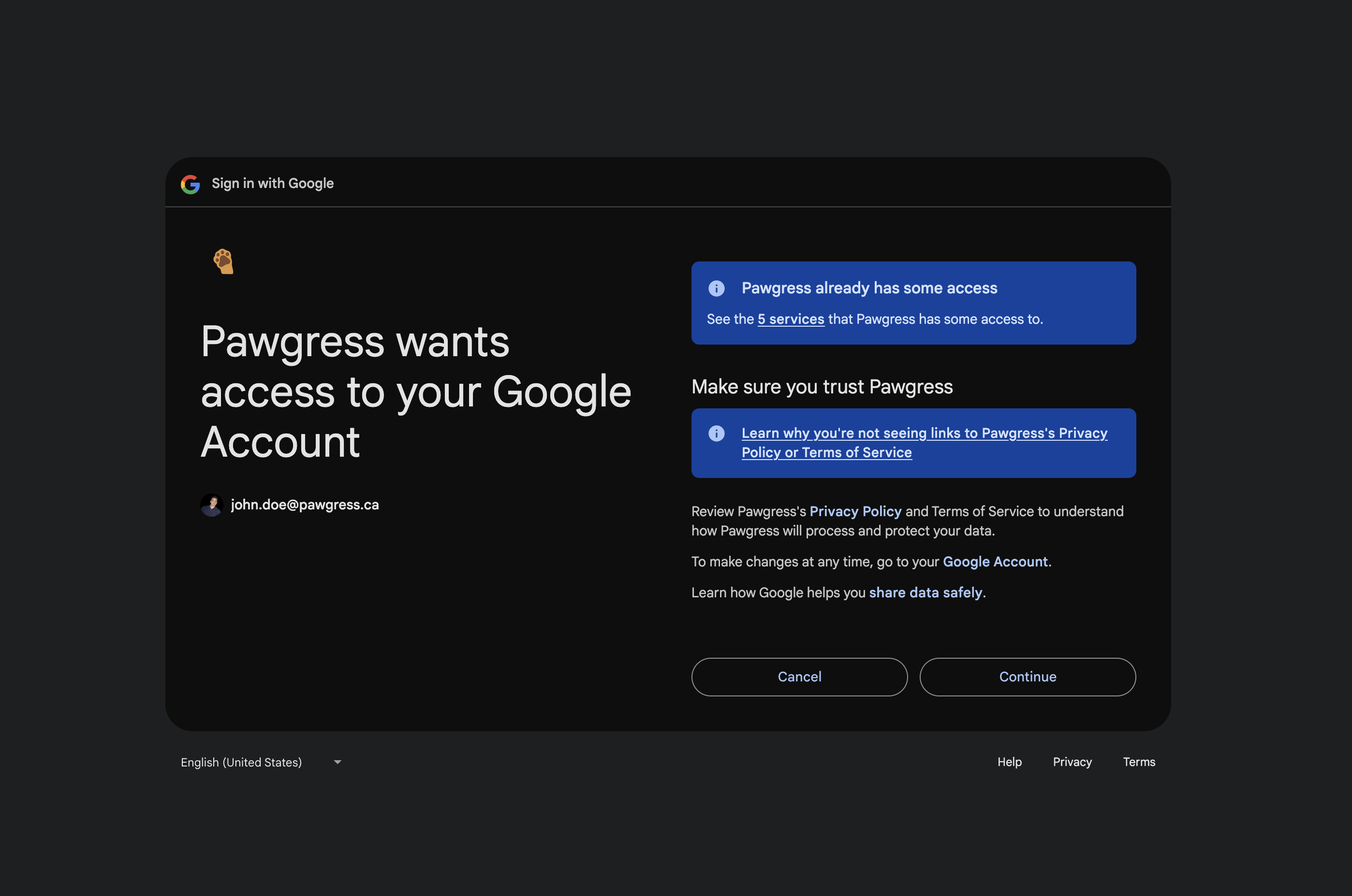
- You’ll be redirected to Google’s authentication page
- Log in to your Google account if prompted
- Grant Pawgress permission to access your Google Calendar
- You’ll be redirected back to Pawgress once the connection is successful
Step 3: Verify Connection
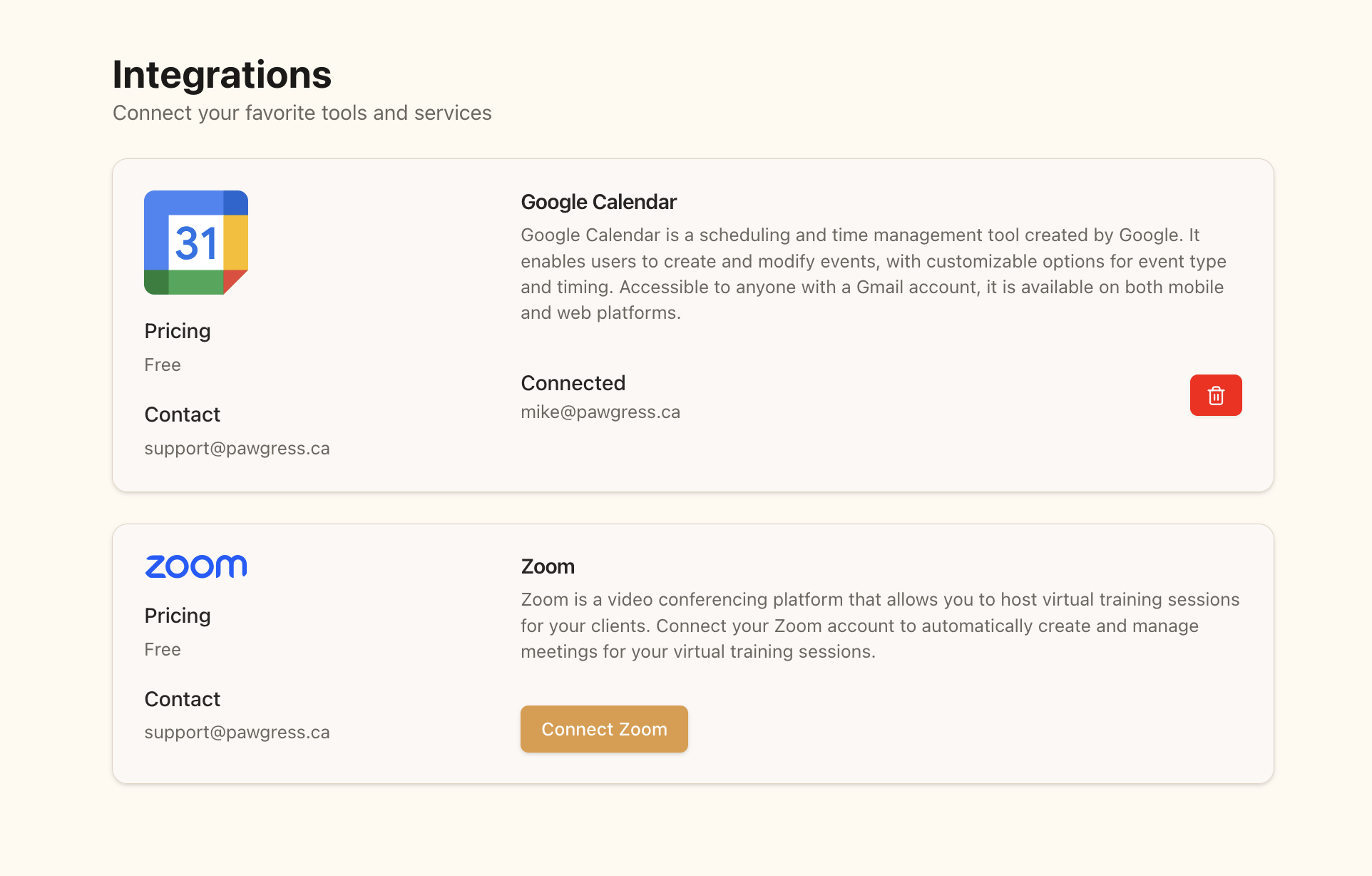
After redirecting back to Pawgress, you should see your Google account displayed as connected:- The status will change to “Connected”
- Your Google account email will be displayed
- A delete button will appear in case you want to remove the integration later
Adding a Calendar to a Training Package
Once you’ve connected Google Calendar to Pawgress, you can select specific calendars for your training packages:Step 1: Create or Edit a Package
Navigate to the Training Packages page and either:- Click “New Package” to create a new training package, or
- Click on an existing package to edit its details
Step 2: Select a Google Calendar
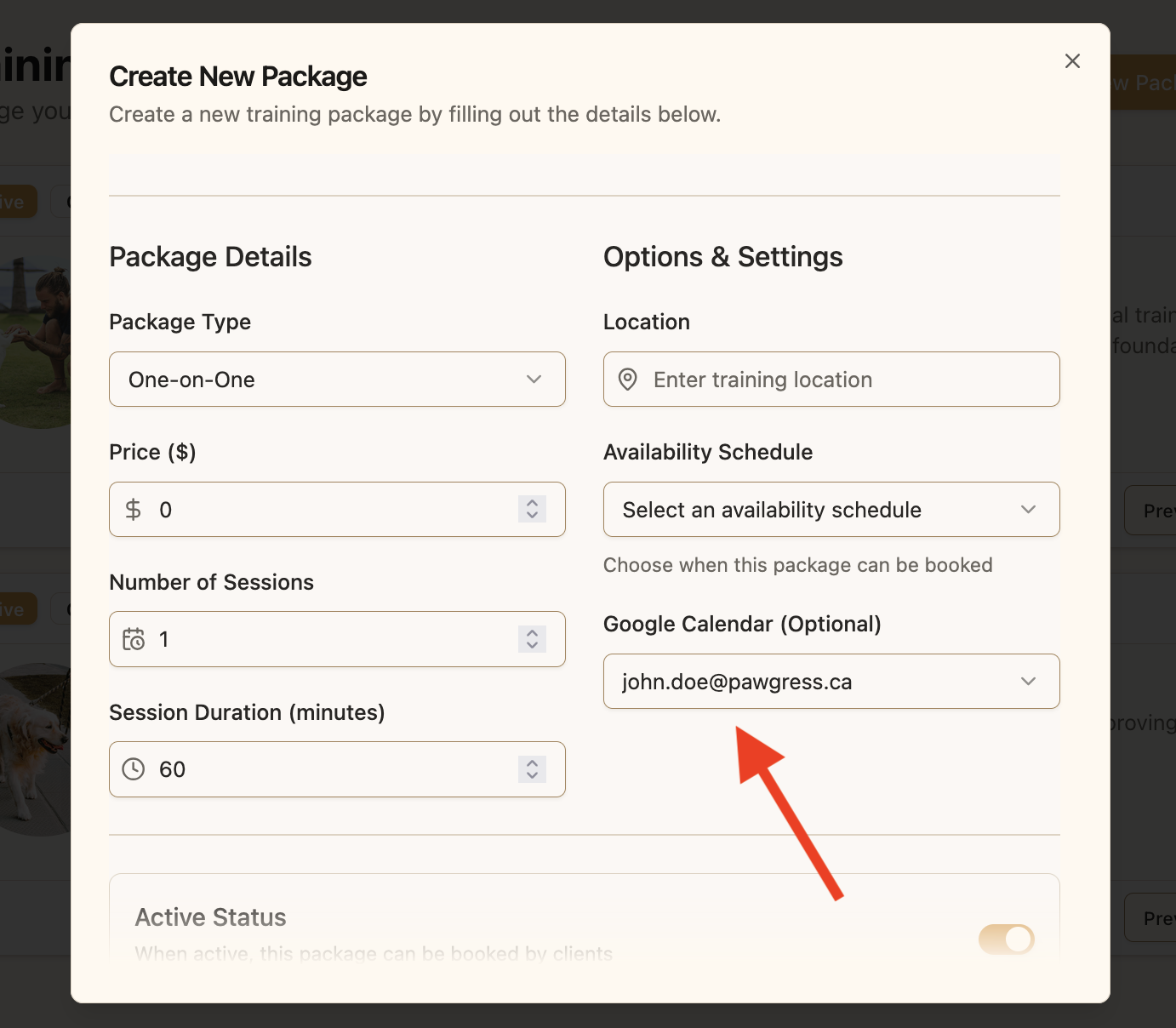
In the package creation/editing form:- Scroll down to the “Options & Settings” section
- Find the “Google Calendar (Optional)” dropdown
- Click to open the dropdown menu
- Select one of your Google Calendars from the list
- If you don’t see your calendars, make sure you’ve completed the connection process described above
Step 3: Save the Package
Once you’ve selected a calendar:- Complete the rest of the package details
- Click “Create Package” or “Save Changes” at the bottom of the form
- Your package is now linked to the selected Google Calendar
How it Works
Once you’ve set up the integration and linked a calendar to a package:- When a session is scheduled for that package, it will automatically be added to the linked Google Calendar
- The calendar event will include client name, pet name, location, and session details
- If a session is rescheduled in Pawgress, the Google Calendar event will update accordingly
- If a session is cancelled in Pawgress, the Google Calendar event will be removed
Troubleshooting
Calendar Not Showing in Dropdown
If your Google Calendars don’t appear in the dropdown:- Go back to the Integrations page and check if Google Calendar is properly connected
- Try disconnecting and reconnecting your Google account
- Make sure you have calendar access in your Google account permissions
Events Not Syncing
If sessions aren’t appearing in your Google Calendar:- Verify you’ve selected the correct calendar for the package
- Check if the integration is still connected in the Integrations page
- Try scheduling a new test session to verify the connection