

Training Reports Overview
Training reports are a powerful way to document your training sessions, communicate progress to clients, and maintain detailed records of each pet’s development. Reports allow you to share observations, recommend next steps, and showcase the value of your training services.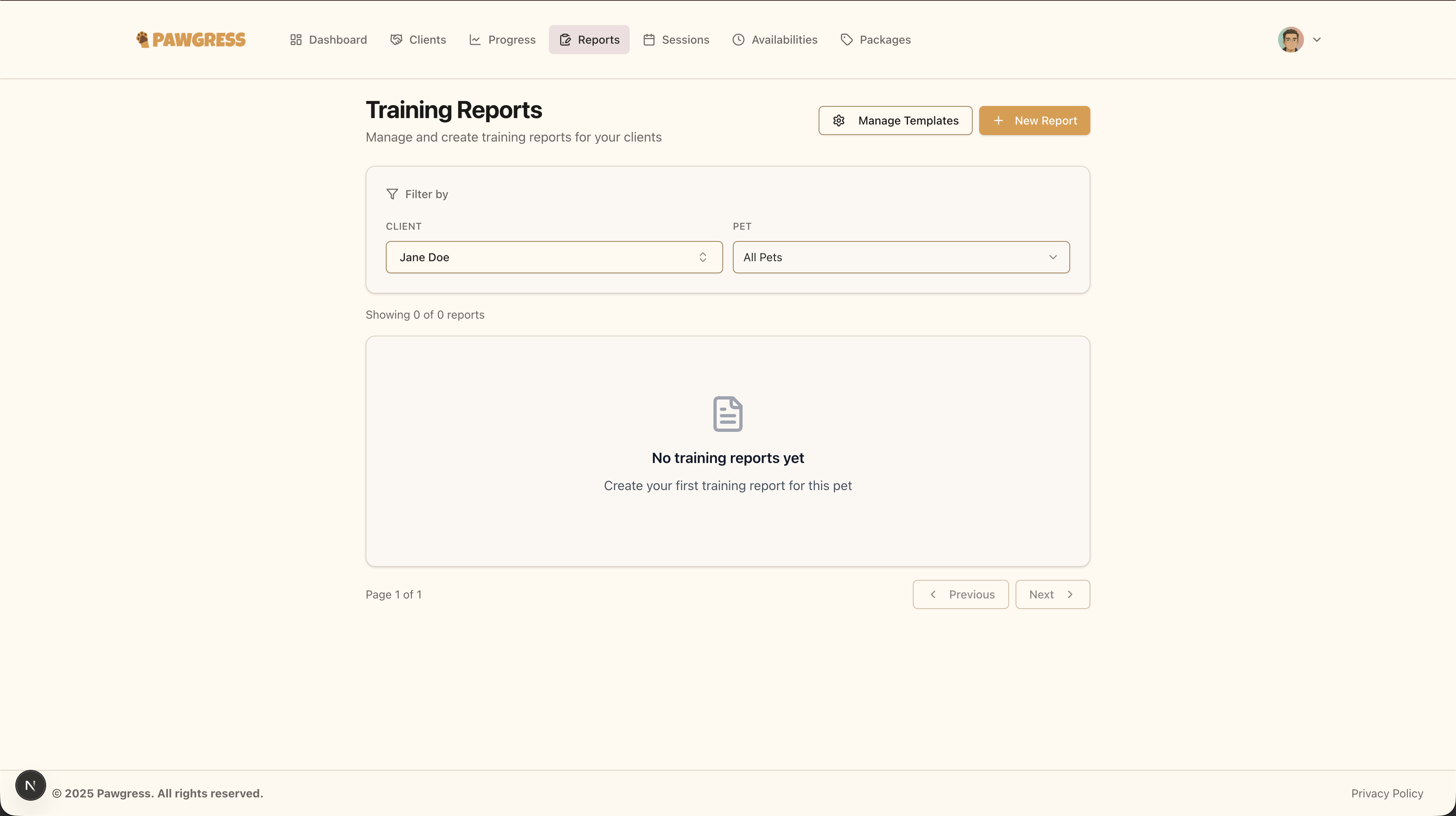
The Reports page displays all training reports you’ve created for your clients
Creating Your First Report
Step 1: Navigate to the Reports Page
From your dashboard, click on “Reports” in the main navigation menu. This will take you to the reports overview page where you can see all your existing reports.Step 2: Create a New Report
Click the “New Report” button in the top right corner of the page. This will open the report creation form.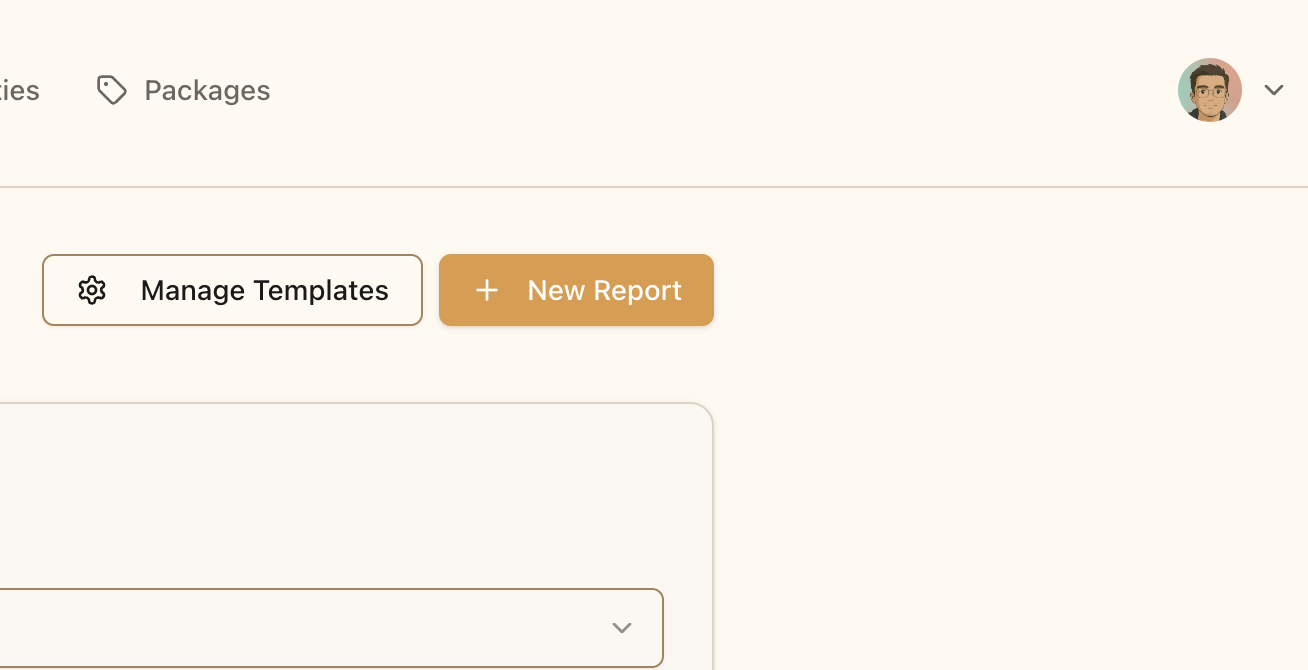
Click the “New Report” button to start creating a training report
Report Details
Select Client and Pet
First, you’ll need to choose who the report is for:- Select a Client: Choose from your list of active clients
- Select a Pet: After choosing a client, select which of their pets the report is about
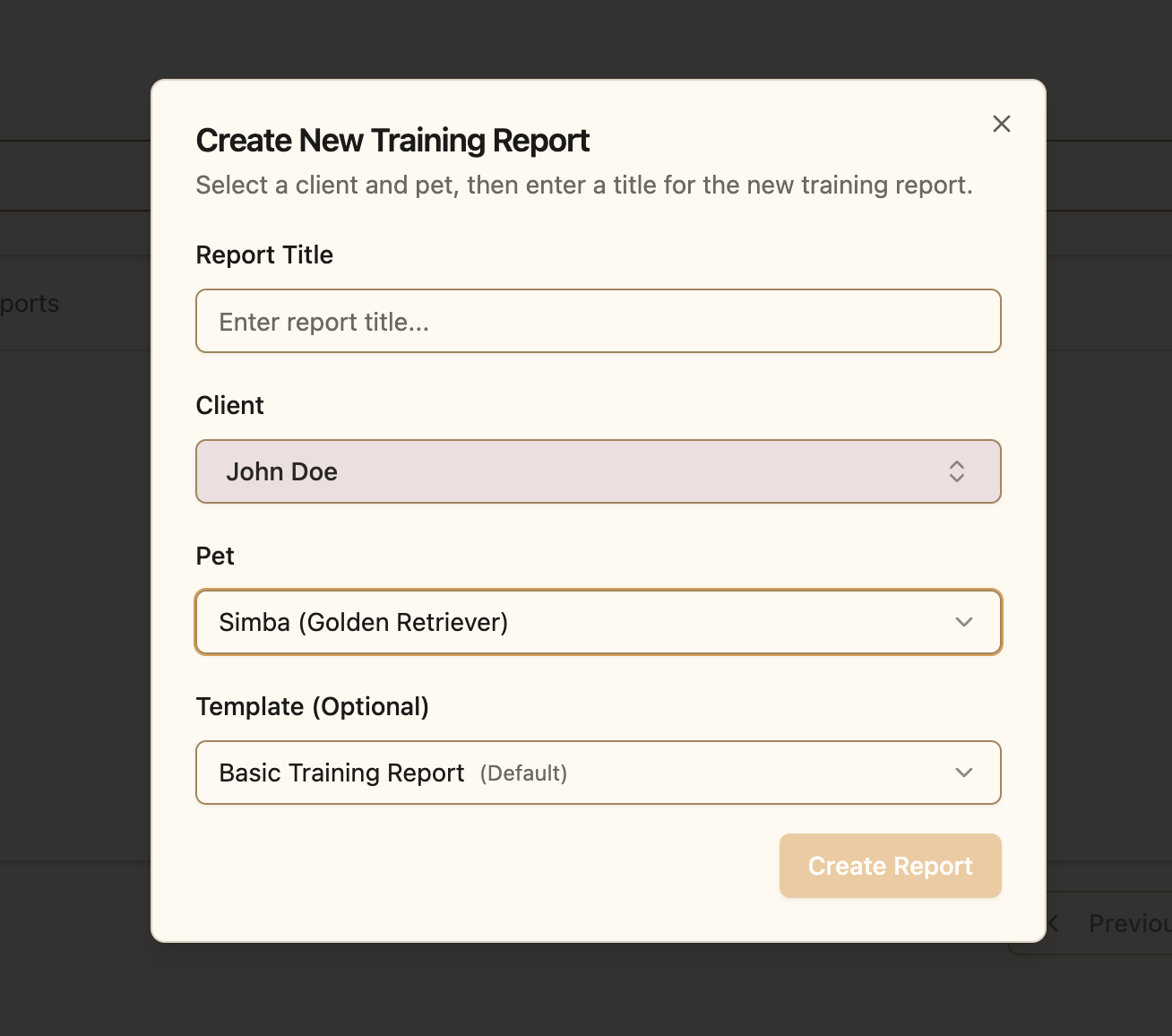
Select the client and pet for your training report
Choose a Template (Pro Feature)
If you’re a Pro subscriber, you can select from your library of report templates:- Click on the “Use Template” dropdown
- Browse through your available templates
- Select the template that best fits your needs
- The report editor will be pre-filled with your template structure
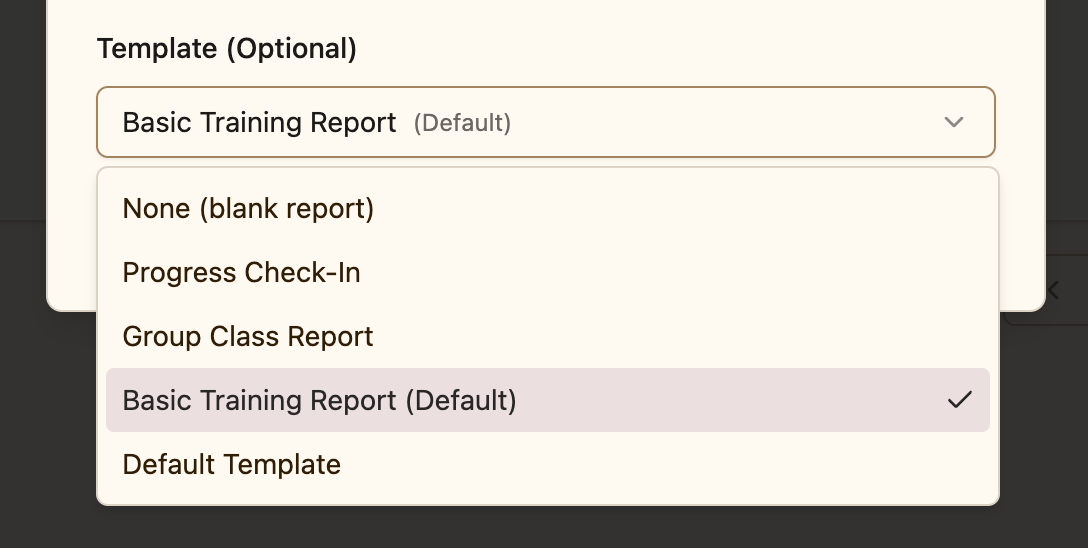
Choose from your library of report templates to streamline report creation
Templates are especially useful for:- Standardizing your reporting format
- Ensuring you cover all important topics
- Saving time on recurring report types (e.g., initial assessments, progress check-ins, graduation reports)
- Maintaining consistency across your training business
Creating Your Own TemplatesYou can create custom report templates from any report you’ve written:
- Write a report with your desired structure and sections
- Click the “Save as Template” button
- Give your template a name and description
- Use it for future reports with similar needs
Write Your Report Content
The report editor uses a rich text format, allowing you to:- Add headings for different sections (e.g., “Session Summary”, “Progress Notes”, “Next Steps”)
- Format text with bold, italics, and bullet points
- Create lists for observations or recommendations
- Add links to relevant resources or videos
- Structure content with proper formatting for professional presentation
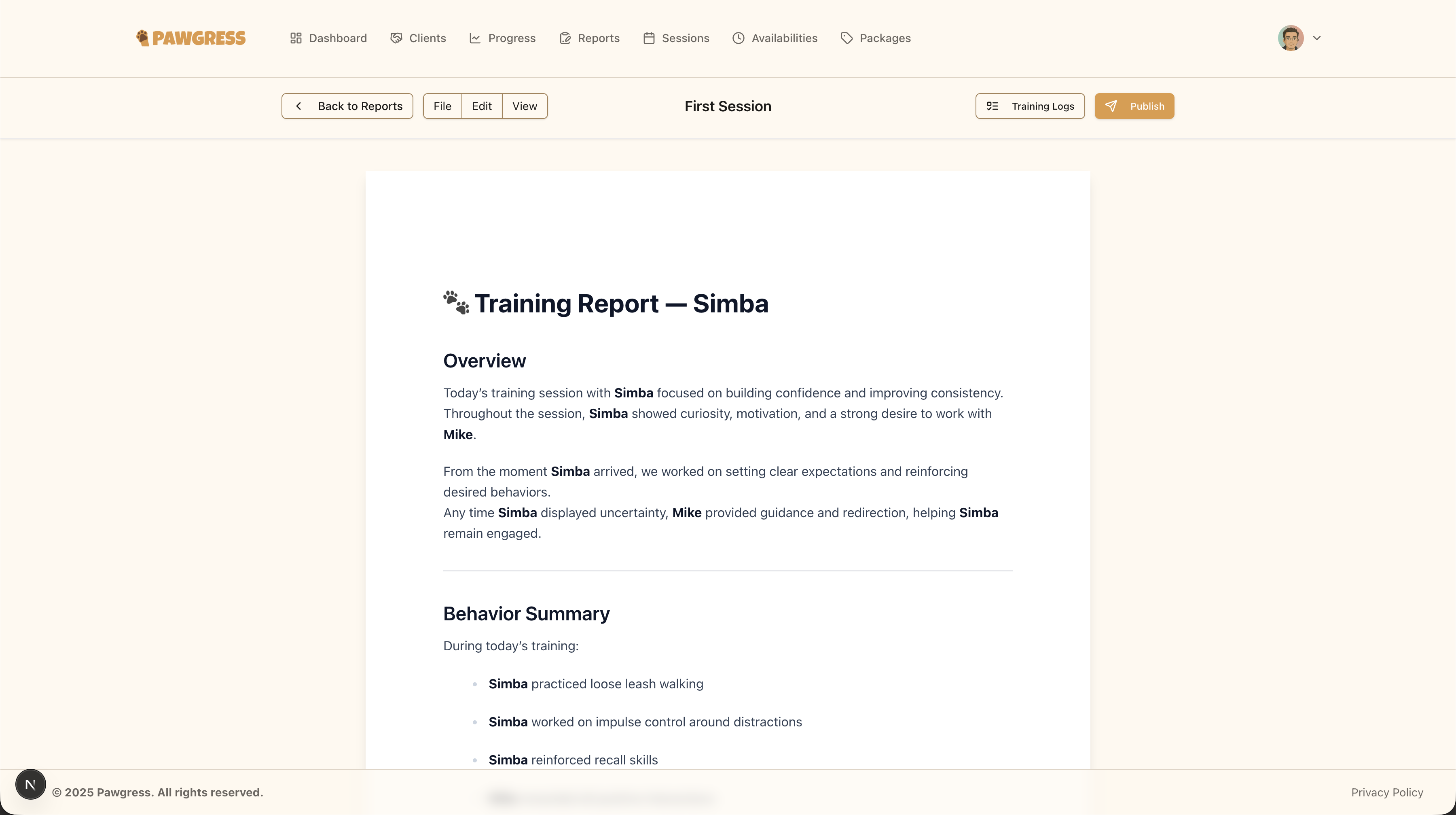
Use the rich text editor to create detailed, well-formatted training reports
Common Report Sections
Consider including these sections in your training reports:- Session Overview: Brief summary of what was covered
- Behavior Assessment: Observations on the pet’s current behaviors
- Progress Since Last Session: Improvements and changes noted
- Challenges: Any difficulties encountered during training
- Accomplishments: Successes and milestones achieved
- Homework: Practice activities for the client to work on
- Next Session Goals: What you’ll focus on in upcoming sessions
- Additional Notes: Any other relevant observations or recommendations
Saving and Sending Reports
Save as Draft
If you’re not ready to send the report yet:- Click the “Save Draft” button
- Your report will be saved and you can return to edit it later
- Drafts are only visible to you, not to clients
Publish Report
When your report is ready to share:- Review all content for accuracy and completeness
- Click the “Publish Report” button
- The report will be sent to your client
- Clients will receive an email notification with a link to view the report
- They can access the report anytime from their Pawgress account
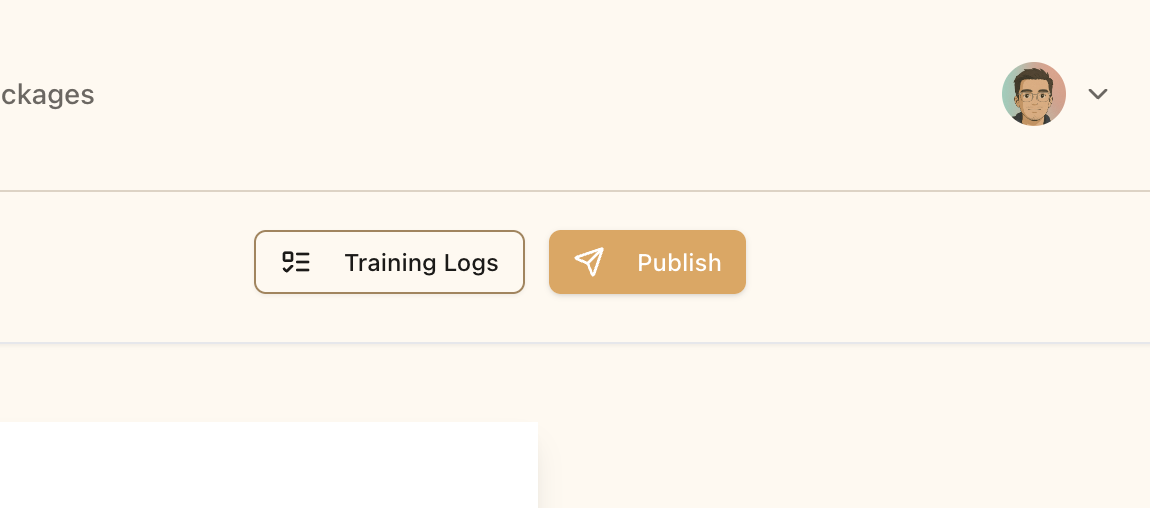
Publish your report to make it visible to your client
Client AccessOnce published, clients can:
- View the report in their Pawgress account
- Read your observations and recommendations
- Access the report history for their pet
- Download or print reports for their records
Managing Your Reports
Viewing Reports
Return to the Reports page to see all your training reports:- Reports are organized by date with the most recent first
- Each card shows the client name, pet name, and creation date
- Click on any report to view full details or make edits
- Use the search function to find specific reports
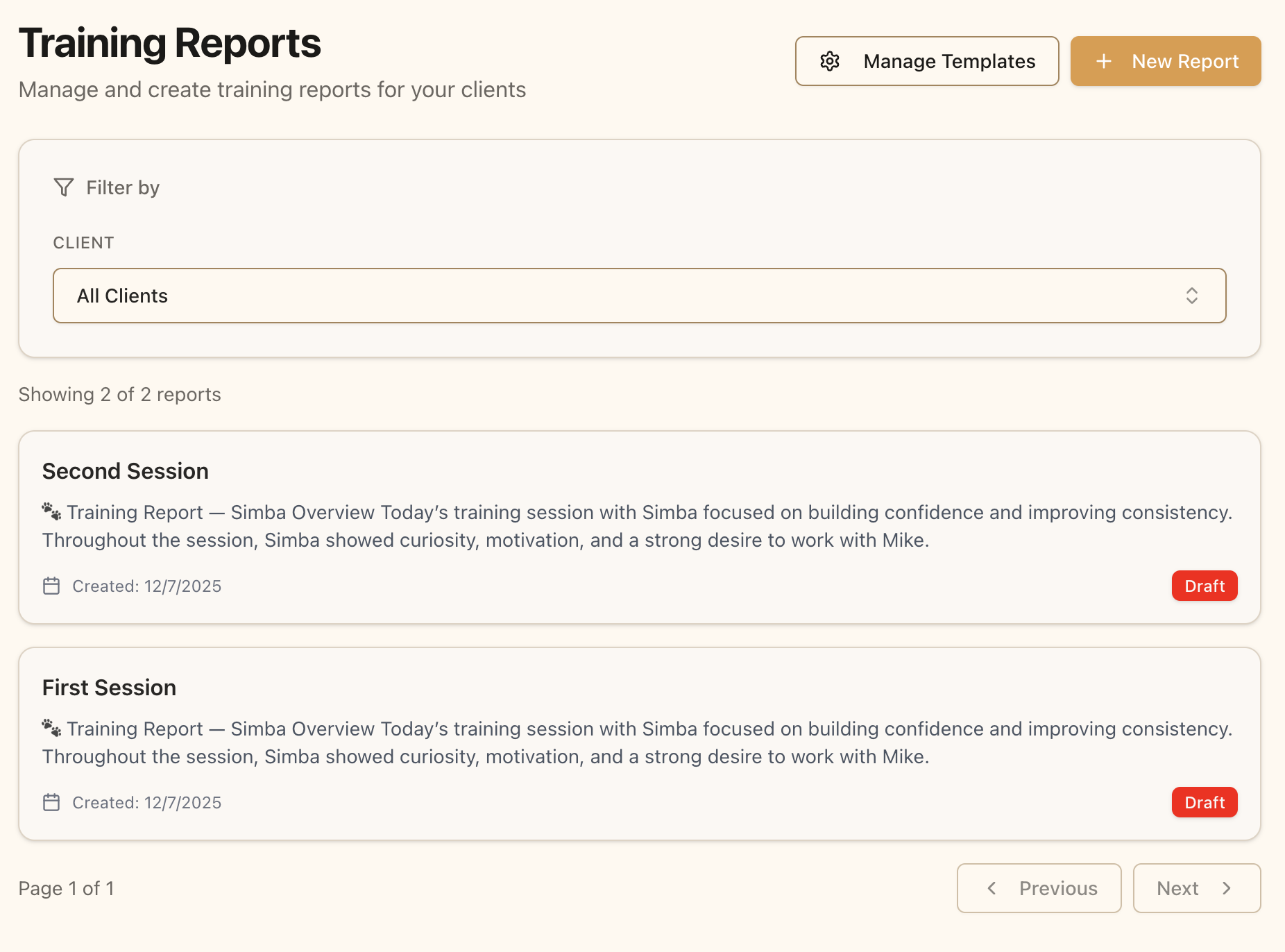
Your reports list shows all training reports you’ve created
Filtering Reports
Use the filters at the top of the Reports page to find specific reports:- By Client: See all reports for a specific client
- By Pet: View reports for a particular pet
- By Date Range: Find reports from a specific time period
- By Status: Filter between published reports and drafts
Editing Published Reports
You can edit reports even after they’ve been published:- Click on the report you want to edit
- Make your changes in the editor
- Click “Save Changes”
- The updated version will be visible to the client
- Clients are notified when a report is updated
Report Best Practices
Consistency is Key
Establish a regular reporting schedule:- After Every Session: Document observations while fresh
- Weekly or Bi-weekly: For ongoing training programs
- At Milestones: When pets achieve significant goals
- End of Package: Comprehensive summary when completing a training package
Use Templates for Efficiency
If you’re a Pro subscriber, create templates for common scenarios:- Initial Assessment Template: For evaluating new clients
- Weekly Progress Template: For regular check-in reports
- Behavior Modification Template: For specialized training
- Graduation Template: For completing training programs
Keep Detailed Records
Training reports serve as:- Legal Documentation: Record of training services provided
- Progress Tracking: Historical record of development over time
- Communication Tool: Clear dialogue with clients about their pet’s journey
- Marketing Asset: Demonstrate your professionalism and thoroughness
Next Steps
Now that you know how to create training reports, you can:- Schedule training sessions and follow up with reports
- Track client progress using behavior logs
- Upgrade to Pro to access report templates and save time
- Establish a consistent reporting routine for your training business