

What is the Zoom Integration?
Pawgress’s Zoom integration allows you to automatically create and manage Zoom meetings for your virtual training sessions. When you schedule a virtual session in Pawgress, a Zoom meeting is created automatically, and the meeting details are shared with your client. This streamlines the process of conducting online training sessions.Pro FeatureZoom integration is a Pro feature in Pawgress, allowing you to:
- Connect your Zoom account to Pawgress
- Automatically create Zoom meetings for virtual sessions
- Include Zoom meeting links in client notifications
- Manage virtual sessions seamlessly alongside in-person training
Setting Up Zoom Integration
Step 1: Navigate to the Integrations Page
From your dashboard, click on “Integrations” in the main navigation menu. This will take you to the integrations overview page.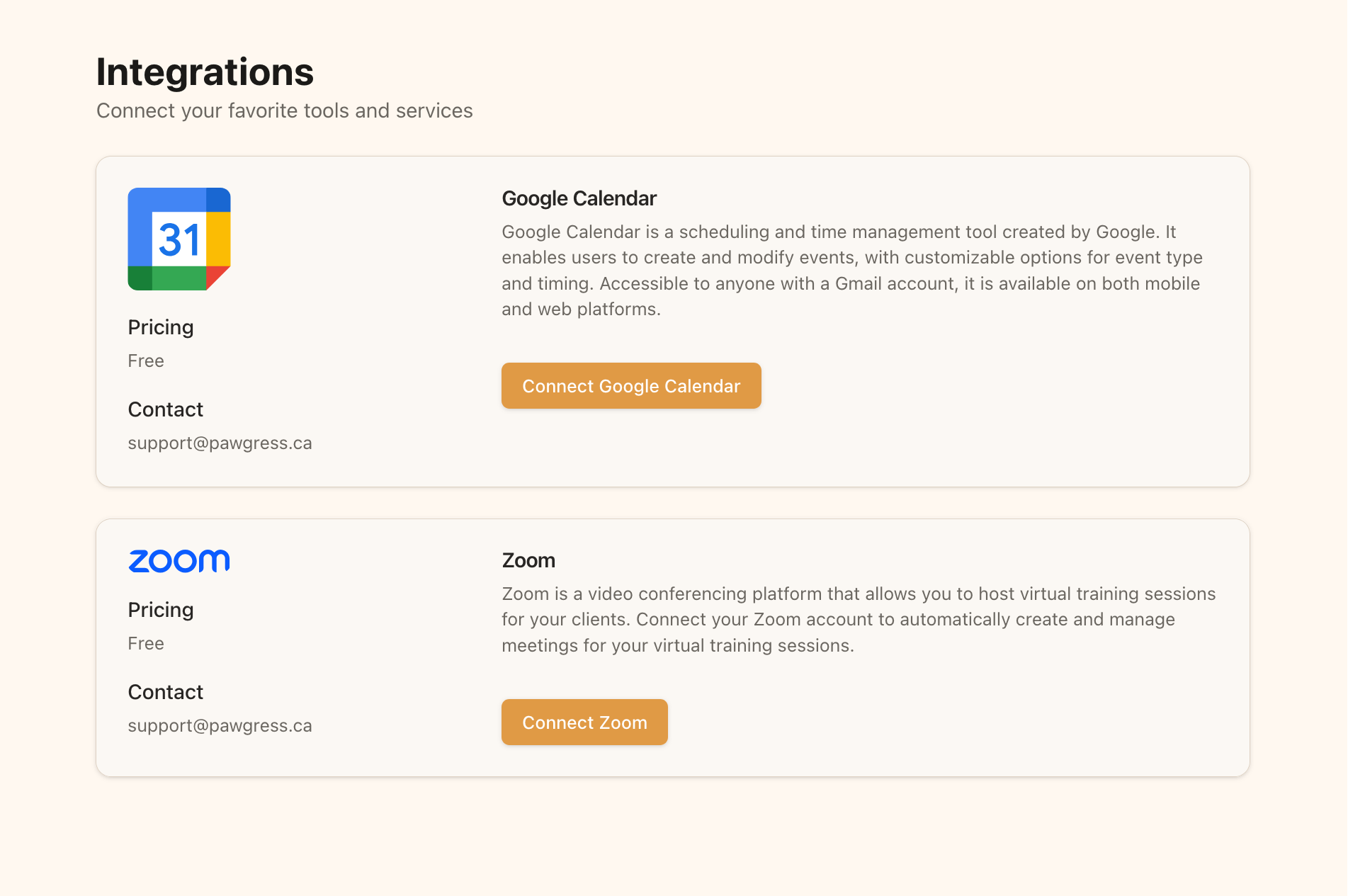
Step 2: Connect Zoom
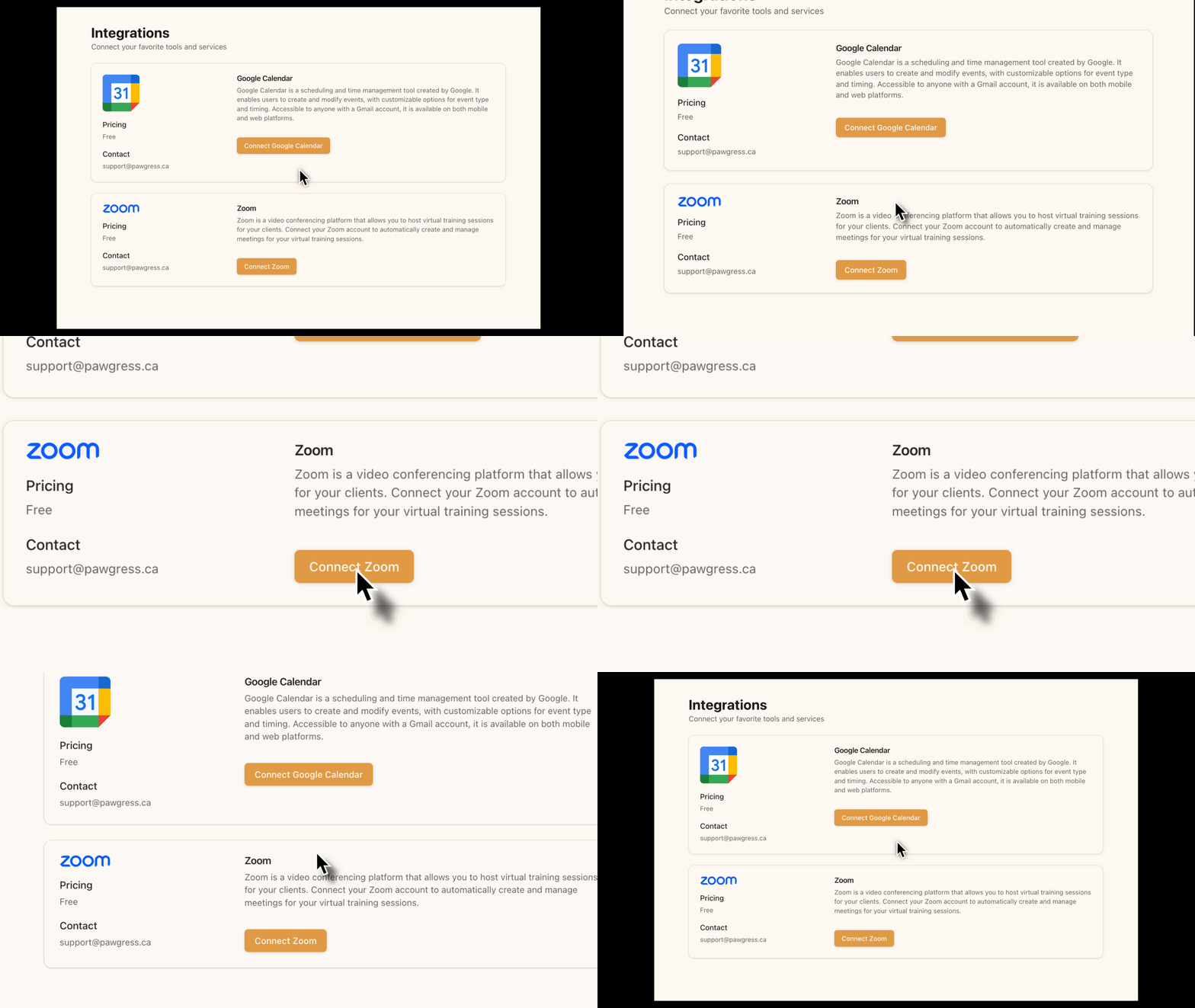
On the Integrations page:- Find the Zoom section
- Click the “Connect Zoom” button
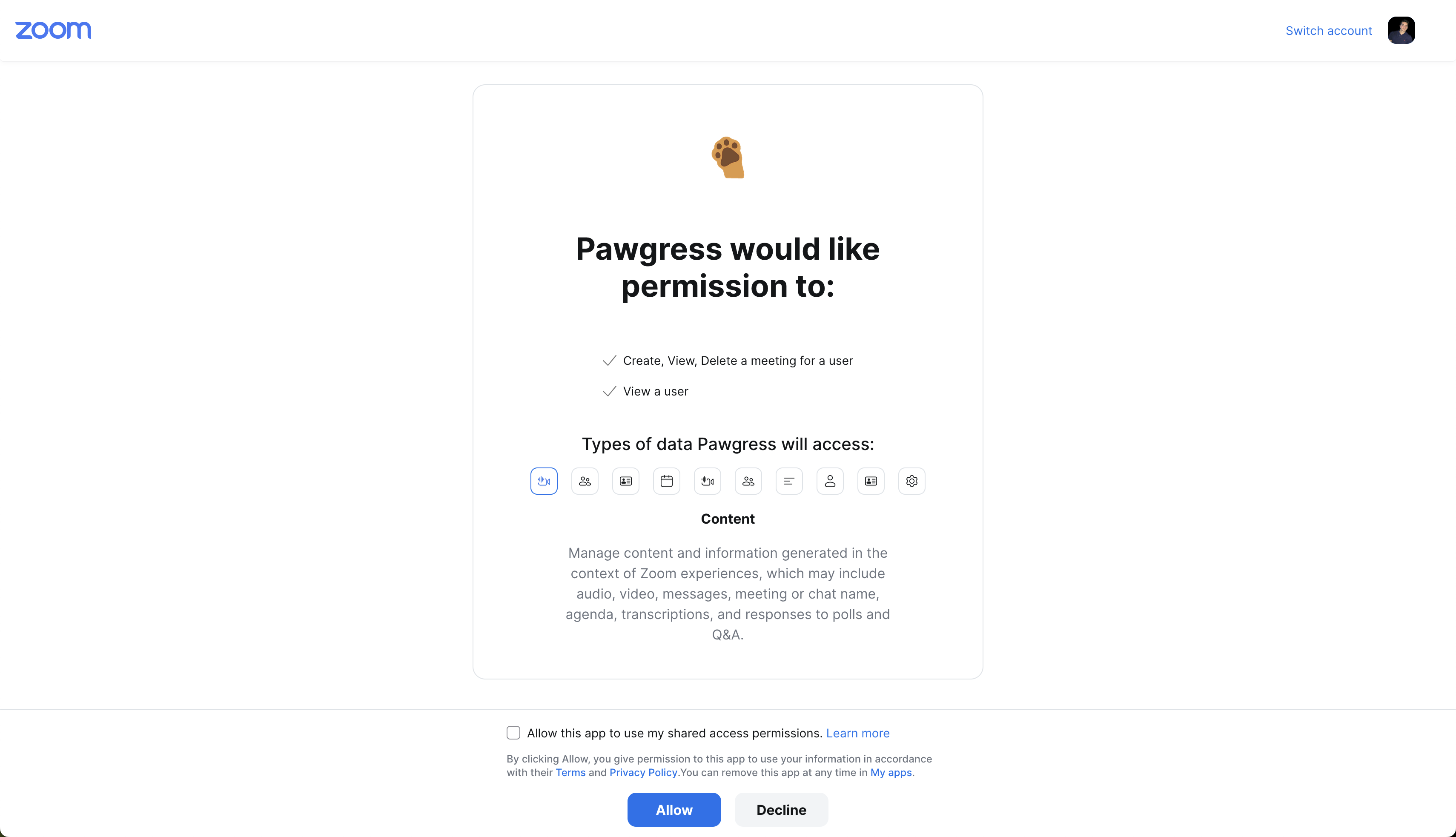
- You’ll be redirected to Zoom’s authentication page
- Log in to your Zoom account if prompted
- Grant Pawgress permission to access your Zoom account
- You’ll be redirected back to Pawgress once the connection is successful
Step 3: Verify Connection
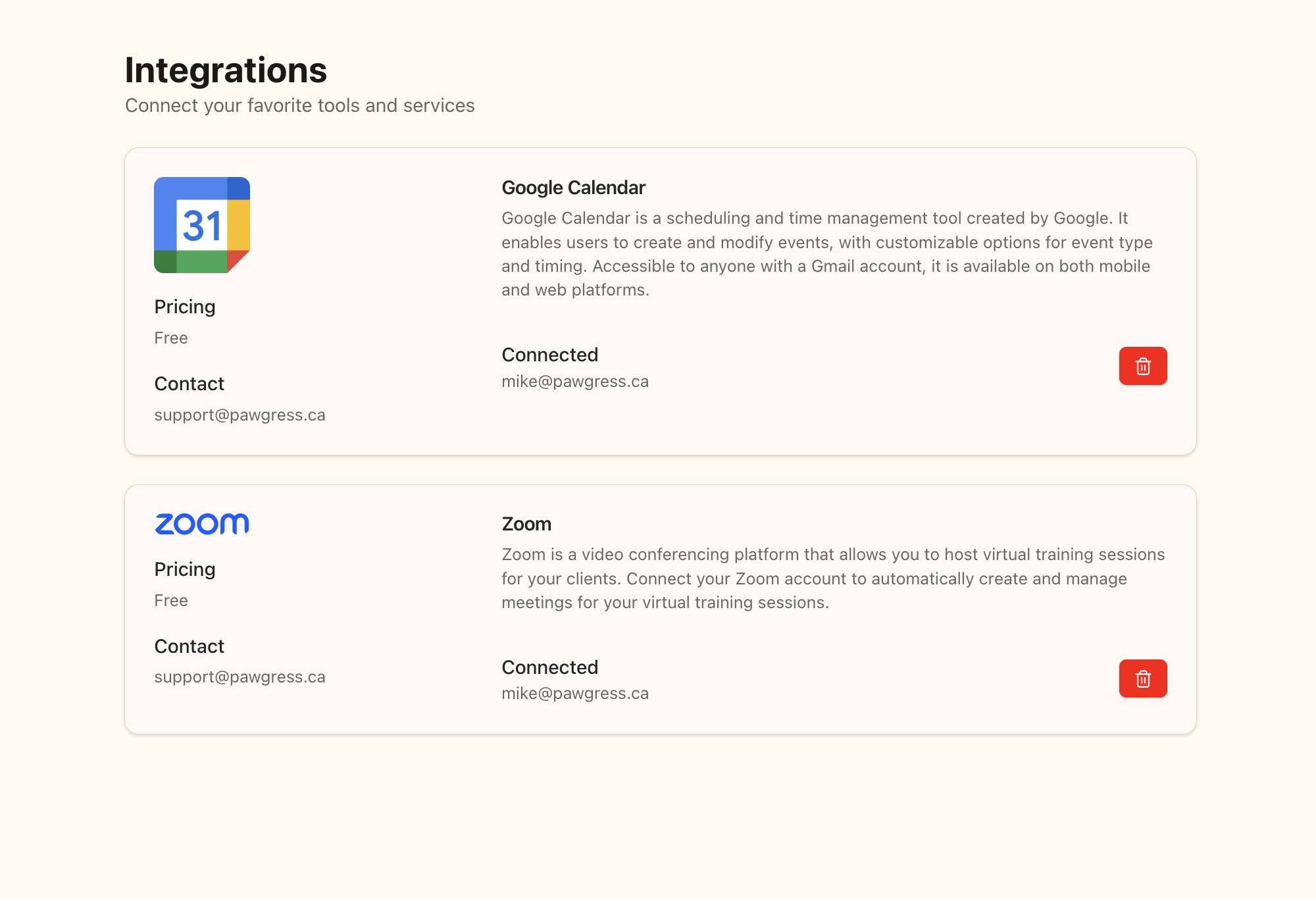
After redirecting back to Pawgress, you should see your Zoom account displayed as connected:- The status will change to “Connected”
- Your Zoom account email will be displayed
- A delete button will appear in case you want to remove the integration later
Creating a Virtual Training Session
Step 1: Navigate to Sessions
From your dashboard, click on “Sessions” in the main navigation menu to access the sessions page.Step 2: Schedule a New Session
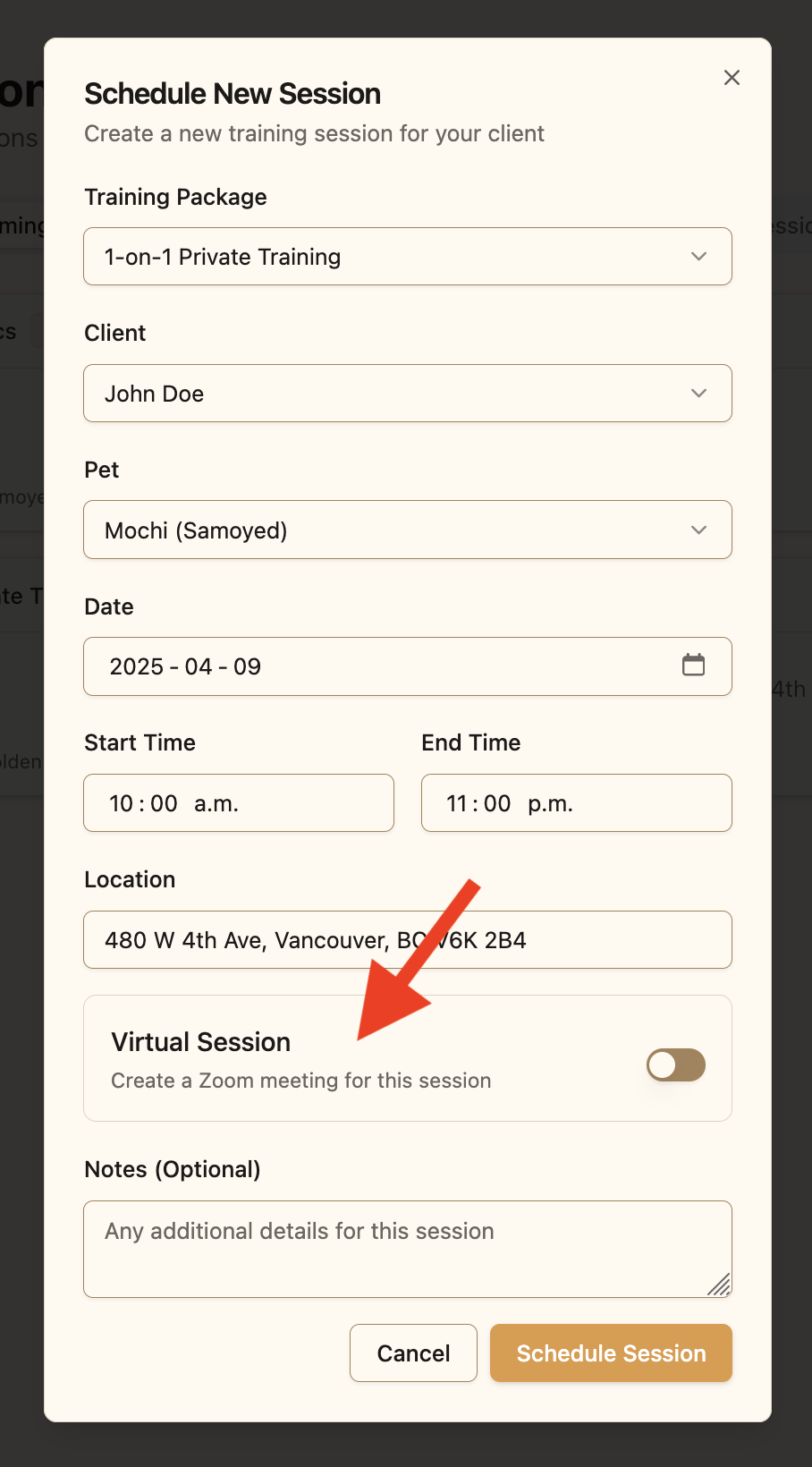
Click the “Schedule Session” button to open the scheduling dialog.Step 3: Fill in Session Details
In the session creation form:- Select a training package
- Choose a client
- Select a pet
- Set the date, start time, and end time
- Enter a location (this can be “Virtual” or similar for online sessions)
- Toggle the “Virtual Session” switch to ON
- Add any notes about the session (optional)
Step 4: Create the Session
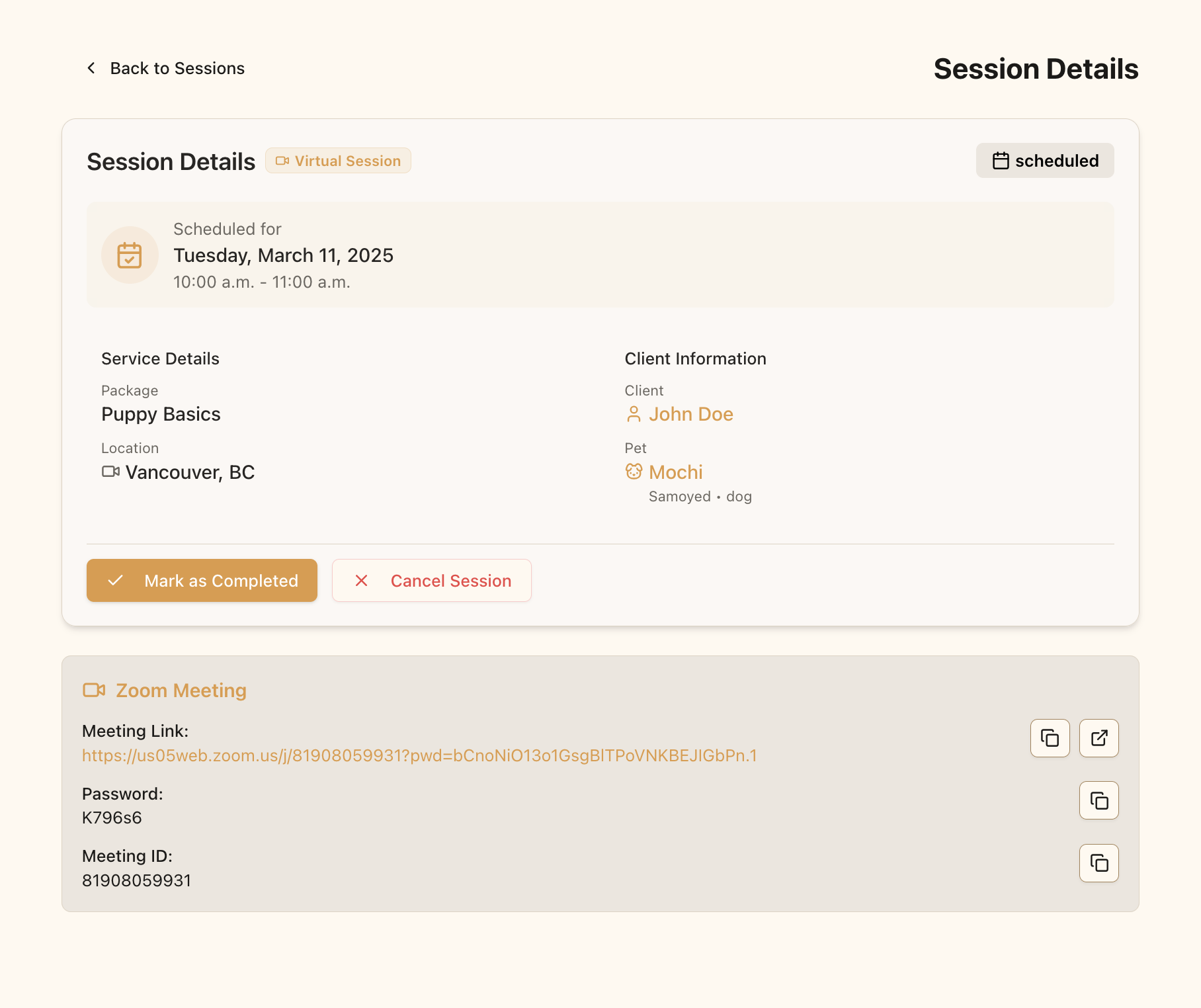
Click “Schedule Session” to create the session and generate a Zoom meeting.- Pawgress will create a Zoom meeting with the date and time you specified
- The meeting details (link, meeting ID, passcode) will be stored in Pawgress
- Both you and your client will be able to access the meeting details from the session card
Managing Virtual Sessions
Accessing the Zoom Meeting
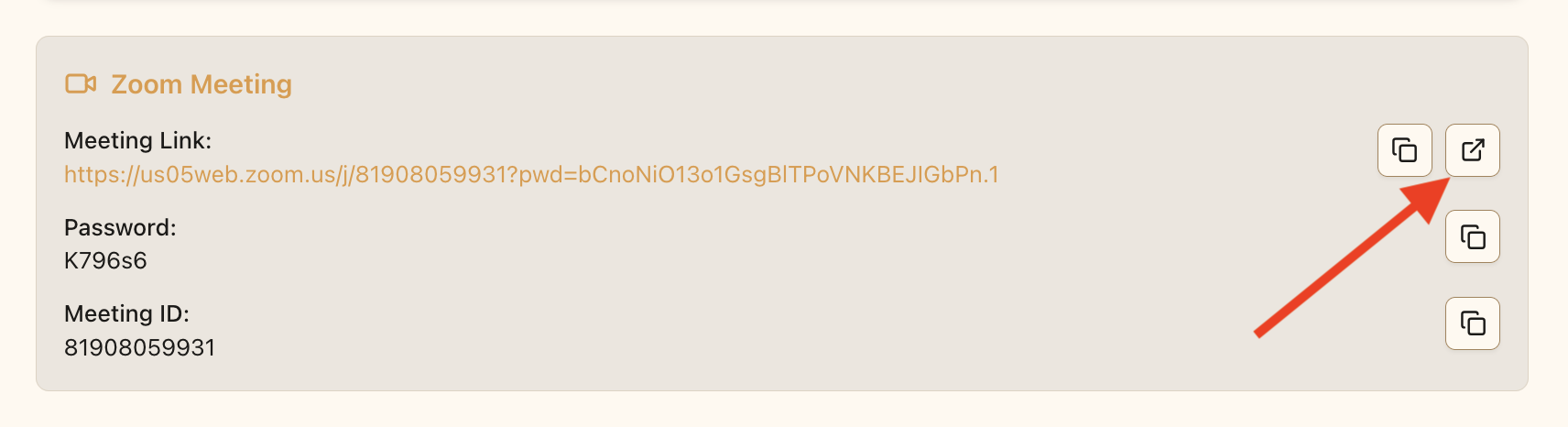
To access the meeting as a trainer:- Go to the Sessions page
- Find the virtual session in your upcoming sessions
- Click on the session card to expand details
- Click the “Join Zoom Meeting” button
Confirming Created Zoom Meetings
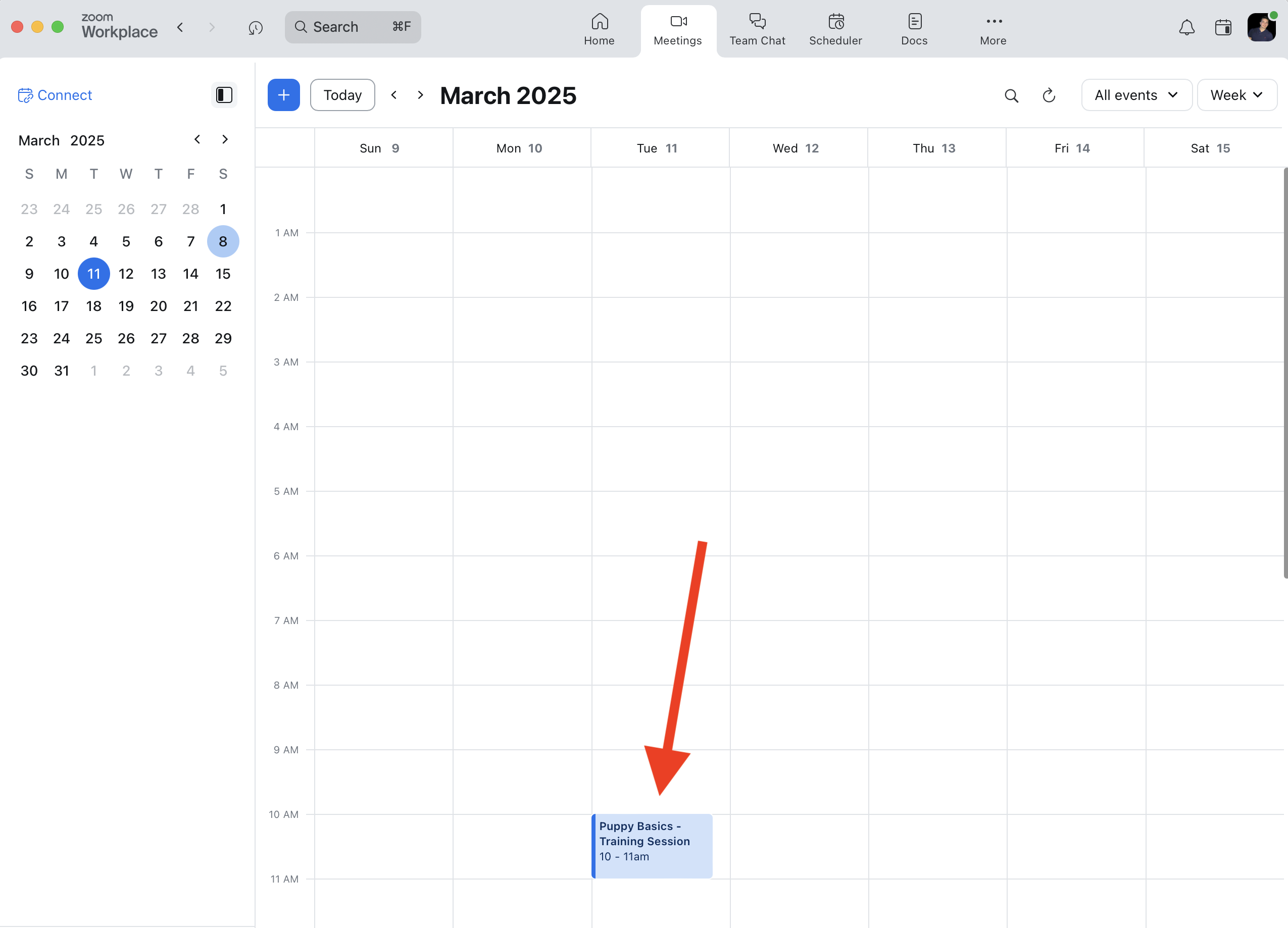
You can verify that the meeting was created in your Zoom account:- Log in to your Zoom account at zoom.us
- Go to the “Meetings” section
- Find the meeting created by Pawgress in your scheduled meetings list
Troubleshooting
Zoom Integration Not Working
If you’re having trouble with the Zoom integration:- Go to the Integrations page and check if Zoom is properly connected
- Try disconnecting and reconnecting your Zoom account
- Make sure your Zoom account is active and not in a free trial that has expired
Meeting Not Created
If a Zoom meeting isn’t created when scheduling a virtual session:- Verify that you toggled the “Virtual Session” switch to ON
- Check that your Zoom integration is still connected in the Integrations page
- Ensure your Zoom account has sufficient meeting credits (if using a paid account)